


Salesforce1 Mobile App Admin Guide
 j
jCreate, Edit, and Delete Records in Salesforce1 While Offline (Beta)
When Offline Edit is enabled:
- Create a record using the New button on an object home page. (For tasks, use the New button on the My Tasks list.) The “new record” actions in an action bar (such as New Task or New Contact, or New on related lists) don’t work offline.
- Update the details of a record using the Edit action on the record’s action bar.
- Delete a record using the Delete action on the record’s action bar.
See Data and UI Elements That Are Available When Salesforce1 is Offline for the full list of data that can be updated with Offline Edit.
Keep Track of Offline Updates
Users can keep track of all changes made while offline from the Pending Changes page. This page is available from the Salesforce1 navigation menu.
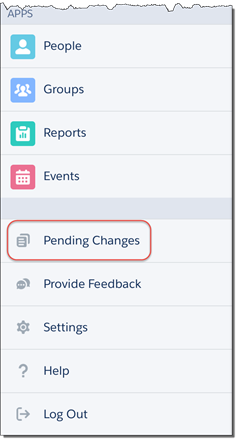
See the Status of Offline Updates
To help users monitor the status of changes made while offline, indicators display in several places in Salesforce1, including: the Pending Changes page, object home pages, and in the highlights area on updated records.
-
 : Displays while the mobile device is offline. Indicates that there are
changes to sync when the device goes back online. After successfully syncing, records
disappear from the Pending Changes page.
: Displays while the mobile device is offline. Indicates that there are
changes to sync when the device goes back online. After successfully syncing, records
disappear from the Pending Changes page. -
 : Displays when the mobile device goes back online. Indicates that
there are data conflicts that the user must resolve.
: Displays when the mobile device goes back online. Indicates that
there are data conflicts that the user must resolve. -
 :
Displays when the mobile device goes back online. Indicates that an unresolvable error
occurred and the user’s changes can’t be saved.
:
Displays when the mobile device goes back online. Indicates that an unresolvable error
occurred and the user’s changes can’t be saved.
When Connectivity is Restored
When the user’s mobile connectivity is restored, the changes listed on the Pending Changes page are automatically synced with Salesforce. If there are any sync issues that require the user’s attention—such as validation errors or conflicting changes to the same record made by a different user—Salesforce1 alerts the user.
To resolve sync problems, the user can respond to the pop-up alert message or select Pending Changes from the Salesforce1 navigation menu and tap the affected record. Salesforce1 highlights the issues that need resolution, and after the necessary fixes are saved, tries again to sync the pending changes. Records with unsynched changes are locked to prevent further changes until the problems are resolved.
Unresolvable errors are rare, typically occurring if someone else deleted the record or changed the user’s access permissions for the record while the user was offline. Pending changes that have unresolvable errors can't be saved. The only option is for the user to dismiss the changes by tapping the affected record on the Pending Changes page.