


Salesforce App Admin Guide
 j
jCreate, Edit, and Delete Records in the Salesforce App While Online or Offline (Beta)
Keep Track of Updates
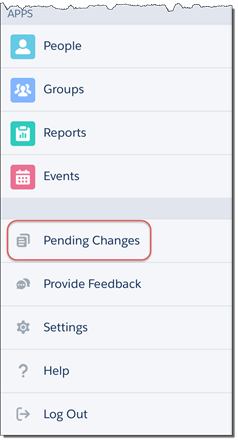
Users can keep track of all changes made while online or offline from the Pending Changes page. This page is available from the Salesforce app navigation menu.
Understanding the Status of Updates
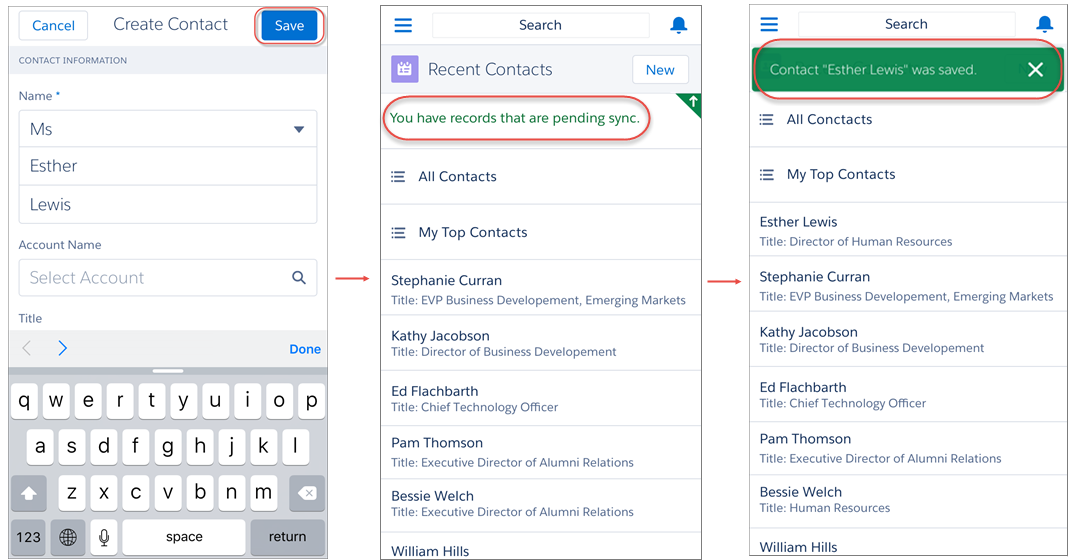
To help users monitor the status of changes made while online or offline, visual indicators display in several places in the Salesforce app, including: the Pending Changes page, object home pages, and in the highlights area on updated records.
-
 : Indicates that there are no conflicts to changes made while online
or offline. Records disappear from the Pending Changes page after successfully syncing to
Salesforce.
: Indicates that there are no conflicts to changes made while online
or offline. Records disappear from the Pending Changes page after successfully syncing to
Salesforce. -
 : Indicates that there are conflicts to changes that must be
resolved.
: Indicates that there are conflicts to changes that must be
resolved. - If the changes are made while online, the appears
immediately to indicate that there are conflicts.
- If the changes are made while offline, the appears when
network connectivity is restored to indicate that there are conflicts.
Pending changes may contain conflicts for several reasons:- Validation rule error
- Apex trigger error
- Workflow rule error
- Duplicate rule error
If users encounter conflicts when saving a record, whether online or offline, they must go to the Pending Changes page to see the details of the error. Users can tap on a record where
appears, and
they are taken to a Conflict Resolution page to resolve the issue. After the conflict is
resolved, the record disappears from the Pending Changes page after successfully syncing
to Salesforce. - If the changes are made while online, the
-
 :
Indicates that an error has occurred.
:
Indicates that an error has occurred.- If the changes are made while online, the appears immediately to
indicate an error.
- If the changes are made while offline, the appears when network
connectivity is restored to indicate an error.
appears, they are taken to the
edit page of that record to fix the error.While rare in occurrence, sometimes an error is irreconcilable. For example, if an edit is made to a record while offline and someone else deleted that record from Salesforce, the
that appears on that change
is irreconcilable. In this scenario, users can only dismiss the irreconcilable change
from the Pending Changes page. - If the changes are made while online, the
See Data and UI Elements That Are Available When the Salesforce App is Offline for the full list of data that can be updated with Offline Edit.