


Lightning Communities Developer Guide
 j
jNewer Version Available
How Do Custom Theme Layouts Work?
A theme layout type categorizes the pages in your community that share the same theme layout. You can assign a theme layout to an existing type or create custom types. Then you apply the theme layout type—and thereby the theme layout—in the page’s properties.
- Inner applies the Customer Service theme layout to all pages, except the login pages.
- Login applies the Login Body Layout theme layout to the login pages.
- Home isn’t applied to any pages. However, the Home layout type is ideal for applying a separate theme layout when you want your home page to look different from the inner pages in your community.
Example
Let’s say you create three pages for your upcoming Spring campaign. Using the forceCommunity:themeLayout interface, you create a custom
Large Header theme layout in the Developer Console. In the area, you add a custom theme layout type called Spring to categorize the
campaign pages and you assign the Large Header layout to it.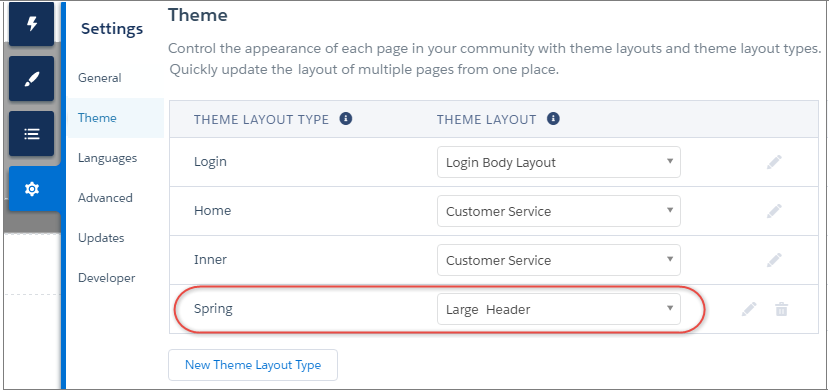
Next, you apply the Spring theme layout type in each page’s properties, which instantly
applies the Large Header layout to each page.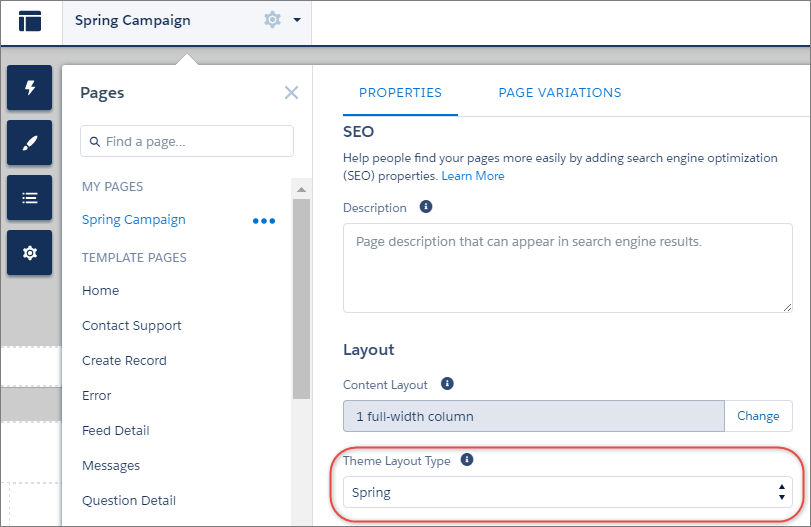
Everything looks rosy until the VP of marketing decides that the header takes up too much room. That’s an easy fix, because you don’t have to update the properties of each page to change the theme layout. Instead, with one click in the Theme area, you can switch Spring to the Small Header layout and instantly update all three pages.

Example
Now let’s say you have two custom properties—Blue Background and Small Logo—in the Small Header layout, which you’ve enabled and applied to all your campaign pages. However, for one page, you want to apply only the Small Logo property.
In this case, you can create a theme layout type called Spring B, assign the Small Header
layout to it, and enable Small Logo. Then apply the Spring B layout type to the page.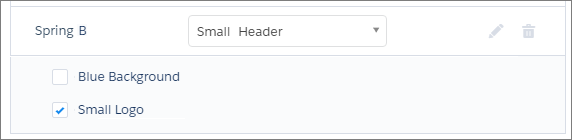
Theme layout types make it easy to reuse the same theme layout in different ways while maintaining as much granular control as you need.