


Salesforce App Developer Guide
 j
jGetting Around in the Salesforce App
When users log in to Salesforce, the first thing they see is a landing page. The first item in the navigation menu becomes a users’ landing page by default. If your organization has Chatter enabled, and you haven’t customized the navigation menu to change the first item in the menu to something else, the user’s Feed will be their landing page.
The Feed
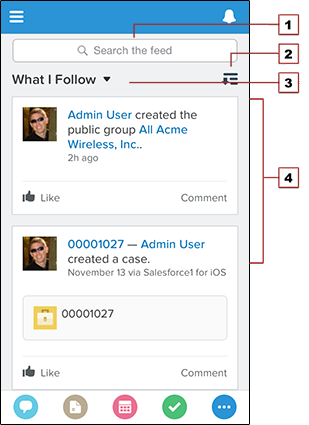
The Chatter feed shows users their updates, updates to records and people they follow, and updates in groups they follow. Tapping a feed item displays all of the item’s details. Pulling down on the feed reveals the search bar (1), sort and filter options (2), the feeds drop-down menu (3), and feed items (4).
From the feed, record pages, and from elsewhere in Salesforce, users access actions from the action bar.
The Action Bar and Menu
Depending on which feed or record page users are viewing, they see
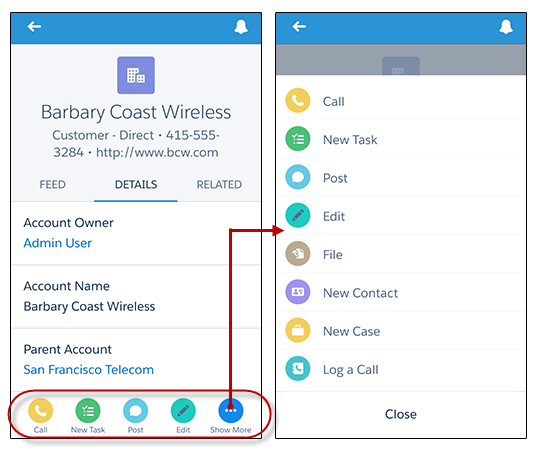
different actions in the action bar and action menu. From the feed, for example, they see a
set of global actions. From a record page, however, they see a mix of productivity actions,
standard and custom buttons, standard Chatter actions such as Post and File, and global and
object-specific actions that are assigned to the layout for that record type. Users can tap
 from the action bar to open the action menu, which
contains the full set of actions that are available for the object.
from the action bar to open the action menu, which
contains the full set of actions that are available for the object.
We’ll go over creating and customizing actions in Using Actions in the Salesforce App.
Salesforce App Navigation Menu
Anywhere users see  , they can tap
it to access the navigation menu. If a user doesn’t see , they can swipe
left to right on the header bar to open the navigation menu.
, they can tap
it to access the navigation menu. If a user doesn’t see , they can swipe
left to right on the header bar to open the navigation menu.
What your users see in the menu is determined by how you, as the administrator, have configured it, what’s available in your organization, and what users have access to, based on their user permissions and profile.

- Search box
- Menu items—any items you place above the Smart Search Items element when you customize the navigation menu
- Smart Search Items—includes a set of recently-searched objects in the Recent section and a larger set of supported objects under the More link
- Apps section—contains any items you place below the Smart Search Items element
From the navigation menu, users can access the feed, objects, apps, tasks, notes, and any other item you’ve added to the menu. We’ll go over the components of the navigation menu in more detail in About the Salesforce Navigation Menu. But for now, let’s take a look at records.
The Record View
The record view is made up of the record feed, detail, and related information pages, which your users can swipe left and right to see. If your organization doesn’t have Chatter enabled, the record view only includes the detail and related information pages.

At the top of each record page is the record highlights area. The icon for standard objects is predefined in Salesforce, and you can select the icon for a custom object using the custom object’s tab style.
You can customize the fields displayed in the record highlights section by using compact layouts, which we’ll look at in About Compact Layouts.

- Back arrow—returns the user to the previous page
- Record highlights—displays the first four fields that are assigned to the compact layout for the object
What else do I need to know?
From the top of most pages, users can access their notifications by tapping  .
.
Users can create a new record by tapping New at the top of recent object pages, search pages, and related list pages. They can also create and update records by using actions in the action bar.