Lightning Communities Developer Guide
Summer '26 (API version 67.0)
Spring '26 (API version 66.0)
Winter '26 (API version 65.0)
Summer '25 (API version 64.0)
Spring '25 (API version 63.0)
Winter '25 (API version 62.0)
Summer '24 (API version 61.0)
Spring '24 (API version 60.0)
Winter '24 (API version 59.0)
Summer '23 (API version 58.0)
Spring '23 (API version 57.0)
Winter '23 (API version 56.0)
Summer '22 (API version 55.0)
Spring '22 (API version 54.0)
Winter '22 (API version 53.0)
Summer '21 (API version 52.0)
Spring '21 (API version 51.0)
Winter '21 (API version 50.0)
Summer '20 (API version 49.0)
Spring '20 (API version 48.0)
Winter '20 (API version 47.0)
Summer '19 (API version 46.0)
Spring '19 (API version 45.0)
Winter '19 (API version 44.0)
Summer '18 (API version 43.0)
Spring '18 (API version 42.0)
Winter '18 (API version 41.0)
Summer '17 (API version 40.0)
Step 1: Create the Basic Theme Layout Structure
Step 2: Define a Tokens Bundle
Step 3: Add a Logo Component
Step 4: Build a Vertical Navigation Menu
Step 5: Build a Custom Search Component
Step 6: Add Configuration Properties to the Theme Layout
Analyze and Improve Community Performance
Newer Version Available
Example: Build a Condensed Theme Layout Component
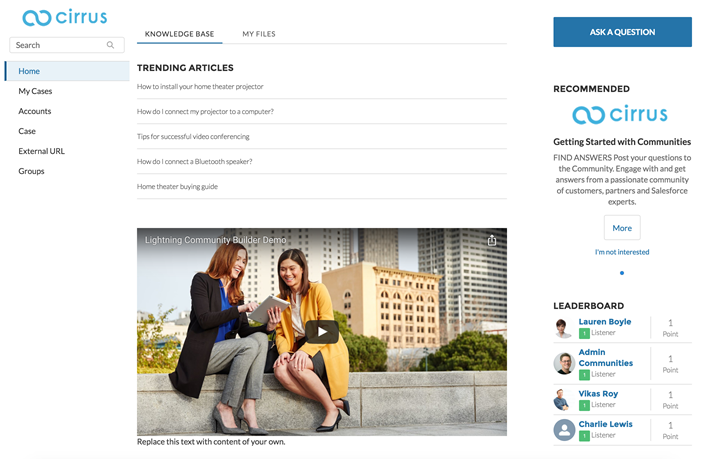
Let’s look at how to create a sample theme layout component for a home page, which uses
a side navigation bar and a custom search component, and removes the header
entirely.
Using the code samples in this section, you can create the skeleton for a custom theme layout.
-
Step 1: Create the Basic Theme Layout Structure
To create the basic structure of the theme layout component, add attributes to define two regions—search and sidebar. Then add the attributes to the markup to define where the regions appear. -
Step 2: Define a Tokens Bundle
To enable your Lightning components to access branding tokens, define a tokens bundle in the same namespace. In the Developer Console, create a new tokens bundle with the name defaultTokens. -
Step 3: Add a Logo Component
Return to the theme layout component to add a company logo to it. -
Step 4: Build a Vertical Navigation Menu
To add a vertical navigation menu to the sidebar, create a new component named verticalNav that extends the abstract forceCommunity:navigationMenuBase component. -
Step 5: Build a Custom Search Component
Create a custom search component called customSearch, which implements the forceCommunity:searchInterface. This example queries several objects and returns record IDs that match our search term. Then you redirect to a custom page that contains the record names and links to the full record details. -
Step 6: Add Configuration Properties to the Theme Layout
Add an option that lets admins to hide the new search component completely in Community Builder.