Lightning Communities Developer Guide
 j
jNewer Version Available
Step 1: Create the Basic Theme Layout Structure
1<aura:component implements="forceCommunity:themeLayout">
2    <aura:attribute name="search" type="Aura.Component[]"/>
3    <aura:attribute name="sidebarFooter" type="Aura.Component[]"/>
4
5    {!v.search}
6    {!v.sidebarFooter}
7    {!v.body}
8
9</aura:component>1<aura:component implements="forceCommunity:themeLayout">
2 <aura:attribute name="search" type="Aura.Component[]"/>
3 <aura:attribute name="sidebarFooter" type="Aura.Component[]"/>
4 <div class="slds-grid slds-grid--align-center">
5 <div class="slds-col">
6 <div class="slds-grid slds-grid--vertical">
7 <div class="slds-col">
8 <!-- placeholder for logo -->
9 </div>
10 <div class="slds-col">
11 {!v.search}
12 </div>
13 <div class="slds-col">
14 <!-- placeholder for navigation -->
15 </div>
16 <div class="slds-col">
17 {!v.sidebarFooter}
18 </div>
19 </div>
20 </div>
21 <div class="slds-col content">
22 {!v.body}
23 </div>
24 </div>
25</aura:component>1<design:component label="Condensed Theme Layout">
2
3</design:component>In Community Builder, you can see the theme layout’s semantic hierarchy by selecting it for
the Home theme layout.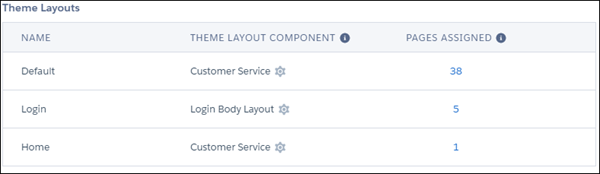
Open the Page Properties for the Home page. Select Override the default theme
layout for this page. (1) to display Theme Layout. Select
Home in the Theme Layout dropdown (2).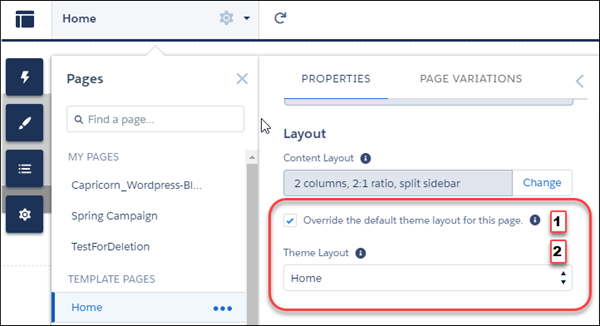
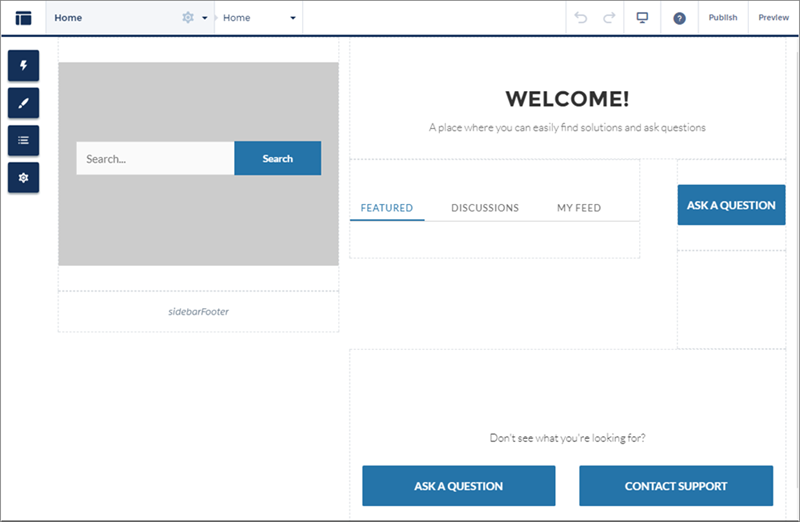
The page refreshes, and now you can see the new theme layout component in action. Let's
inspect the layout of the page. You no longer have a header, which used to contain the
navigation, search, profile menu, and logo. Some of those elements are being moved into the
two left sidebar regions—search and sidebarFooter. However, until you create a swappable search
component for the designated search region, the
standard search component still appears.