


Lightning Platform Fundamentals
 j
jTaking Your Page Layouts Mobile
Now that we’ve created a well-organized page layout and know that it works on the full Salesforce site, let’s check how it looks on our mobile device.
- Launch Salesforce on your mobile device, and log in.
- From the navigation menu, tap .
- Tap New.
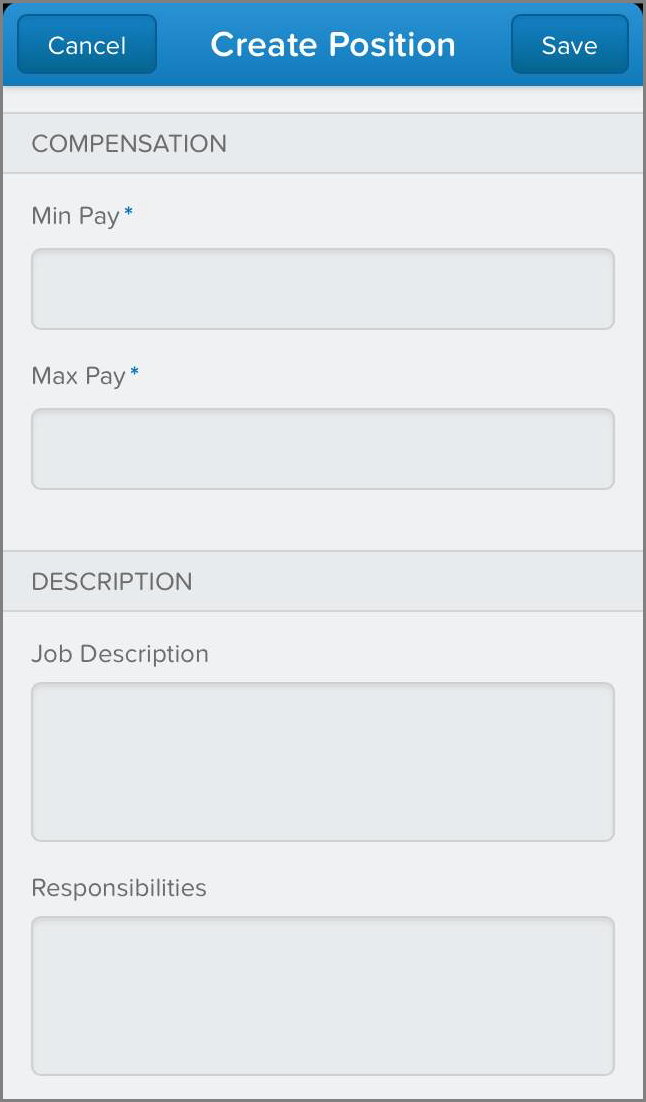
Just like when we tested out the advanced fields earlier in this chapter, our changes to better organize the fields are reflected in the Salesforce app.
Now let’s take a look at the position we just created in the full site to see how saved records look on a mobile device.
- Tap Cancel.
- Tap the position we just created.
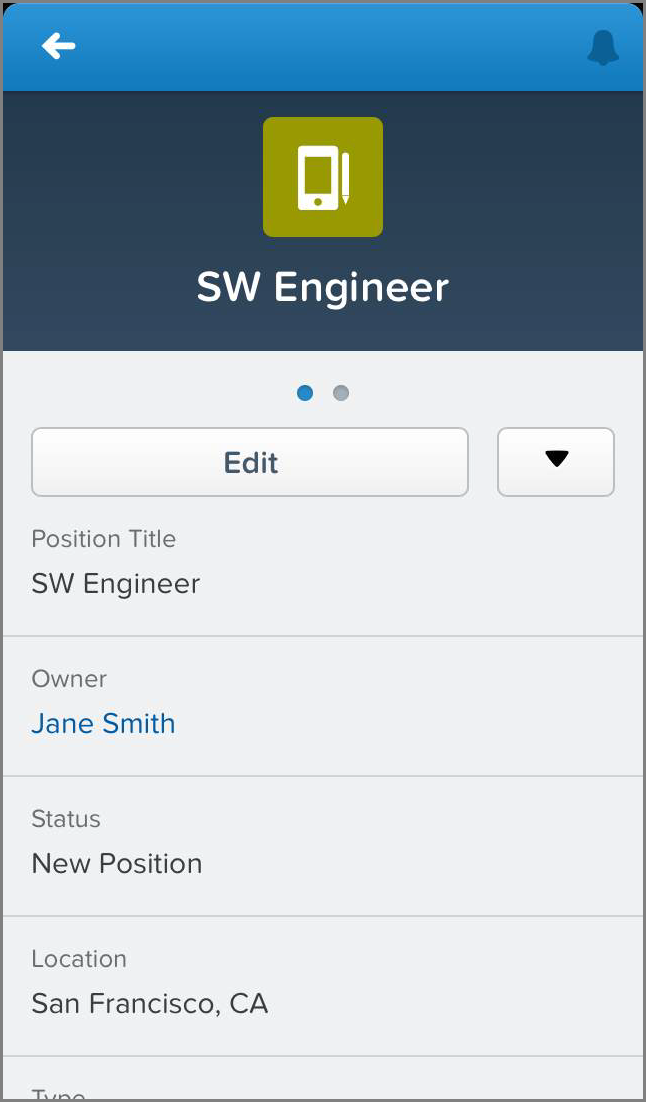
In the Salesforce app, we see two views, which we can toggle by swiping left and right. There’s a third view, but we won’t see that until we enable feed tracking in Collaborating with Chatter—so stay tuned!
Introducing the Record Detail Page
Our current view is the record detail page, which includes all the information that appears above a related list or mobile card in the page layout editor. Luckily, all the fields we’ve added are supported, but you should be aware that the Salesforce app doesn’t support rich text area custom fields.
Beyond the Basics
Because our page layout only includes a handful of fields, our layout should be okay for a mobile user. But, for future reference, always be aware of the different devices your users will be accessing these page layouts from. Having a large number of fields, such as more than 100, will make it difficult for your users to enter or find the information they need. It’s best to either optimize all page layouts for mobile use or create page layouts specifically for mobile users. For more best practices, see the Salesforce App Admin Guide.
Introducing the Record Related Information Page
Swipe once to the left to see the record’s related information.
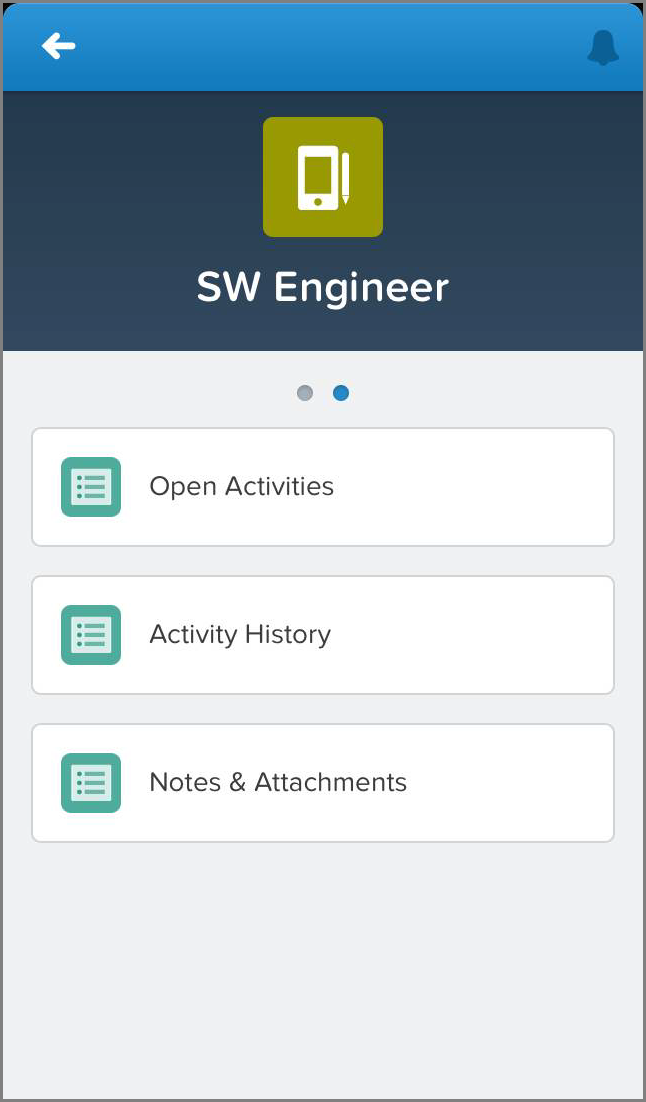
Unlike the full site, which show us the details of each related list, the Salesforce app displays just the names of the related lists. We can tap any of the related lists to see related records. Since we know the Open Activities related list has one item—the task we just created—let’s check that related list out.
Tap Open Activities to drill in to that related list. In the Open Activities page, we see the task we created in the full site. For even more information about the task, we can tap the item to see the task record details.
Introducing Mobile Cards
That’s not all! We can also add mobile cards to the record’s related information page. You can add three types of elements to the related information page using mobile cards: related lookup cards, components, and Visualforce page cards.
- Related lookup cards
- Related lookup cards appear when you add a field from the Expanded Lookups category to the Mobile Cards section in the enhanced page layout editor. These fields all have a lookup relationship to another record.
- Component cards
- Component cards appear when you add an element from the Components category to the Mobile Cards section in the enhanced page layout editor.
- Visualforce page cards
- Visualforce page cards display Visualforce pages that have been enabled for Salesforce mobile apps. If you aren’t familiar with Visualforce, don’t worry. We’ll talk about that in Moving Beyond Point-and-Click App Development.
We don’t have any Visualforce pages or components to add to the related information page, but we do have some expanded lookups! Let’s add one now.
- In the full Salesforce site, open the page layout for Positions.
- In the palette, select the Expanded Lookups category.
- Drag Last Modified By to the Mobile Cards section.
- Click Save.

We only need to know the last user who modified our position record, but it’s important to know that the mobile cards follow the order established in the page layout editor here, and the related lists always appear after the mobile cards. In addition, mobile cards will only show up in the app.
- In the Salesforce app, open our position record again.
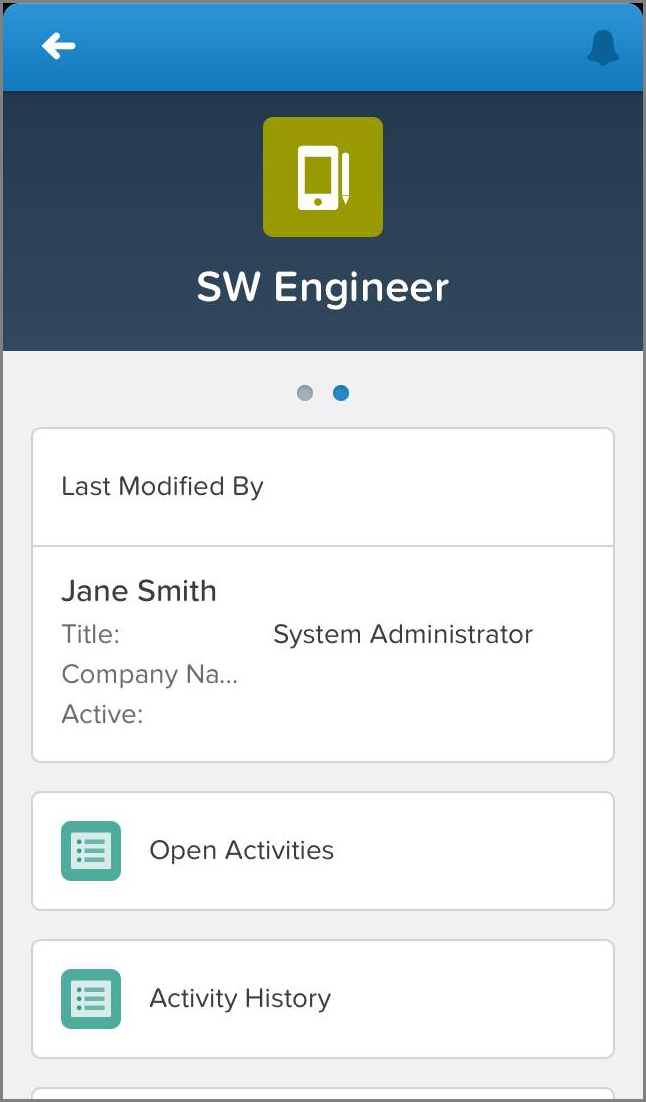
The expanded lookup card we added now appears at the top of the related information page, identifying the user who last modified the record.
It looks like everything is in order! Just by doing a few things in Setup, we’ve created an object with a tab, we've added custom fields, and we've arranged them in a page layout. We've finished our simple app, and now we're well on our way to creating the more complex Recruiting app that we described earlier.