


Lightning Platform Fundamentals
 j
jLook at What We've Done
Now that we've made it back to the Apps list page, let's see what we've just done. First of all, we've got a new entry in the Apps list—our Recruiting app! It shows up in the list in the same order it's going to appear in our Lightning Platform app menu. In fact, let's go look at the app menu now.
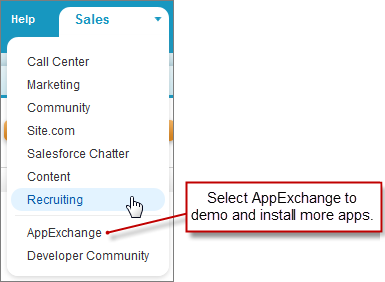
Now select the Recruiting app from the menu and see what happens—our app is launched with a single Home tab! We've created the Recruiting app's Home tab, and we've added it to the app menu. That's how easy it is to get started.
You'll notice that the approach we're taking here is iterative: we'll build part of the app, look at what we've accomplished, and then add to it. This sequence not only reflects the fact that we're leading you through the steps of building an app in this book, but you'll also find that in building Lightning Platform platform apps in general, this iterative process is common.
During the course of this book, you'll also notice that unlike with traditional coding projects, your app is always functional. There's no build or compile phase, and as a result, you'll almost never be chasing down syntax bugs or other typos. In fact, with this simple one-tab app, you can already utilize all of the built-in functionality that comes with the platform, including search, calendar events and tasks, user preferences, and a familiar user interface.