


Lightning Platform Fundamentals
 j
jTry It Out: Add a “Send Rejection Letter” Action to Your Process
To create a task and assign it to the owner of the Job Application record, you’ll add a Create a Record action to your process. When you add actions to a process, you have the option of creating immediate actions (1), which execute when the process is triggered, or you can schedule an action (2) to happen some time before or after an event, for example, one day before the created date, or three days after the last modified date.
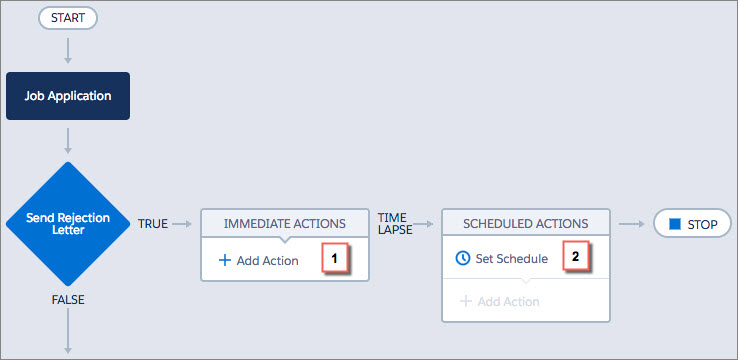
For now, we just need to define a single action that executes as soon as our criteria are met.
- Click Add Action in the Immediate Actions area (1).
- Select Create a Record.
- Enter Rejection Letter Task for the action name.
- Select Task for the record type. Remember, you can type to filter
this list.
Notice that when you select the Task record type, some fields automatically display with empty values. These are required fields for a Task record. You can also add values for other Task fields that aren’t required.
- For the Priority field, set the value to High.
- For the Status field, set the value to Not Started.
- For the Assigned To ID field, click in the Type area and select
Reference and then click in the Value area to choose a field to reference.Reference a Field
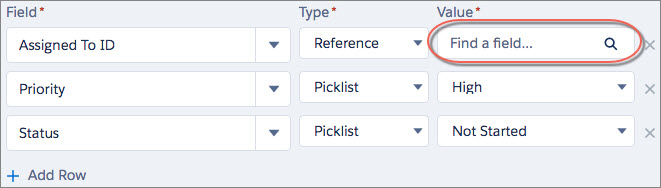
- Select Owner ID and then click Choose.
- Let’s also add a subject to our task.
- Click Add Row.
- Select Subject for the field.
- Leave the Type as String and enter Send Rejection Letter for the value.
- Almost done. Let’s add a due date for our task.
- Click Add Row.
- Select Due Date Only for the field.
- Select Formula for the type.
- Enter [Job_Application__c].CreatedDate + 1 and click Use this Formula.
- Click Save.
Nice work! You’ve just created a process that checks whether a Job Application is rejected and, if true, creates a task for the owner to send a rejection letter. We could activate this process now, but let’s add another criteria node and action so recruiters know to extend an offer when the Job Application status is set to Extend an Offer.
The remaining criteria and actions are similar to what we just did, so we'll pick up the pace for the rest of them, focusing just on the fields and options that are unique to each.