


Salesforce App Developer Guide
 j
jTry It Out: Create a Visualforce Custom Action
First, we’ll create a Visualforce custom action that references a Visualforce
page.
The custom action we’re creating uses these elements from the package that
you downloaded and installed for this guide.
- QuickOrderPage Visualforce page
- QuickOrderController Apex class
- Mobile_Design_Templates static resource used for styling the page
We’ll take an in-depth look at the code later in this chapter. But first, we’re going to create the action and try it out.
The Visualforce code for this page uses the location of the current customer
account to find warehouses located within the specified distance (in miles) that also
have a particular part in stock.
- From the object management settings for accounts, go to Buttons, Links, and Actions.
- Click New Action.
- In the Action Type drop-down list, select Custom Visualforce.
- In the Visualforce Page drop-down list, select QuickOrderPage.
-
In the Label field, enter Create Quick
Order.
This is the action name that appears to the user in the action menu in the Salesforce app or in the publisher in the full Salesforce site.
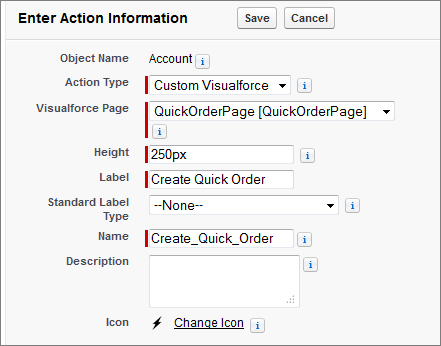
- Click Save.
Now that we’ve created the custom action, we’ll add the action to the Account page layout. This ensures that the custom action appears in the publisher when you go to the page for a customer account.