


Salesforce App Developer Guide
 j
jTest Out the Visualforce Custom Action
Now you’ll play the part of an Acme Wireless mobile technician on a customer call, and we’ll test out the custom action in the
Salesforce app.
- Open the Salesforce app on your mobile device.
-
Tap
 to
access the navigation menu.
to
access the navigation menu.
- From the navigation menu, tap Accounts and navigate to an account.
-
In the action bar, tap
 to access the action menu.
-
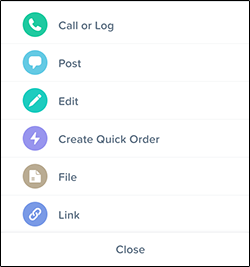
Tap the Create Quick Order action.
- In the Merchandise Name field, enter the name of an item, such as iPhone 5.
- In the Max Delivery Distance (miles) field, enter 10.
-
Tap Submit.
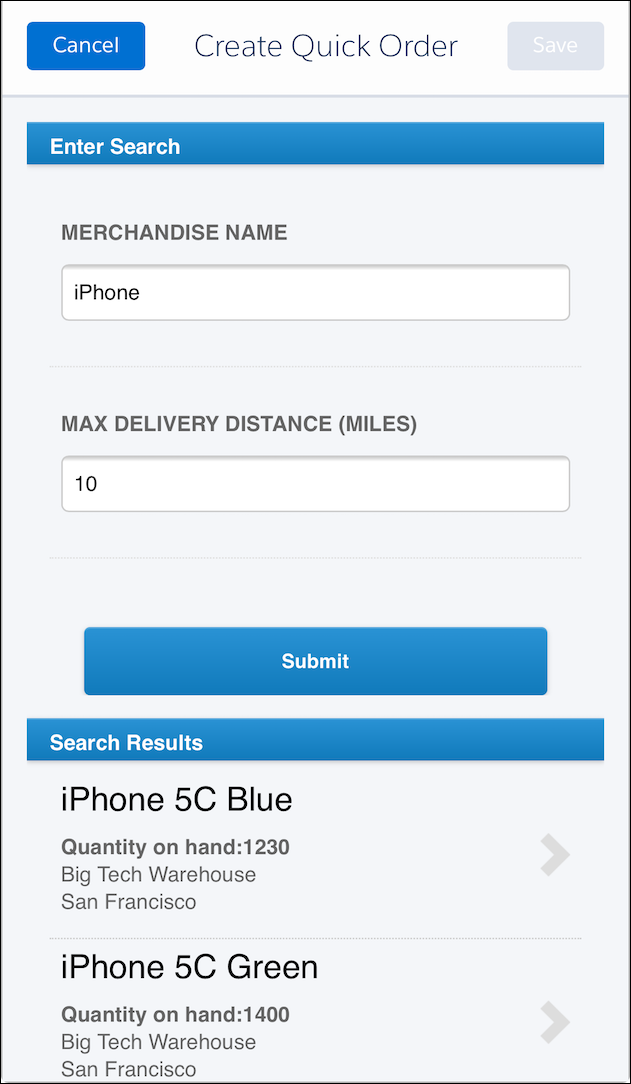
- In the Search Results section at the bottom, you’ll see a list of merchandise that matches what you searched for. The list shows parts contained in warehouses within 10 miles of the current account. Tap iPhone 5S Gold.
-
In the Quantity field, enter 1.
After identifying nearby warehouses that contain the part you’re looking for, this screen lets you enter a quantity and creates an order for the part. The order is associated with the current account.
-
Tap Save.
The order has been created. Swipe to the Related screen, and you’ll see the Invoices related list. Tap it, and you’ll see the new invoice. You can tap the invoice, go to the Related screen, and then tap Line Items to see the line item that was created for the iPhone 5S Gold part.
Success! You’ve gone through the entire process of enabling a mobile technician to quickly search for a part in a warehouse and create an order.
For more information about development guidelines for Visualforce pages, see Guidelines and Best Practices.