


Force.com IDE Developer Guide
 j
jDebug the Problem
- Make sure that AccountViewerController.cls is open.
- Switch to the Debug perspective of the Force.com IDE.
-
Make sure that the turning yellow gears (
 ) are visible
in the Debug pane. If you don’t see the icon that depicts turning yellow gears,
click the debug icon (
) are visible
in the Debug pane. If you don’t see the icon that depicts turning yellow gears,
click the debug icon ( ) to
launch your debug configuration.
) to
launch your debug configuration.
- Find the removeColdAccounts(List<Account> listToReduce) method.
-
Set a breakpoint on this line:
1Account a = listToReduce.get(i);
- Navigate to https://your_salesforce_instance/apex/AccountViewer.
- Select Hide Cold Accounts.
-
Notice that Please Wait has been displaying for awhile. Execution has stopped
because you’ve successfully hit a breakpoint.

-
In Eclipse, click the line in the Debug pane’s stack trace that corresponds to
your breakpoint.

-
Click Step Over (
 ) until you’ve stepped through all the iterations of your for loop. As you do
so, pay attention to the values of the variables in your Variables pane. If you
notice the problem, try to correct it. If you manage to correct the problem, go
ahead and skip to Fix the Problem to confirm your solution.
) until you’ve stepped through all the iterations of your for loop. As you do
so, pay attention to the values of the variables in your Variables pane. If you
notice the problem, try to correct it. If you manage to correct the problem, go
ahead and skip to Fix the Problem to confirm your solution.
-
After you’ve stepped all the way through the for loop, look at your Visualforce page. Some of
the cold accounts were hidden, but at least one remains.

- In this screenshot, the cold account is Flea LLC. Make a note of this account’s name. Then, let’s step through our for loop again.
- Deselect Hide Cold Accounts.
-
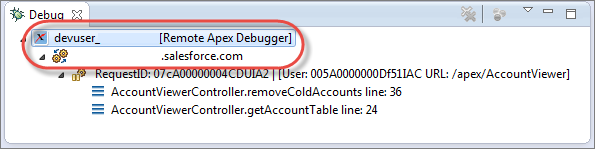
In Eclipse, click one of the top two levels of the stack trace in the Debug
pane.
-
To stop your debugging session, click the terminate icon (
 ).
).
-
To start a new session, click the debug icon ().
-
Wait for the turning yellow gears () to reappear in the Debug pane.
- Reload your Visualforce page, then select Hide Cold Accounts again.
- This time, pay special attention to what happens when you move past the account right before Flea LLC. Make a note of the account that you want to watch out for. In this case, the account we want to watch for is Butterfly Beauty Supplies.
-
Click Step Over () until you see that the value of a.Name is the account
name you’re watching for—in this case, Butterfly
Beauty Supplies.

- Paying close attention to the values of your variables, click Step Over until a’s value changes again.
-
Look at the value of listToReduce. 'Butterfly Beauty Supplies' was removed, but
we’ve skipped right over 'Flea LLC'. Why
do you think that could be?

The problem lies in the value of the iterator, i. When we removed
'Butterfly Beauty Supplies' from the list,
we didn’t account for the fact that removing this list item would change the positions
of the subsequent items. Flea LLC is now at position 2, formerly occupied by Butterfly Beauty Supplies, but that position has
already been processed. Fortunately, this problem is easily fixed.