1<apex:page showHeader="false" standardStylesheets="false" sidebar="false" applyHtmlTag="false" applyBodyTag="false" docType="html-5.0">
2
3 <html xmlns="http://www.w3.org/2000/svg" xmlns:xlink="http://www.w3.org/1999/xlink" lang="en">
4 <head>
5 <meta charset="utf-8" />
6 <meta http-equiv="x-ua-compatible" content="ie=edge" />
7 <title>SLDS LatestAccounts Visualforce Page in Salesforce Mobile</title>
8 <meta name="viewport" content="width=device-width, initial-scale=1" />
9
10
11 <apex:slds />
12 </head>
13
14 <apex:remoteObjects >
15 <apex:remoteObjectModel name="Account" fields="Id,Name,LastModifiedDate"/>
16 </apex:remoteObjects>
17
18 <body>
19
20
21 <div class="slds-scope">
22
23
24 <div class="myapp">
25
26
27 <div id="account-list" class="slds-p-vertical--medium"></div>
28
29
30 </div>
31
32
33 </div>
34
35
36
37 <script>
38 (function() {
39 var outputDiv = document.getElementById('account-list');
40 var account = new SObjectModel.Account();
41
42 var updateOutputDiv = function() {
43
44 account.retrieve(
45 { orderby: [{ LastModifiedDate: 'DESC' }], limit: 10 },
46 function(error, records) {
47 if (error) {
48 alert(error.message);
49 } else {
50 // create data table
51 var dataTable = document.createElement('table');
52 dataTable.className = 'slds-table slds-table--bordered slds-text-heading_small';
53
54 // add header row
55 var tableHeader = dataTable.createTHead();
56 var tableHeaderRow = tableHeader.insertRow();
57
58 var tableHeaderRowCell1 = tableHeaderRow.insertCell(0);
59 tableHeaderRowCell1.appendChild(document.createTextNode('Latest Accounts'));
60 tableHeaderRowCell1.setAttribute('scope', 'col');
61 tableHeaderRowCell1.setAttribute('class', 'slds-text-heading_medium');
62
63 // build table body
64 var tableBody = dataTable.appendChild(document.createElement('tbody'))
65
66 var dataRow, dataRowCell1, recordName, data_id;
67 records.forEach(function(record) {
68 dataRow = tableBody.insertRow();
69 dataRowCell1 = dataRow.insertCell(0);
70 recordName = document.createTextNode(record.get('Name'));
71 dataRowCell1.appendChild(recordName);
72
73 });
74 if (outputDiv.firstChild) {
75 // replace table if it already exists
76 // see later in tutorial
77 outputDiv.replaceChild(dataTable, outputDiv.firstChild);
78 } else {
79 outputDiv.appendChild(dataTable);
80 }
81 }
82 }
83 );
84 }
85 updateOutputDiv();
86 })();
87 </script>
88
89 </body>
90 </html>
91</apex:page>


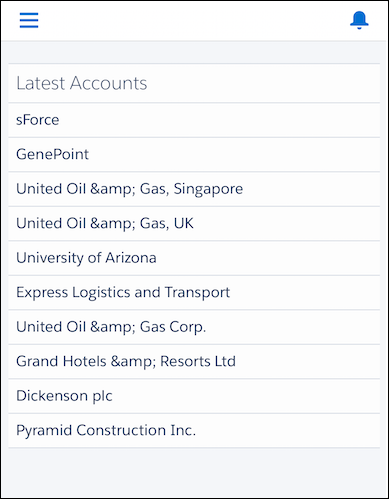
 j
j