


Force.com IDE Developer Guide
 j
jRoll Out My Domain to Your Org
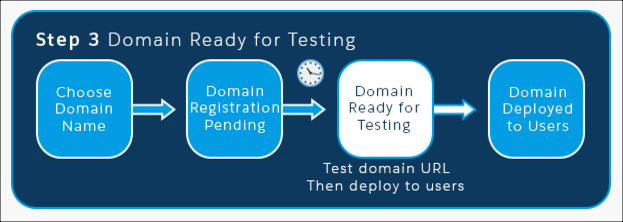
Did you get your activation email? From the email, click the link to get back to the
My Domain wizard. It takes you to Step 3, where you test the links to your subdomain URLs
before rolling out the subdomain to your org. Even though you don’t have users to deploy it
to in your DE org, you must still roll out My Domain to make your custom Lightning
components available in Lightning pages, in the Lightning App Builder, and for standalone
apps.
-
Click the link in the activation email to log in to your Salesforce subdomain.
It takes you to your Salesforce org.
Notice that the URL in the browser address bar shows your new subdomain name. Right now, you’re the only one who has this URL.

- Click around your org to make sure that links point to your new domain. You probably haven’t created links in your DE org, so we can go on. (When creating a domain in a production org, this important step is easily overlooked.)
- From the My Domain page, click Deploy to Users, and then click OK. Deploying a subdomain rolls out the new subdomain URL throughout your org. Now all your users see the subdomain URL in the browser address bar.
- Step 4 of the wizard displays configuration options, which we can ignore for now.
Congratulations, you’ve set up My Domain! When setting up My Domain in a production
org, you have a few more steps. Learn more by completing the My Domain unit of the User Authentication module. Now that
you’ve protected—and branded—your org with a subdomain, let’s go on.