Notable Lightning Components Features in the Force.com IDE

The Force.com IDE includes lots of cool features to make working with Lightning components easier. Here are a few of our favorites.
Multi-Page Editor

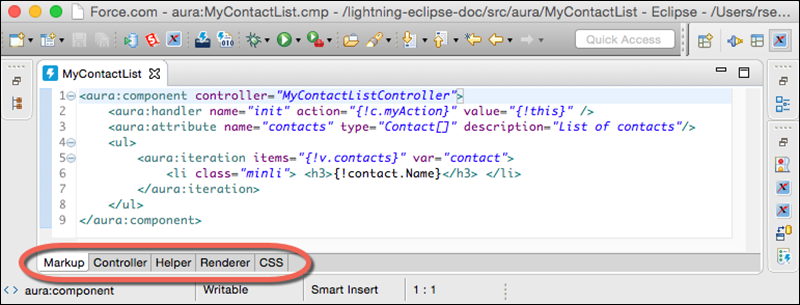
Easily access and edit all the files resources in your Lightning component bundle. The multi-page editor opens by default when you open a component bundle.

A .cmp file with tabs for its related Controller, Helper, Renderer, and CSS files displayed at the bottom of the panel

Documentation Browser

Everyone loves documentation! In the Force.com IDE, we give you two handy ways to peruse it.

Access documentation for built-in tags and functions without leaving the IDE. To open the Lightning Doc view, select Window | Show View | Other | Other | Lightning Doc.

You can also view an element’s documentation by hovering over the element in your code.
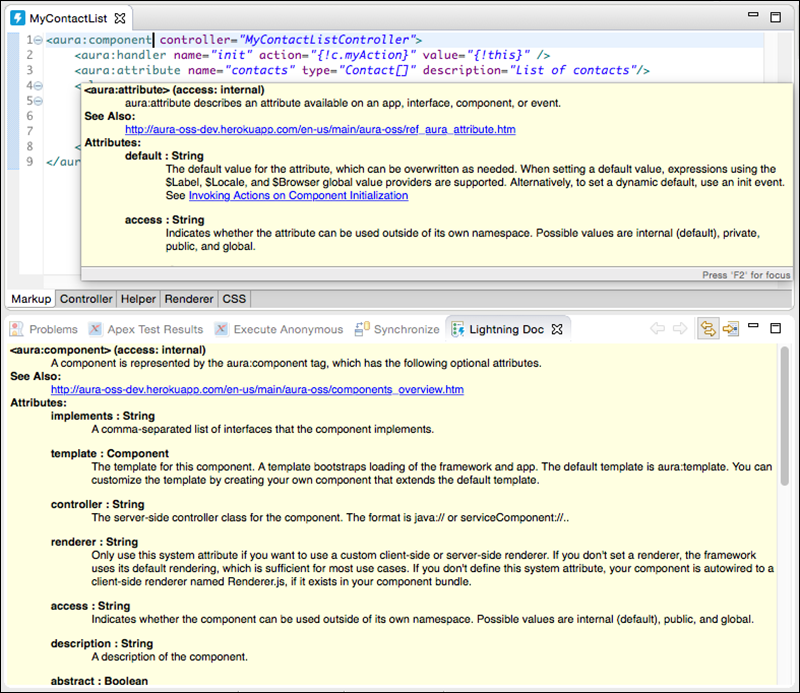
Inline doc for a component, and the Lightning Doc panel

Add a description attribute to each aura:component that you create, so that you can take full advantage of these useful documentation-related features.
Navigation

Outline View

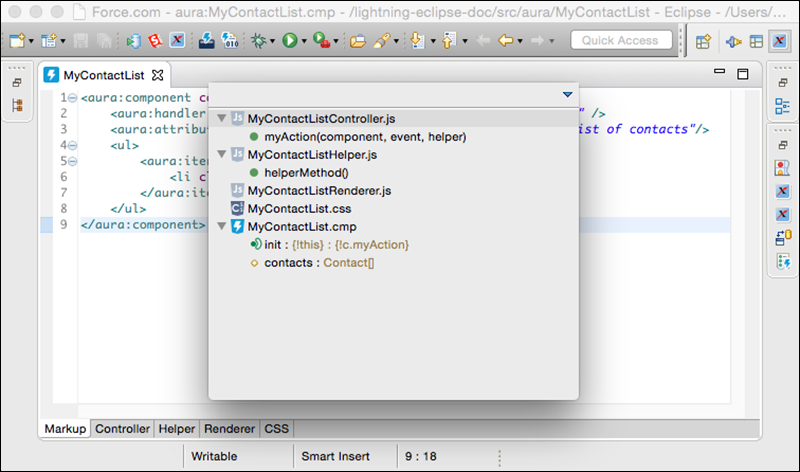
Quickly locate and navigate between the elements in your Lightning component bundle. To open Outline View, press Ctrl+O (Cmd+O on macOS).

The Outline View shows files that are related to the current file

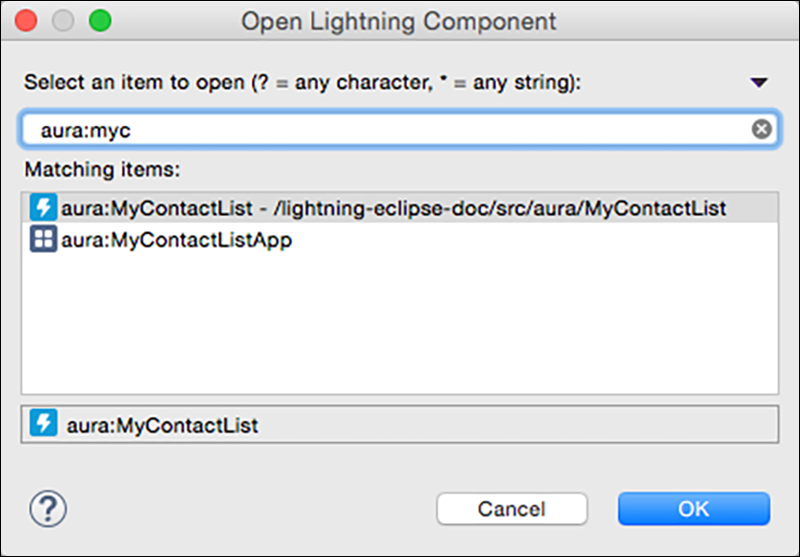
Open Dialog

Quickly locate and navigate between your Lightning component bundles. To display the Open Dialog, press Ctrl+Shift+A (Cmd+Shift+A on macOS).

The Open Lightning Component dialog lets you search for items to open; wildcards include '?' for any character and '*' for any string

Auto-Completion

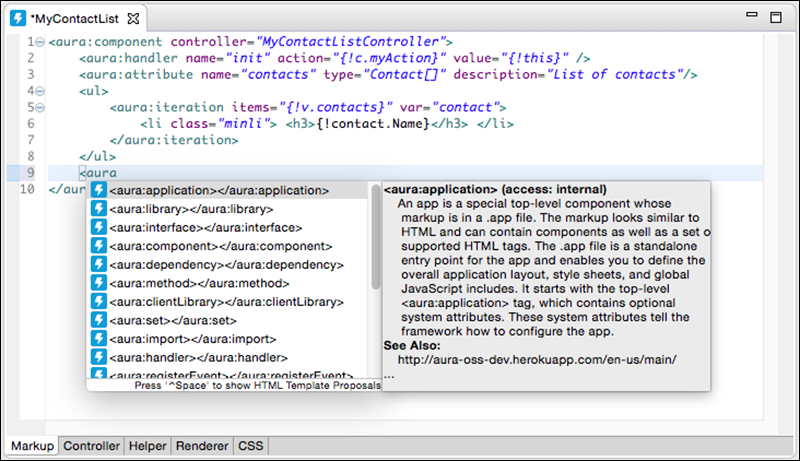
Save time and avoid typos with the auto-completion feature for markup, JavaScript, and CSS files. Some auto-completion is provided by default as you type. To invoke more auto-completion options, press Ctrl+Space when you’re editing a file.

XML autocompletion in a .cmp file