


Platform Events Developer Guide
 j
jNewer Version Available
End-to-End Example: Printer Supply Automation
Your company just received a shipment of “smart” printers. You configure the printers to send information to Salesforce once a day. You use that information to update the asset record in Salesforce that represents the printer, then decide whether to order more ink or paper from the vendor. When you do order supplies from the vendor, you schedule a technician to install the new supplies the day after they’re delivered.
Platform Events: Printer Status and Vendor Response
The Printer Status platform event includes these custom fields.
| Unique Name | Label | Data Type | Description |
|---|---|---|---|
| Serial_Number | Serial Number | Text | The printer’s unique identifier. This value is used to locate the corresponding asset record. |
| Ink_Status | Ink Status | Text | Values: Full, Medium, Low, or Empty. |
| Paper_Level | Paper Level | Number | Paper level in percentage. |
| Total_Print_Count | Total Print Count | Number | Aggregate number of pages printed. |
The Vendor Response platform event includes these custom fields.
| Unique Name | Label | Data Type | Description |
|---|---|---|---|
| Order_Number | Order Number | Text | The order’s unique identifier. |
| Expected_Delivery_Date | Expected Delivery Date | Date | The date when the vendor expects the order to be delivered |
| Order_Status | Order Status | Text | Values: Ordered, Confirmed, Shipped, Delivered, Delayed, Canceled. |
Process: Automating Printer Status Events
The process starts when a platform event occurs and has three criteria and action groups.

Trigger
The process’s trigger receives a Printer Status event. It uses the serial number to find the asset record that matches the printer.

Criteria 1

The first criteria is set to No criteria–just execute the actions! so that it always fires.
The action group contains one immediate action, which updates the asset record’s total print count to match the value from the event.

After the first criteria’s actions are executed, the process evaluates the next criteria.
Criteria 2
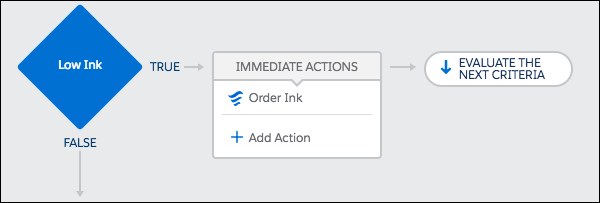
The second criteria checks whether the event’s Ink Level value is set to Low.

The second criteria’s action group contains one immediate action, which launches a flow. The action passes a selection of fields from the asset to the flow that’s launched.
| Flow Variable | Type | Value |
|---|---|---|
| assetId | Reference | [Asset].Id |
| assetOwner | Reference | [Asset].OwnerId |
| inkManufacturer | Reference | [Asset].Ink_Manufacturer__c |
| inkNeeded | Boolean | True |
| inkType | Reference | [Asset].Ink_Type__c |
| paperNeeded | Boolean | False |
| paperSize | Reference | [Asset].Paper_Size__c |
| serialNumber | Reference | [Asset].SerialNumber |
After the second criteria’s actions are executed, the process evaluates the next criteria.
Criteria 3

The third criteria checks whether the event’s Paper Level value is less than 10.

The third criteria’s action group contains one immediate action, which launches the same flow. The action passes a selection of fields from the asset to the flow that’s launched. It passes most of the same values to the flow as the Low Ink criteria group did with two differences: inkNeeded is set to false, and paperNeeded is set to true.
| Flow Variable | Type | Value |
|---|---|---|
| assetId | Reference | [Asset].Id |
| assetOwner | Reference | [Asset].OwnerId |
| inkManufacturer | Reference | [Asset].Ink_Manufacturer__c |
| inkNeeded | Boolean | False |
| inkType | Reference | [Asset].Ink_Type__c |
| paperNeeded | Boolean | True |
| paperSize | Reference | [Asset].Paper_Size__c |
| serialNumber | Reference | [Asset].SerialNumber |
The process has only three criteria, so after the third criteria’s actions are executed, the process stops.
Flow: Automation for Vendor Response Events
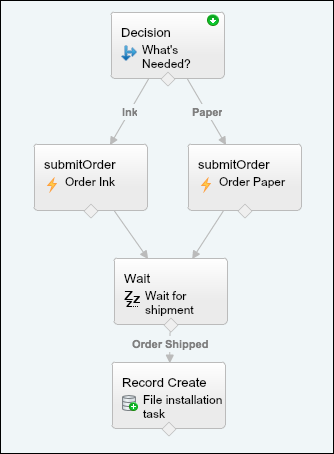
Decision Element
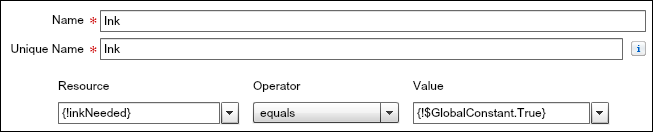
The decision includes two outcomes: Ink and Paper. The Ink outcome is true if the variable {!inkNeeded} is true. The Paper outcome is true if the variable {!paperNeeded} is true.

Apex Elements
The flow includes two Apex elements that submit a supply order with a vendor but provide different information to it based on whether the flow executed the Ink outcome or Paper outcome. All the variables used for input values (like {!serialNumber} and {!paperSize}) are set when a process launches the flow.
The first Apex element provides information about which ink to order.
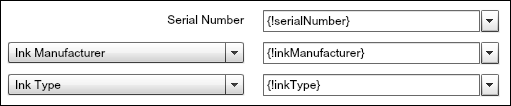
The second Apex element provides information about which paper to order.

In both Apex elements, after the class submits the order, it returns an order number. The flow stores that value in the {!orderNumber} variable to use in the Wait element.

Wait Element
After the Apex class submits the supply order, the flow waits for confirmation that the order has been shipped. That confirmation is received through the Vendor Response platform event.
The flow waits for a specific Vendor Response. The order number must be the same as the order number that the Apex class provided. And the order status must be Shipped.

When the correct event occurs and the flow resumes, the flow stores the event’s data in an sObject variable. That way, you can reference the expected delivery date to calculate when the supplies are scheduled to be installed.

Record Create Element
When the flow resumes, it creates a task for the asset owner to install the new supplies.
- {!installDate}—A formula that calculates the day after the event’s expected delivery date.
- {!taskDescription}—A text template that gives more details about the installation.
- {!assetOwner}—Provided by the process that launches the flow
- {!assetId}—Provided by the process that launches the flow
