Platform Events Developer Guide
 j
jNewer Version Available
End-to-End Example: Printer Supply Automation
Your company just received a shipment of “smart” printers. You configure the printers to send information to Salesforce. You build a flow that uses the received information to decide whether to order more ink or paper from the vendor. Also, you build another flow to schedule installation of the new supplies the day after they’re delivered.
Platform Events: Printer Status and Vendor Response
The Printer Status platform event includes these custom fields.
| API Name | Field Label | Data Type | Description |
|---|---|---|---|
| Serial_Number | Serial Number | Text | The printer’s unique identifier. This value is used to locate the corresponding asset record. |
| Ink_Status | Ink Status | Text | Values: Full, Medium, Low, or Empty. |
| Paper_Level | Paper Level | Number | Paper level in percentage. |
| Total_Print_Count | Total Print Count | Number | Aggregate number of pages printed. |
The Vendor Response platform event includes these custom fields.
| API Name | Field Label | Data Type | Description |
|---|---|---|---|
| Order_Number | Order Number | Text | The order’s unique identifier. |
| Expected_Delivery_Date | Expected Delivery Date | Date | The date when the vendor expects the order to be delivered |
| Order_Status | Order Status | Text | Values: Ordered, Confirmed, Shipped, Delivered, Delayed, Canceled. |
| Part_Label | Part Label | Text | The label of the part to order. |
| Part_Number | Part Number | Text | The part number of the part to order. |
| Serial_Number | Serial Number | Text | The printer’s unique identifier. This value is sent in the order request and returned in the vendor response. It’s used to locate the corresponding asset record. |
Flow: Automation for Printer Status Events
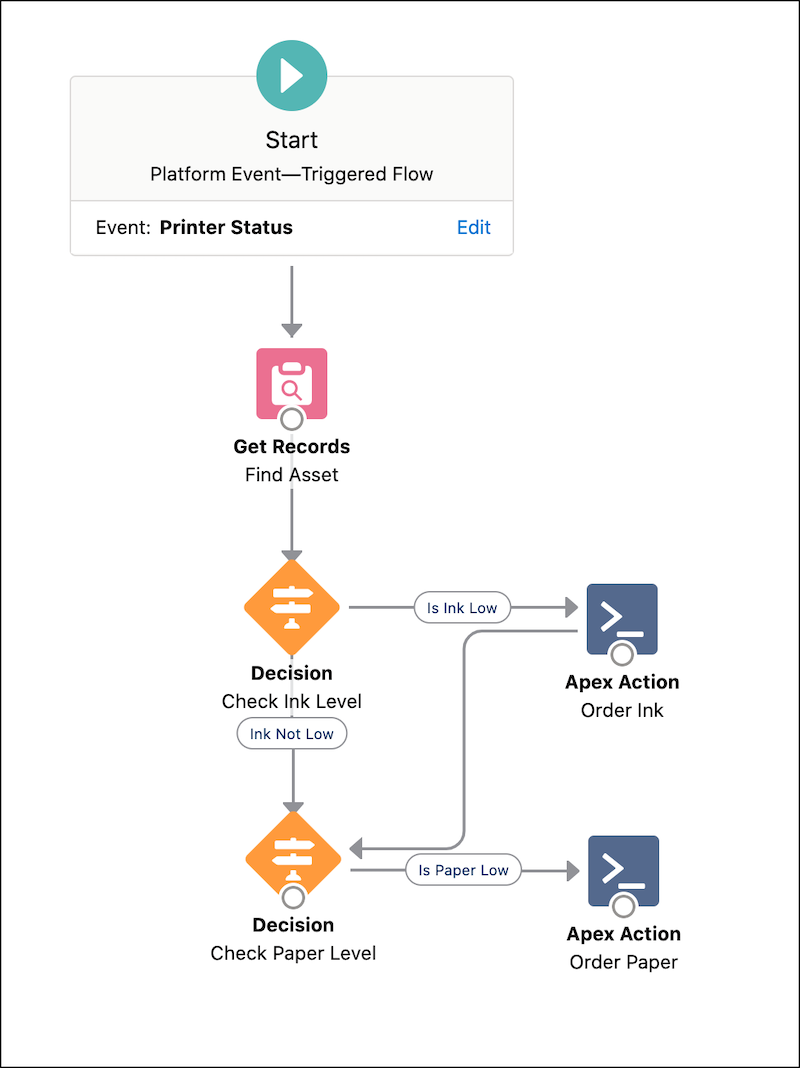
The flow starts when it receives a Printer Status platform event message.
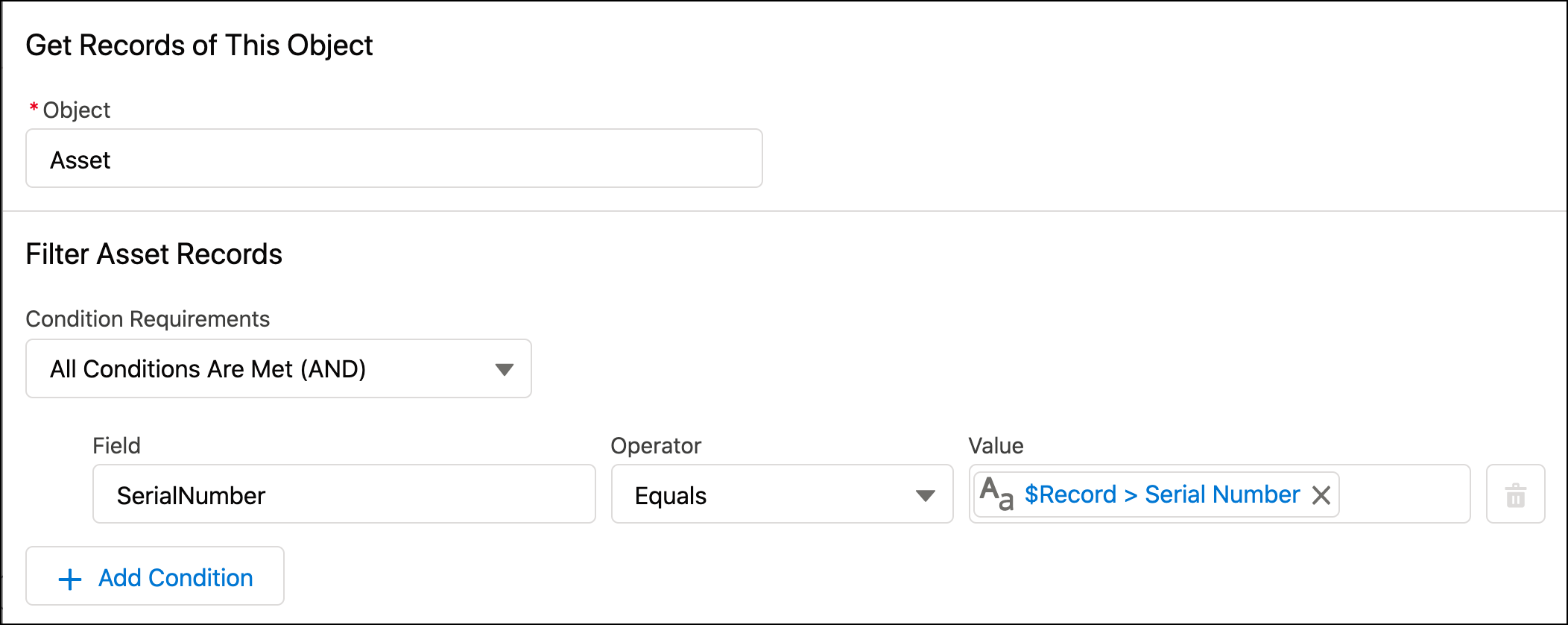
The Get Records element finds the related asset record by matching the asset's serial number with that of the incoming event message. The Get Records element provides us with the asset record fields that we use later in the flow.
Order Ink or Paper
A Decision element evaluates whether the ink level is low. It checks whether the Ink_Level__c field value in the event message is equal to 'Low'.

If the ink level is low, the flow calls an Apex action that orders ink. The Apex action calls an invocable method and passes information about the ink type and the printer serial number as invocable variables.

After the ink level is evaluated, another Decision element evaluates the paper level.
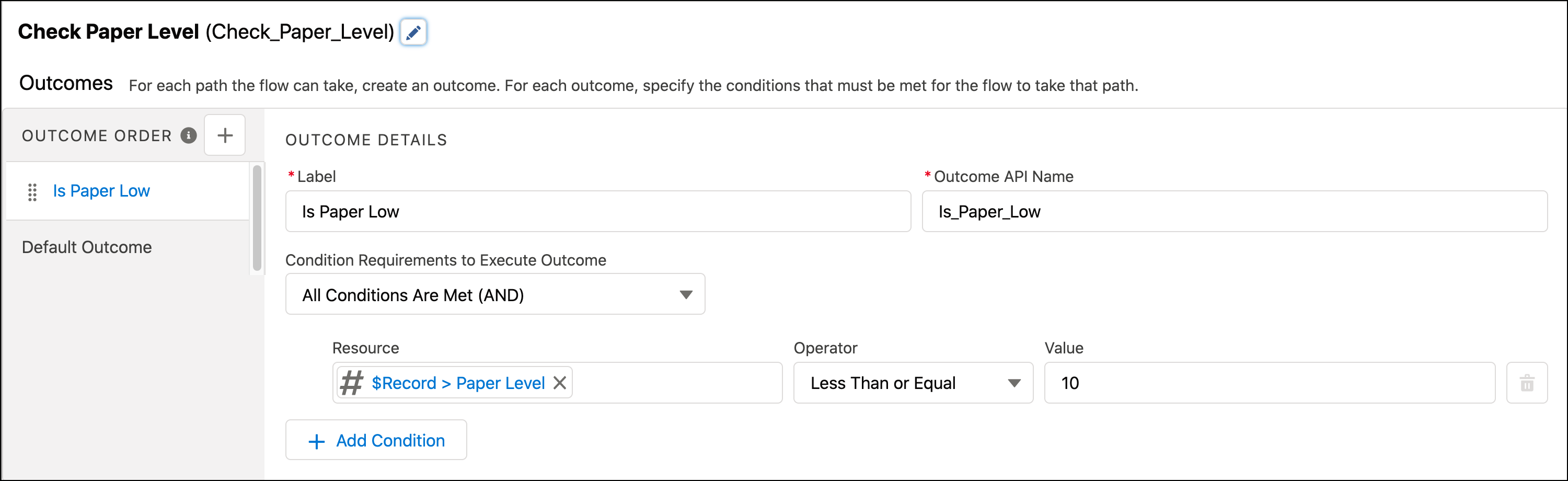
If the paper level is lower than 10%, the flow calls an Apex action to order paper. The Apex action calls an invocable method and passes the paper size and serial number as invocable variables.

The implementation of Apex actions isn’t covered in this example. For more information about invocable Apex actions, see InvocableMethod Annotation and InvocableVariable Annotation in the Apex Developer Guide. Typically, you call an external service to place an order. To do so from an Apex action, you use Apex callouts. For more information, see Invoking Callouts Using Apex in the Apex Developer Guide.
Flow: Automation for Vendor Response Events

The Get Records element finds the related asset by matching the asset's serial number with that of the received event message. Next, the Create Records element creates the installation task for the part.

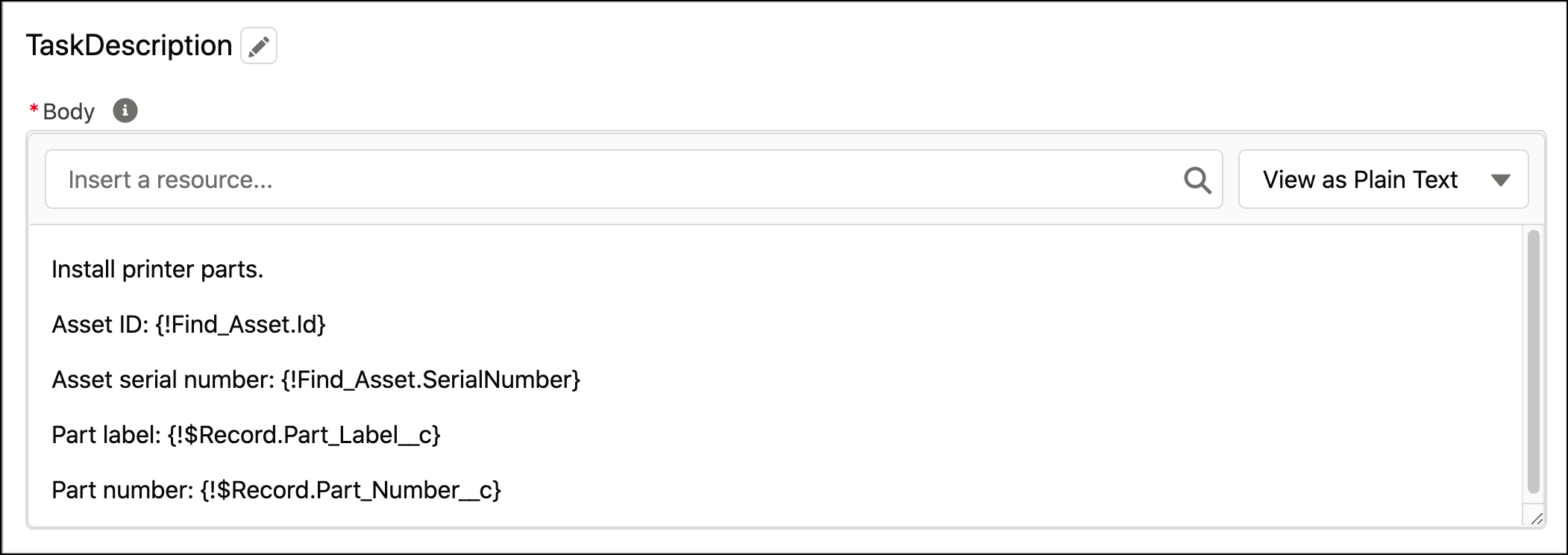
In this example, some task fields reference flow resources that are created separately. The InstallationDate is a formula resource and is defined as follows.

TaskDescription is a text template resource with the following body.