


Lightning Flow for Service Developer Guide
 j
jNewer Version Available
Associate Flows to Records with Process Builder
Associated flows for a record show up in the record’s Guided Action List component, ready for your users to start.
To create a process, follow these steps.
-
Define the process
properties.
The process properties uniquely identify your process.
-
Configure the process
trigger.
Every process includes a trigger, which tells the process when to start. How you configure that trigger depends on what type of process you’re creating.
-
Add process
criteria.
Define the criteria that must be true before the process can execute the associated actions.
-
Add actions to your
process and create a record from
the process.
After you define a criteria node, create a record from the process when criteria are met. Actions are executed in the order in which they appear in the Process Builder. Specify the following.
- Action Type: Create a Record
- Record Type: RecordAction
Set field values for the Create a Record action.Field Type Value Flow Picklist Specify the flow you want associated to the record. Order Number Specify the order of the flow among all flows associated with this record. Flows are ordered in comparison to other flows in their pinned or unpinned region. If two flows have the same order, then the flows are sorted by their last modified date. Parent Record ID Field Reference Specify the record associated with the flow. For most use cases, select the ID for the object you’ve selected for your process trigger. For example, if you used the contact object, set the value to [Contact].Id. Pinned Picklist Specify whether the flow is pinned to the top or bottom of the Guided Action List component. Users can’t delete pinned flows from the Guided Action List; however, they can be deleted using the API. To display the flow between pinned flows, use None. Users can delete flows that use None because they aren’t pinned. Is Mandatory Boolean If set to True, the flow is required. After a mandatory flow is launched, if the user tries to close the tab or window, a message appears reminding the user to complete the flow. - Activate your process.
Example
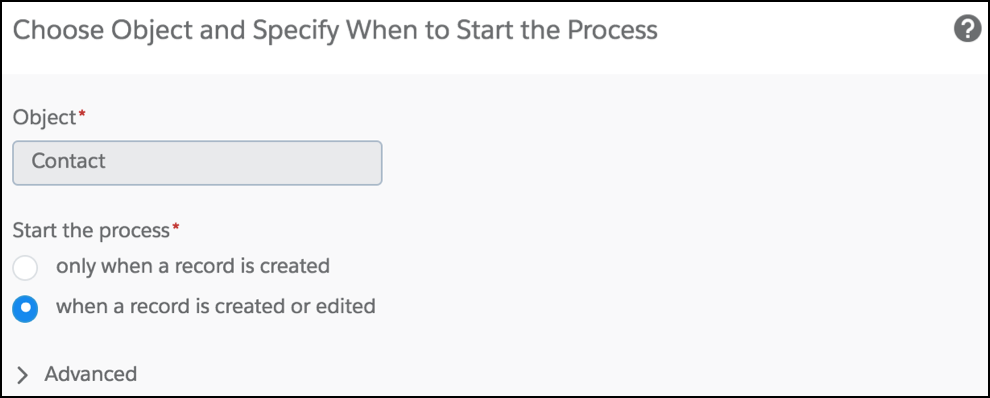
- Choose the contact object and start the process when a record is created or
edited.
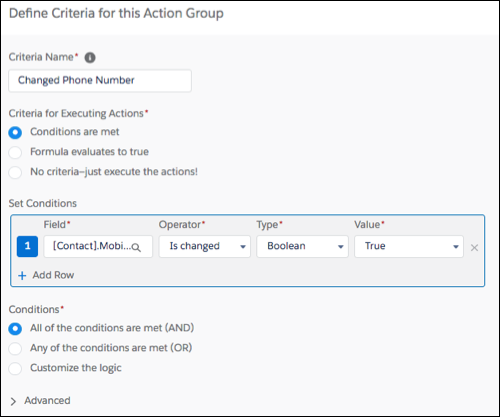
- Create criteria for when the [Contact].MobilePhone
field changes.
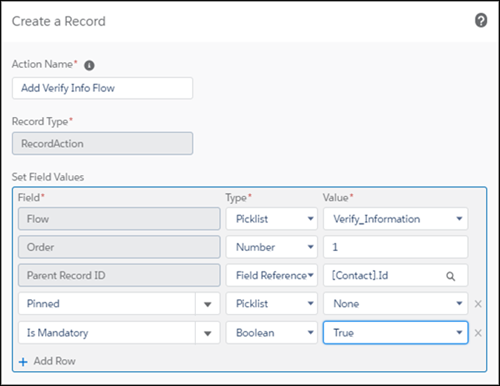
- Add a Create a Record action, and specify RecordAction for the Record Type
- Set field values for the record, pointing to your
Verify_Information flow and the parent record ID.
To encourage the user to complete this flow, specify the Is Mandatory field
as True.
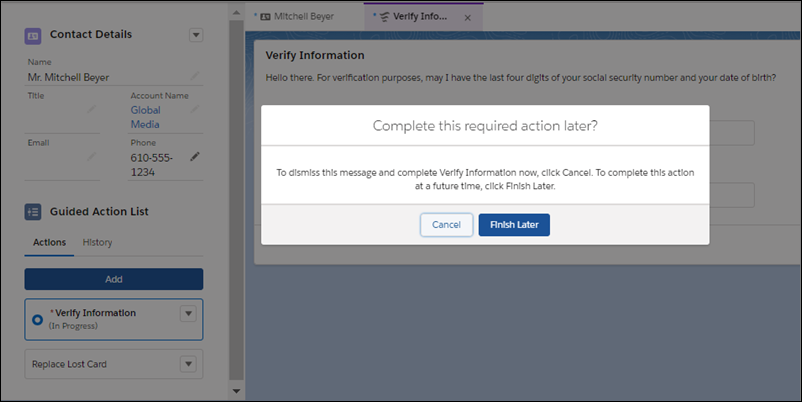
By setting the Is Mandatory field to True, at runtime when the user tries to close a tab or window with the flow, a message reminds them that the action is required. Clicking Cancel dismisses the warning and continues the flow. The user can also click Finish Later, which closes the tab or window.
- Activate the process.
When the contact’s MobilePhone field changes, the Verify Information flow opens automatically as a subtab on the contact record.