Force.com IDE Developer Guide
 j
jWhitelist Users and Request Types
Filter which requests are debugged by setting up whitelisting. If
you don’t use whitelisting, all events in your org trigger debugging during a debugging
session. Whitelist users or request types to focus only on the events that are relevant
to the problem you’re debugging.
-
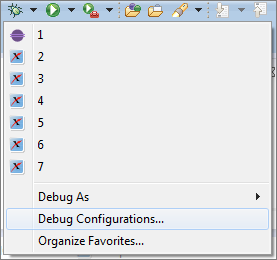
To access your debug configurations, select the arrow next to the debug icon
(
 ), and then select
Debug Configurations.
), and then select
Debug Configurations.
-
To set up whitelisting, select Whitelisting Enabled in
your Remote Apex Debugger configuration.
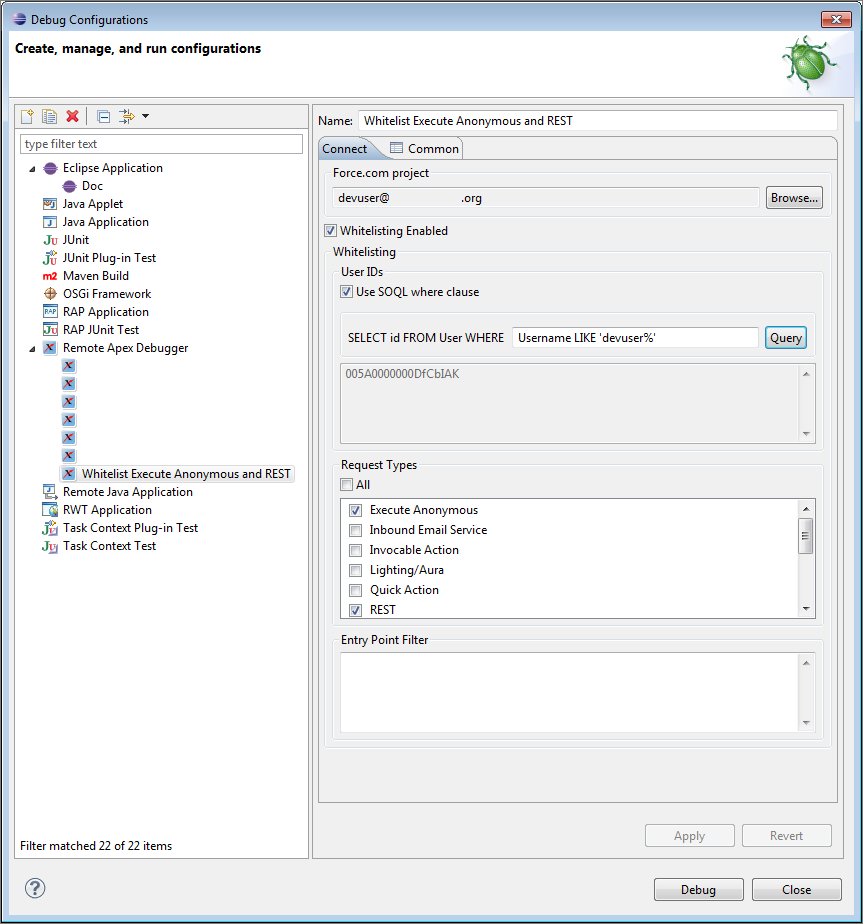
- To filter by user ID, enter a SOQL condition expression in the SELECT id FROM User WHERE field. Or enter a comma-separated list of user IDs in the text field in the User IDs section.
- To filter by request type, select one or more entry points, or enter a regular expression in the Entry Point Filter field. For example, to whitelist requests made by the Visualforce page myPage, enter .*/apex/myPage.apexp.