Apex Code Assist

Force.com IDE is in a maintenance-only state. We still provide support for the product through our official channels, but updates prior to October 12, 2019 will be only for critical security issues that arise. On October 12, 2019, we will no longer provide support or updates of any kind for Force.com IDE. On that date, we will also begin archiving documentation and removing download links for the product. We recommend that you start migrating to Salesforce Extensions for Visual Studio Code or one of the great tools made by our partners. For more information, see The Future of Salesforce IDEs on the Salesforce Developers Blog.

Warning

Apex code assist is activated when you begin to type a valid line of Apex in the editor. Code assist opens a list of available code completions that aid in both development speed and accuracy.
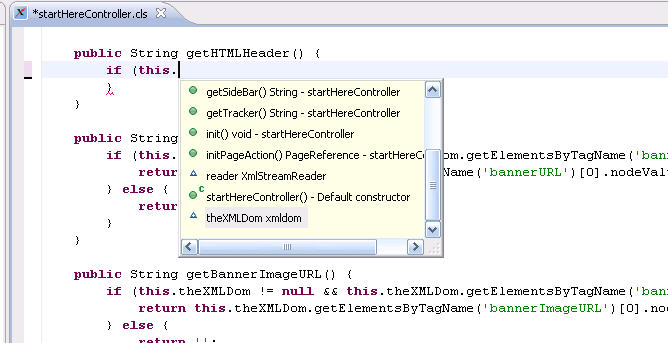
The Apex code assist proposal window displaying valid items
To use code assist:
  1. Insert the cursor in the editor area.
  2. If you are typing a class or variable name, type a dot (“.”) and pause for a moment, and the proposal window opens. Otherwise press Ctrl + Space on the keyboard to activate the proposal window.
  3. Use the mouse or keyboard to select an item from the list.
  4. Click or press Enter on a selected line in the list to insert the selection into the editor.