Upgrade Project

Force.com IDE is in a maintenance-only state. We still provide support for the product through our official channels, but updates prior to October 12, 2019 will be only for critical security issues that arise. On October 12, 2019, we will no longer provide support or updates of any kind for Force.com IDE. On that date, we will also begin archiving documentation and removing download links for the product. We recommend that you start migrating to Salesforce Extensions for Visual Studio Code or one of the great tools made by our partners. For more information, see The Future of Salesforce IDEs on the Salesforce Developers Blog.

Warning

When you create a Force.com project, it's designed to work with a specific version of the server. When the server is upgraded to the next version, your projects need to be updated so you can have access to the latest features and metadata.

To upgrade a project, the connection settings for username, password, and proxy settings (if applicable) must be up to date.

Note

To upgrade a Force.com project:

  1. Right click a project and choose Force.com | Upgrade Project to open the Project Upgrade wizard. (This option only appears if an upgrade is available.) The Force.com Upgrade Project shortcut menu
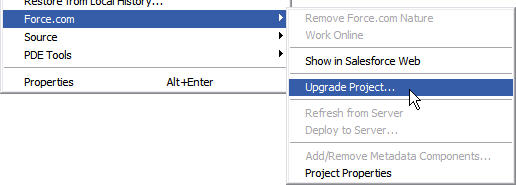
  2. On the first page of the wizard, review the information and click Next to continue.
  3. On the second page of the wizard, review the full details of what will be changed. If you don’t want to upgrade all of these components, click Cancel. Otherwise click Finish.
  4. On the final page of the wizard, review your changes.
  5. Click Finish to retrieve the specified components.