Lightning Flow for Service Developer Guide
 j
jNewer Version Available
Integrate Live Agent with Lightning Flow for Service
Customers who chat with you are often looking for quick and immediate resolutions to
their problems. Lightning Flow for Service helps your agents provide consistent and
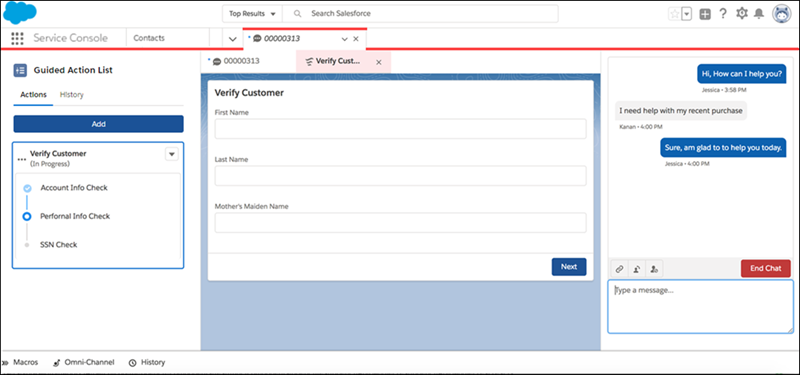
efficient service. Agents can view your business processes in context of the customer chat
because flows are presented as subtabs of the Chat Transcript primary tab. Agents see the
appropriate actions to take right up front, without having to manually search for
them.
Lightning Flow for Service supports Live Agent in Lightning Experience, which uses
Omni-Channel routing.
-
Set up flows and processes.
Use Flow Builder to create individual flows. Then use Process Builder to add processes that associate records with specific flows using the RecordAction object.
-
Create a Guided Action List deployment.
In the settings for the chat channel, specify the flows that agents see by default. Specify which flows agents complete first and last, and whether to autolaunch the first flow in the list. Optionally, select the flows that you want agents to see when they click Add.
-
Create a Lightning console record page.
- In Lightning App Builder, create a record page for the Live Chat Transcript object using the Console: Pinned Left and Right Sidebars page template.
- Add the Guided Action List component to the left column, and specify the deployment name in the component properties.
- Place the Chat Body component in the right column.