


Salesforce Security Guide
 j
jSet Up a Login Flow and Connect to Profiles
After you create a flow using Flow Builder or Visualforce, you designate it as
a login flow and then associate it with user profiles. When users with an associated profile log
in, they’re directed to the login flow.
| Available in: both Salesforce Classic and Lightning Experience |
| Available in: Essentials, Professional, Enterprise, Performance, Unlimited, and Developer Editions |
- From Setup, enter Login in the Quick Find box, then select Login Flows.
- Click New.
- On the Login Flow Edit page, enter a name for the login flow.
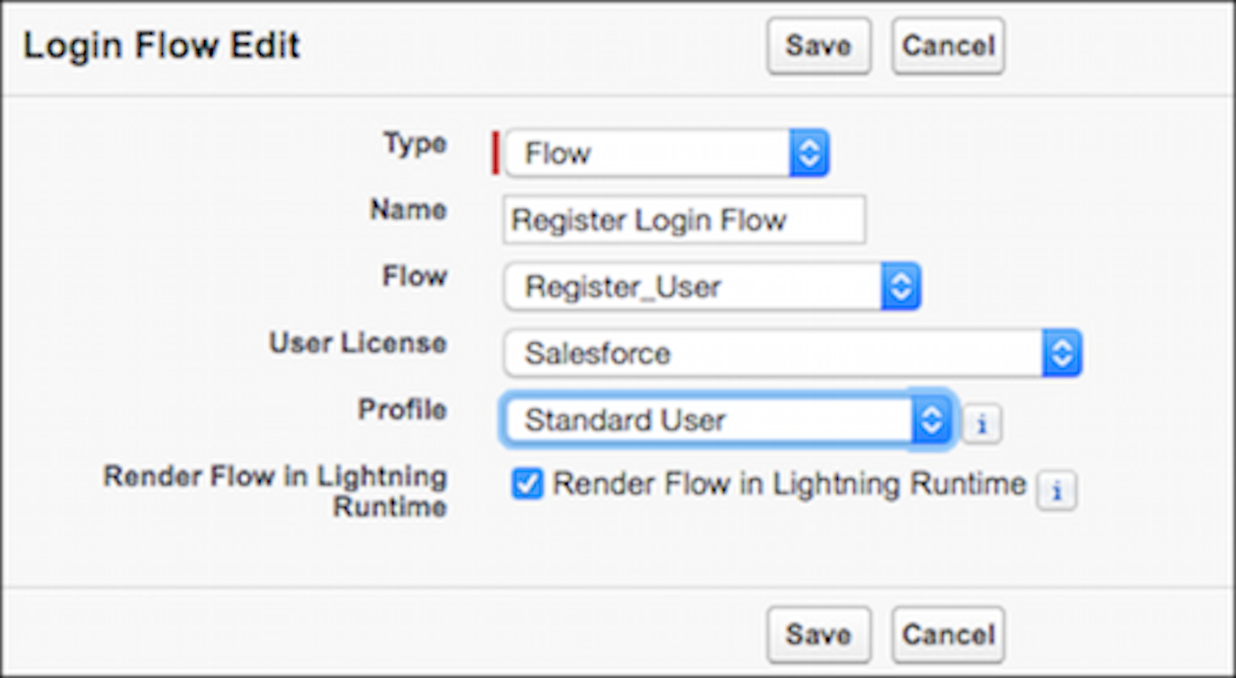
- Select the type of flow you created. Choose Flow if you created the flow with Flow Builder. Choose Visualforce Page if you created the flow with Visualforce.
- From the dropdown list of available flows, choose which one to use for this login flow.
- Select a user license for the profile that you want to connect to the login flow.
- From the list of available profiles for this license, select the profile to associate with this login flow.
- If you want the login flow to resemble the Lightning Experience UI, select Render Flow in Lightning Runtime. If you don’t select this option, the login flow resembles Salesforce Classic.
- Click Save.
Repeat the process to associate other profiles with the login flow.
After you connect the login flow, you can edit or delete it from the Login Flows Setup page.