


Salesforce Security Guide
 j
jSet Up a Login Flow and Connect to Profiles
After you create a flow using Flow Builder or Visualforce, designate it as a login flow
and associate it with user profiles. When users log in with an associated profile, they’re
directed through the login flow.
| Available in: both Salesforce Classic and Lightning Experience |
| Available in: Essentials, Professional, Enterprise, Performance, Unlimited, and Developer Editions |
- From Setup, enter Login in the Quick Find box, then select Login Flows.
- Click New.
- On the Login Flow Edit page, enter a name for the login flow.
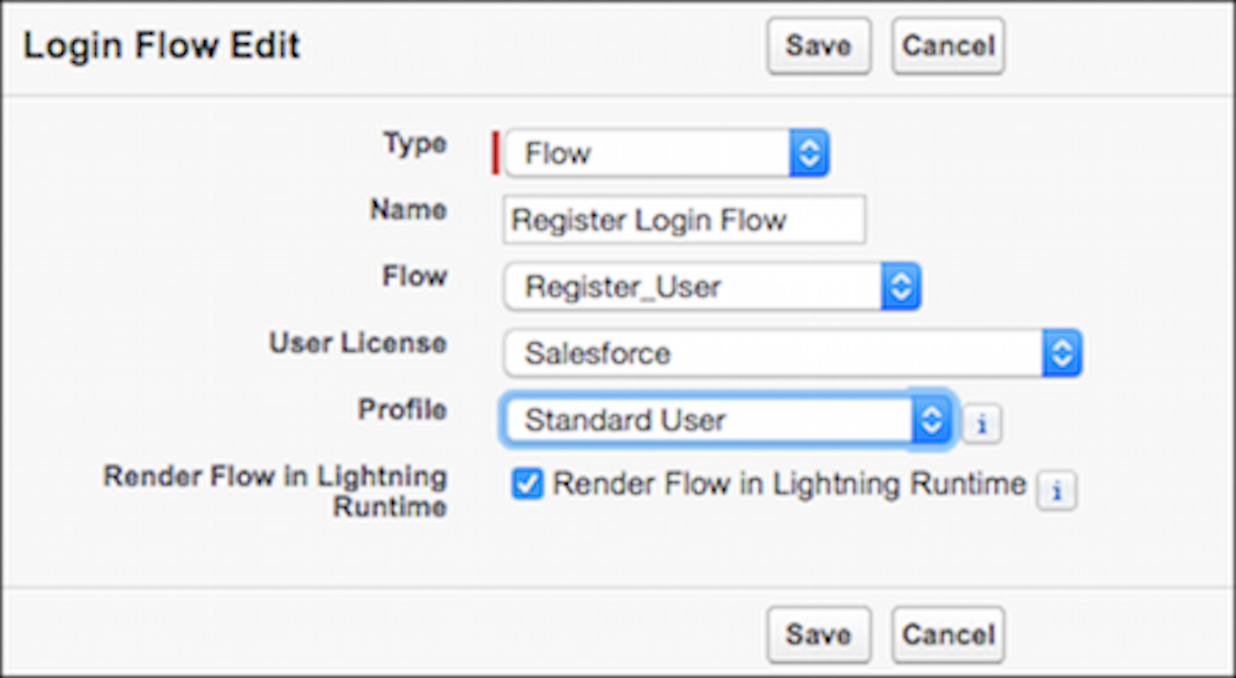
- Select the type of flow you created. Choose Flow if you created the flow with Flow Builder. Choose Visualforce Page if you created the flow with Visualforce.
- From the dropdown list of available flows, choose the appropriate login flow.
- Select a user license for the profile that you want to connect to the login flow.
- From the list of available profiles for this license, select the profile to associate with this login flow.
- If you want the login flow to resemble the Lightning Experience UI, select Render Flow in Lightning Runtime. If you don’t select this option, the login flow resembles Salesforce Classic.
- Click Save.
After you connect the login flow, you can edit or delete it from the Login Flows Setup page.