


Lightning Flow for Service Developer Guide
 j
jNewer Version Available
Associate Actions to Records with a Deployment
When you configure an Actions & Recommendations deployment, you define these settings.
- Type of guidance to show—Select at least one option, Flows and quick actions or Recommendations.
- Context objects—Specify which objects to use for object-specific quick actions and action strategies.
- Channel defaults—For each channel, define the default actions that appear when a record is opened in that channel and no other RecordAction associations exist.
- Additional actions—Define which actions users can launch at run time, as needed. When a user clicks Add and selects an action, it starts. We create a RecordAction that associates the action with the current record page.
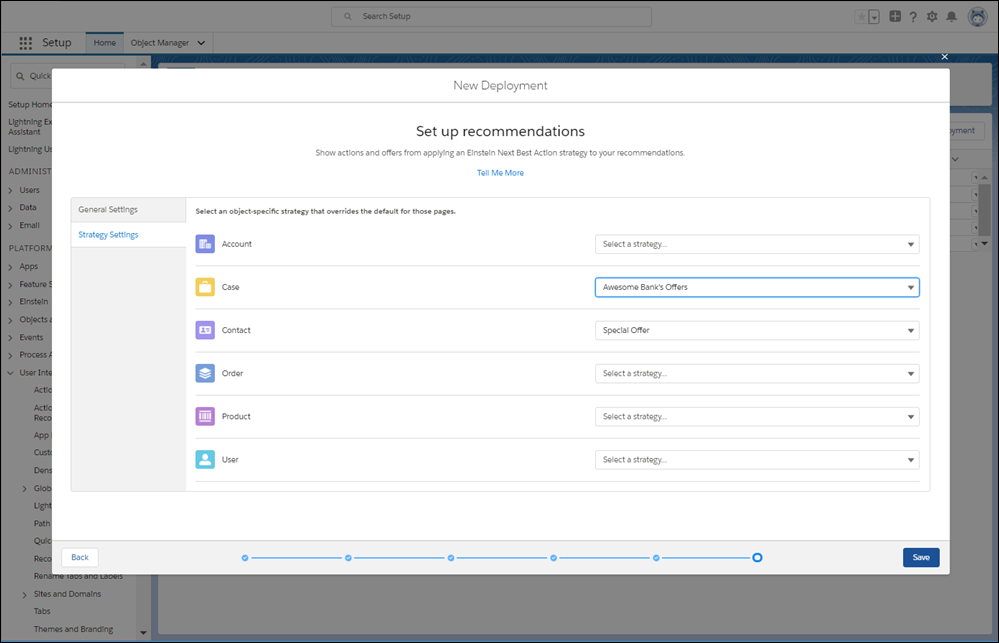
- Recommendation settings—Specify how Next Best Action recommendations appear, how many to show, and which action strategies to use.
Before you configure a deployment, first set up the flows and quick actions that you want to show in the component. If you want to include recommendations from Next Best Action strategies, configure them first as well.
You can define a deployment in Setup, or programmatically using the metadata type RecordActionDeployment.
- From Setup, in the Quick Find box, enter Actions & Recommendations, and select Actions & Recommendations.
-
Click New Deployment.
- Name your deployment.
-
Select at least one type of guidance to show, for example, Flows and quick
actions. To display actions and offers that result from filtering
recommendations with your Next Best Action strategies, select
Recommendations.
-
Select up to 10 objects that provide context for object-specific quick actions and Next
Best Action strategies.
You can associate quick actions and strategies with specific object types, giving them an object-specific, rather than global, context. When a page for a selected object opens, the component lists the global and object-specific actions and recommendations. On other pages, it displays only the global items.For example, you define an object-specific quick action for the Contact object. To show this quick action in the component on Contact pages, add Contact as a context object. Or, to filter recommendations with a strategy that uses case fields, add the Case object as a context object. Then, in strategy settings, select a strategy that filters recommendations for cases.
-
If you selected the option to show flows and quick actions, configure a default list for
each channel.
-
Click a tab to configure settings for that channel.
- Chat
This channel works with Chat in Lightning Experience. Use this channel to specify default actions for when agents chat with customers. To use this channel, add the component to the chat transcript record page.
- Phone
This channel works with Open CTI. Use this channel to specify default steps for when customers call and records are shown to the agent. To use this channel, update your softphone screen pop settings for no matching records and single-matching records.
- Default
Use this channel to specify default actions for when records open from list views or related records.
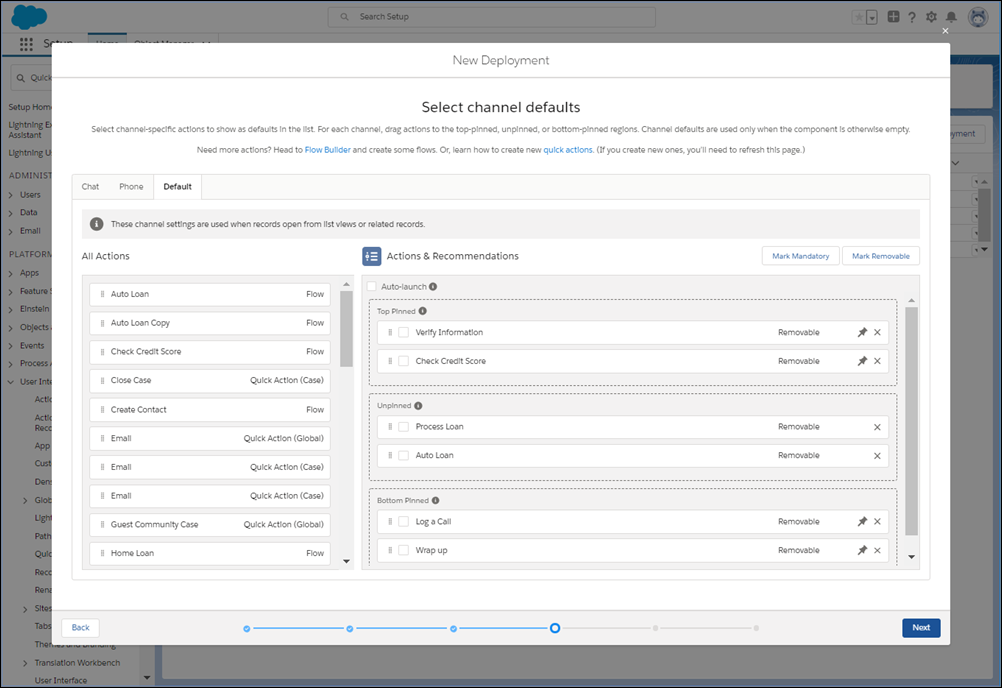
You can configure multiple channels. For example, if you use Open CTI, you can configure actions for the Phone and Default channels. That way, agents can select actions from the list when a caller’s contact record is popped. Agents can also navigate to a contact record manually, such as when they open a record from a list view. Then they see the actions that you set up in the Default channel.
- Chat
-
On each channel, drag actions from All Actions to the preview
area.
The preview area has three regions: Top Pinned, Unpinned, or Bottom Pinned. Use the pinned regions to specify actions that you want your users to complete first and last. The Unpinned region is for actions that you want your users to complete during the record’s life cycle.
-
Select actions that are important, and click Mark Mandatory.
When a user tries to close a flow that’s marked as mandatory without completing it, a reminder appears.
- Select actions that you don’t want users to remove at run time, and click Unmark Removable. By default, all actions are removable.
- Specify whether to auto-launch the first action when the record page opens.
- Click Save.
-
Click a tab to configure settings for that channel.
- If you selected the option to show flows and quick actions, narrow the list of actions that users can launch at run time. When the user clicks Add, the component shows the subset of actions that you configure here.
-
If you selected the option to show recommendations, configure display settings and Next
Best Action strategies.
-
On the General Settings tab, set up how recommendations display, and select a default
strategy.
Set the maximum number of recommendations to a value from 1 to 4.
-
On the Strategy Settings tab, you can select object-specific strategies that override the
default strategy on those pages.
- Click Save.
-
On the General Settings tab, set up how recommendations display, and select a default
strategy.
- In Lightning App Builder, add the Actions & Recommendations component to a page, and select the deployment.
If you don’t select a deployment in component properties, no actions appear when the user clicks Add. In addition, the component is empty unless other RecordActions exist for the record page.