


Tableau CRM REST API Developer Guide
 j
jNewer Version Available
Backup and Restore Previous Versions of Tableau CRM Assets with History API
Every time you save a new version of a dashboard, lens, recipe, or dataflow, Tableau CRM saves the older version. It also saves dashboard and lens conditional formatting.
Tableau CRM saves 20 versions of an asset, including 10 tagged and 10 untagged versions. When you save more than 20 new versions of an asset, Tableau CRM saves the new version and purges older versions. When the limit is reached and the save is for a tagged version, the oldest tagged version is purged. An untagged version save purges the oldest untagged version. To increase this limit, contact Salesforce and ask your representative to increase the org value Maximum analytics asset histories to track in the database, also known as AnalyticsMaxHistories.
You can add tags that describe asset versions to give you and other team members reminders of what's been changed and why. You can use either manual or automatic tagging.
Tableau CRM gives you two ways to manually tag an asset version.
- When you save a dashboard or lens, the Save dialog displays a Version History box when you
save a dashboard or lens. Enter a short description of your changes there. (Dataflows don't
currently have a user interface for adding tags to previous versions.)
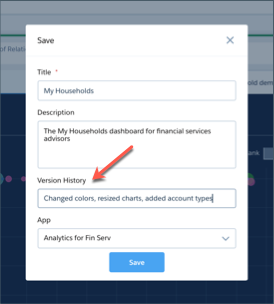
- You can also tag changes with the public REST API. Use the API to tag history records with
a description, which you can do even after saving the asset. You can edit existing
descriptions.
1*PATCH: /services/data/v46.0/wave/dashboards/0FKxx0000004CAeGAM/histories/0Rmxx0000004Cx2CAE*
2*REQUEST BODY: {"label" : "new description"}*
- When you create and save the initial version of an asset, Tableau CRM adds the tag Initial Create to the history record.
- When you create or upgrade an app from a template, Tableau CRM tags history records for the newly created app. The tag includes the template action, template name, and the template version. This information helps you restore the correct previous version of an asset after you upgrade an app from a new template version.
Previewing and Reverting to Previous Asset Versions
To get a list of history records for an asset, either log in to Workbench and execute an API call. Or enter the appropriate command in the Salesforce Command Line Interface (CLI) with the Tableau CRM plugin:
-
Dashboard history records.
- Workbench call:
1GET: /services/data/v526.0/wave/dashboards/<dashboardId>/histories - CLI command:
1sfdx analytics:dashboard:history:list
- Workbench call:
-
Lens history records.
- Workbench call:
1GET: /services/data/v52.0/wave/dashboards/<lensId>/histories - CLI command:sfdx analytics:lens:history:list
- Workbench call:
-
Recipe history records.
- Workbench call:
1GET: /services/data/v52.0/wave/recipes/<recipeId>/histories
- Workbench call:
-
Dataflow history records.
- Workbench call:
1GET: /services/data/v52.0/wave/dataflows/<dataflowId>/histories - CLI command:sfdx analytics:dataflow:history:list
- Workbench call:
Optionally, you can navigate to the History API endpoint from the URLs in the Asset
Response (HATEOAS). The link is highlighted in the following dashboard detail
response.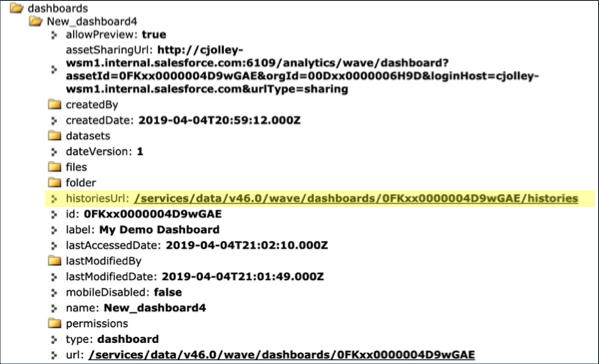
Or manually execute the following REST calls from workbench:
- Get a list of all
dashboards:
1GET: /services/data/v52.0/wave/dashboards - Find a particular dashboard, click its details URL in the response
body:
1GET: /services/data/v52.0/wave/dashboards/<dashboardId> - Get a list of histories, click the historiesUrl in
the dashboard details
response:
1GET: /services/data/v52.0/wave/dashboards/*<dashboardId>/histories*
Preview a Previous Version
After listing asset version histories, preview the JSON for a version. During preview, you see the JSON as it looked when it was saved.
Use Workbench to preview the JSON for previous asset versions. Click the previewUrl in the response body.

Restore a Previous Version
After you confirm you’re previewing the correct asset version, restore it using either REST API calls or the CLI.
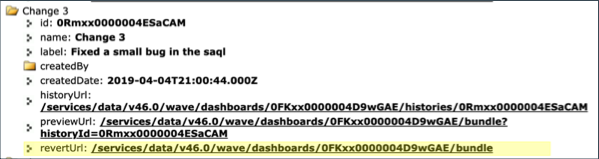
1*PUT: /services/data/v52.0/wave/dashboards/*<dashboardId>/bundle**
2*REQUEST BODY: {"historyId": "<historyId>, historyLabel" : "optional description of new change"}*
Copy the historyId of the version you want to restore. You use it in the request body as shown here.

The CLI commands for restoring assets are as follows:
- Dashboards. sfdx analytics:dashboard:history:revert -i <dashboardid> -h <historyid>
- Lenses. sfdx analytics:lens:history:revert -i <lensid> -h <historyid>
- Dataflows. sfdx analytics:dataflow:history:revert -i <dataflowid> -h <historyid>
historyid is the id for the version of the asset you’d like to restore.
Limitations
When you restore the previous version of an asset, the asset may not run as expected. If the asset depends on other assets (for example, datasets) and those assets have been deleted or modified, you may get errors. However, every time you restore a previous version, you create a history record. You can always restore the last working copy.
When you delete an asset, all history is deleted with it, and you can’t undelete it.
Currently, Tableau CRM doesn’t back up previous versions of dataset XMD files.