


Canvas Developer Guide
 j
jNewer Version Available
Add a Canvas App to a Page Layout
Follow these steps to add a canvas app to the page layout for an Account.
- Use the Heroku Quick Start to create a canvas app by following the steps in Create the App.
- From Setup, enter Apps in the Quick Find box, then select Apps.
- In the Connected Apps related list, click Edit next to the app that you just created.
- In the Canvas Apps Settings section, in the Locations field, select Layouts and Mobile Cards.
- Click Save.
- From the object management settings for accounts, go to Page Layouts.
-
Click Edit next to Account Layout.
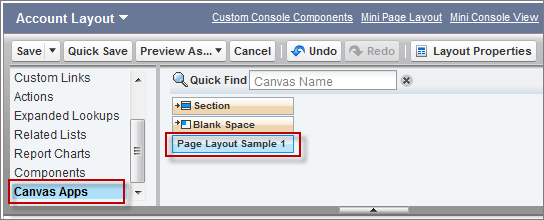
You’ll see the Canvas Apps category in the palette and the canvas app, because you set the location of the canvas app to Layouts and Mobile Cards.
-
Drag the canvas app element to where you’d like it to appear in the page layout, and then
click Save.
- If you add the canvas app to any section other than the Mobile Cards section, the canvas app appears in the page layout in the full Salesforce site or in the record detail page in the Salesforce mobile app.
- If you add the canvas app to the Mobile Cards section, the canvas app appears only in the mobile card.
- To see your changes, click the Accounts tab, and then click an account. You’ll see the canvas app on the page layout where you added it.
You can modify additional properties of the canvas app in the page layout by clicking the
wrench icon  .
.
.- Width (in pixels or %)—The width of the canvas app; defaults to 100%. Changes to the width of the canvas app appear in both the full Salesforce site and the Salesforce mobile app. However, canvas apps are displayed in a single-column layout, so we recommend that you leave the width at 100%.
- Height (in pixels)—The height of the canvas app; defaults to 200 pixels. Changes to this field appear to the user for canvas apps that appear in both the full Salesforce site and the Salesforce mobile app.
- Show scrollbars—Whether scrollbars are displayed on the canvas app iFrame. Changes to this field render for canvas apps that appear in the full Salesforce site but not for canvas apps that appear in the Salesforce mobile app.
- Show label—Whether to display the page layout section label. Changes to this field appear to the user for canvas apps that appear in both the full Salesforce site and in the Salesforce mobile app.