Visualforce Developer Guide
 j
jNewer Version Available
Using Dynamic References with Standard Objects
Use dynamic Visualforce bindings to construct simple, reusable pages with a known set of fields you want to access. This approach has the advantage of easily customizing which fields are pertinent for a user to work with.
The next two examples are deliberately simple for instructional purposes. See Using Dynamic References for a User-Customizable Page for a more advanced example that makes fuller use of dynamic Visualforce.
A Simple Dynamic Form
The following example demonstrates the simplest way to construct a Visualforce page that uses dynamic references.
1public class DynamicAccountFieldsLister {
2
3    public DynamicAccountFieldsLister(ApexPages.StandardController controller) {
4        controller.addFields(editableFields);
5    }
6
7    public List<String> editableFields {
8        get {
9            if (editableFields == null) {
10                editableFields = new List<String>();
11                editableFields.add('Industry');
12                editableFields.add('AnnualRevenue');
13                editableFields.add('BillingCity');
14            }
15            return editableFields ;
16        }
17        private set;
18    }
19}1<apex:page standardController="Account"
2 extensions="DynamicAccountFieldsLister">
3
4 <apex:pageMessages /><br/>
5
6 <apex:form>
7 <apex:pageBlock title="Edit Account" mode="edit">
8 <apex:pageBlockSection columns="1">
9 <apex:inputField value="{!Account.Name}"/>
10 <apex:repeat value="{!editableFields}" var="f">
11 <apex:inputField value="{!Account[f]}"/>
12 </apex:repeat>
13 </apex:pageBlockSection>
14 </apex:pageBlock>
15 </apex:form>
16
17</apex:page>- The DynamicAccountFieldsLister controller extension creates a list of strings called editableFields. Each string maps to a field name in the Account object.
- The editableFields list is hard-coded, but you can determine them from a query or calculation, read them from a custom setting, or otherwise providing a more dynamic experience. This is what makes dynamic references powerful.
- DynamicAccountEditor markup uses an <apex:repeat> tag to loop through the strings returned by editableFields.
- The <apex:inputField> tag displays each field in editableFields by referencing the f iteration element, which represents the name of a field on Account. The dynamic reference {!Account[f]} actually displays the value on the page.
Ensuring that Fields in Dynamic References are Loaded by a Standard Controller
Visualforce automatically optimizes the SOQL query performed by a page’s StandardController (or StandardSetController), loading only the fields which are actually used on a page. When you create a Visualforce page with static references to objects and fields, the fields and objects can be known in advance. When the page is saved, Visualforce is able to determine and save which objects and fields need to be added to the SOQL query that the StandardController will perform later, when the page is requested.
Dynamic references are evaluated at runtime, after the SOQL query is run by the StandardController. If a field is only used via a dynamic reference, it won’t be automatically loaded. When that dynamic reference is later evaluated, it will resolve to data which is missing, the result of which is a SOQL error. You must provide some extra information to the controller, so that it knows what fields and related objects to load.
1public DynamicAccountFieldsLister(ApexPages.StandardController controller) {
2        controller.addFields(editableFields);
3 }This works well for pages when the complete list of fields to load can be known when the controller extension is instantiated. If the list of fields can’t be determined until later in the request processing, you can call reset() on the controller and then add the fields. This will cause the controller to send the revised query. Using Dynamic References for a User-Customizable Page provides an example of this technique.
Dynamic References to Related Objects
This example creates a Visualforce page for a case record, with certain fields that are editable. Some of the fields displayed are from a related object, showing how you can use dynamic references to traverse relationships.
1public class DynamicCaseLoader {
2
3    public final Case caseDetails { get; private set; }
4
5    // SOQL query loads the case, with Case fields and related Contact fields
6    public DynamicCaseLoader(ApexPages.StandardController controller) {
7        String qid = ApexPages.currentPage().getParameters().get('id');
8        String theQuery = 'SELECT Id, ' + joinList(caseFieldList, ', ') +
9                          ' FROM Case WHERE Id = :qid';
10        this.caseDetails = Database.query(theQuery);
11    }
12
13    // A list of fields to show on the Visualforce page
14    public List<String> caseFieldList {
15        get {
16            if (caseFieldList == null) {
17                caseFieldList = new List<String>();
18                caseFieldList.add('CaseNumber');
19                caseFieldList.add('Origin');
20                caseFieldList.add('Status');
21                caseFieldList.add('Contact.Name');  // related field
22                caseFieldList.add('Contact.Email'); // related field
23                caseFieldList.add('Contact.Phone'); // related field
24            }
25            return caseFieldList;
26        }
27        private set;
28    }
29
30    // Join an Apex list of fields into a SELECT fields list string
31    private static String joinList(List<String> theList, String separator) {
32
33        if (theList == null) {
34            return null;
35        }
36        if (separator == null) {
37            separator = '';
38        }
39
40        String joined = '';
41        Boolean firstItem = true;
42        for (String item : theList) {
43            if(null != item) {
44                if(firstItem){
45                    firstItem = false;
46                }
47                else {
48                    joined += separator;
49                }
50                joined += item;
51            }
52        }
53        return joined;
54    }
55}1<apex:page standardController="Case" extensions="DynamicCaseLoader">
2 <br/>
3 <apex:form >
4 <apex:repeat value="{!caseFieldList}" var="cf">
5 <h2>{!cf}</h2>
6 <br/>
7 <!-- The only editable information should be contact information -->
8 <apex:inputText value="{!caseDetails[cf]}"
9 rendered="{!IF(contains(cf, "Contact"), true, false)}"/>
10 <apex:outputText value="{!caseDetails[cf]}"
11 rendered="{!IF(contains(cf, "Contact"), false, true)}"/>
12 <br/><br/>
13 </apex:repeat>
14 </apex:form>
15</apex:page>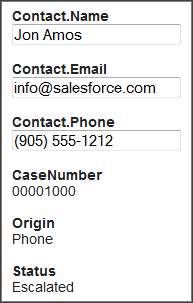
- In the controller extension, the constructor performs its own SOQL query for the object to display. Here it’s because the page’s StandardController doesn’t load related fields by default, but there are many different use cases for needing a customized SOQL query. The query result is made available to the page through the property caseFieldList. There’s no requirement to perform the query in the constructor—it can just as easily be in the property’s get method.
- The SOQL query specifies the fields to load, so it’s not necessary to use addFields() which was needed in A Simple Dynamic Form.
- The SOQL query is constructed at run time. A utility method converts the list of field names into a string suitable for use in a SOQL SELECT statement.
- In the markup, the form fields are displayed by iterating through the field names using <apex:repeat>, and using the field name variable cf in a dynamic reference to get the field value. Each field is potentially written by two components—<apex:outputText> and <apex:inputText>. The render attribute on these tags controls which of the two actually displays: if the field name contains the string “Contact,” then the information is rendered in an <apex:inputText> tag, and if it doesn’t, it’s rendered in an <apex:outputText>.
Using Dynamic References for a User-Customizable Page
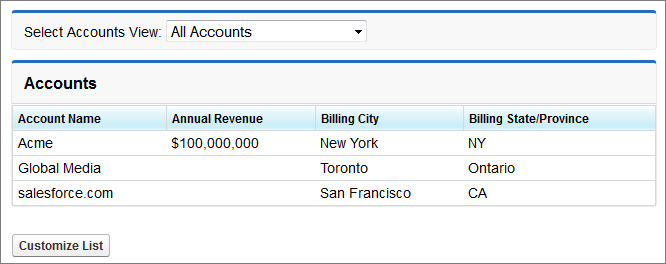
The full potential of Visualforce dynamic bindings is in building pages without knowing which fields are available on an object. The following example demonstrates this capability with a list of accounts that can be customized without knowing any of the fields on the Account object, except for the Name field required on all objects. This is made possible by using the Schema.SobjectType.Account.fields.getMap() to retrieve the list of fields that exist on the object, and Visualforce dynamic references.
1public class DynamicCustomizableListHandler {
2
3    // Resources we need to hold on to across requests
4    private ApexPages.StandardSetController controller;
5    private PageReference savePage;
6
7    // This is the state for the list "app"
8    private Set<String> unSelectedNames = new Set<String>();
9    private Set<String> selectedNames = new Set<String>();
10    private Set<String> inaccessibleNames = new Set<String>();
11
12    public DynamicCustomizableListHandler(ApexPages.StandardSetController controller) {
13        this.controller = controller;
14        loadFieldsWithVisibility();
15    }
16
17    // Initial load of the fields lists
18    private void loadFieldsWithVisibility() {
19        Map<String, Schema.SobjectField> fields =
20            Schema.SobjectType.Account.fields.getMap();
21        for (String s : fields.keySet()) {
22            if (s != 'Name') {  // name is always displayed
23                unSelectedNames.add(s);
24            }
25            if (!fields.get(s).getDescribe().isAccessible()) {
26                inaccessibleNames.add(s);
27            }
28        }
29    }
30
31    // The fields to show in the list
32    // This is what we generate the dynamic references from
33    public List<String> getDisplayFields() {
34        List<String> displayFields = new List<String>(selectedNames);
35        displayFields.sort();
36        return displayFields;
37    }
38
39    // Nav: go to customize screen
40    public PageReference customize() {
41        savePage = ApexPages.currentPage();
42        return Page.CustomizeDynamicList;
43    }
44
45    // Nav: return to list view
46    public PageReference show() {
47        // This forces a re-query with the new fields list
48        controller.reset();
49        controller.addFields(getDisplayFields());
50        return savePage;
51    }
52
53    // Create the select options for the two select lists on the page
54    public List<SelectOption> getSelectedOptions() {
55        return selectOptionsFromSet(selectedNames);
56    }
57    public List<SelectOption> getUnSelectedOptions() {
58        return selectOptionsFromSet(unSelectedNames);
59    }
60
61    private List<SelectOption> selectOptionsFromSet(Set<String> opts) {
62        List<String> optionsList = new List<String>(opts);
63        optionsList.sort();
64        List<SelectOption> options = new List<SelectOption>();
65        for (String s : optionsList) {
66            options.add(new
67                SelectOption(s, decorateName(s), inaccessibleNames.contains(s)));
68        }
69        return options;
70    }
71
72    private String decorateName(String s) {
73        return inaccessibleNames.contains(s) ? '*' + s : s;
74    }
75
76    // These properties receive the customization form postback data
77    // Each time the [<<] or [>>] button is clicked, these get the contents
78    // of the respective selection lists from the form
79    public transient List<String> selected   { get; set; }
80    public transient List<String> unselected { get; set; }
81
82    // Handle the actual button clicks. Page gets updated via a
83    // rerender on the form
84    public void doAdd() {
85        moveFields(selected, selectedNames, unSelectedNames);
86    }
87    public void doRemove() {
88        moveFields(unselected, unSelectedNames, selectedNames);
89    }
90
91    private void moveFields(List<String> items,
92            Set<String> moveTo, Set<String> removeFrom) {
93        for (String s: items) {
94            if( ! inaccessibleNames.contains(s)) {
95                moveTo.add(s);
96                removeFrom.remove(s);
97            }
98        }
99    }
100}- The standard controller methods addFields() and reset() are used in the show() method, which is the method that returns back to the list view. They are necessary because the list of fields to display may have changed, and so the query that loads data for display needs to be re-executed.
- Two action methods, customize() and show(), navigate from the list view to the customization form and back again.
- Everything after the navigation action methods deals with the customization form. These methods are broadly broken into two groups, noted in the comments. The first group provides the List<SelectOption> lists used by the customization form, and the second group handles the two buttons that move items from one list to the other.
1<apex:page standardController="Account" recordSetVar="accountList"
2           extensions="DynamicCustomizableListHandler">
3    <br/>
4    <apex:form >
5
6    <!-- View selection widget, uses StandardController methods -->
7    <apex:pageBlock>
8        <apex:outputLabel value="Select Accounts View: " for="viewsList"/>
9        <apex:selectList id="viewsList" size="1" value="{!filterId}">
10            <apex:actionSupport event="onchange" rerender="theTable"/>
11            <apex:selectOptions value="{!listViewOptions}"/>
12        </apex:selectList>
13    </apex:pageblock>
14
15    <!-- This list of accounts has customizable columns -->
16    <apex:pageBlock title="Accounts" mode="edit">
17        <apex:pageMessages />
18        <apex:panelGroup id="theTable">
19            <apex:pageBlockTable value="{!accountList}" var="acct">
20                <apex:column value="{!acct.Name}"/>
21                <!-- This is the dynamic reference part -->
22                <apex:repeat value="{!displayFields}" var="f">
23                    <apex:column value="{!acct[f]}"/>
24                </apex:repeat>
25            </apex:pageBlockTable>
26        </apex:panelGroup>
27    </apex:pageBlock>
28
29    <br/>
30    <apex:commandButton value="Customize List" action="{!customize}"/>
31
32    </apex:form>
33</apex:page>The second <apex:pageBlock> holds a <apex:pageBlockTable> that has columns added in a <apex:repeat>. All columns in the repeat component use a dynamic reference to account fields, {!acct[f]}, to display the user’s custom-selected fields.
1<apex:page standardController="Account" recordSetVar="ignored"
2           extensions="DynamicCustomizableListHandler">
3    <br/>
4    <apex:form >
5
6    <apex:pageBlock title="Select Fields to Display" id="selectionBlock">
7        <apex:pageMessages />
8        <apex:panelGrid columns="3">
9            <apex:selectList id="unselected_list" required="false"
10                value="{!selected}" multiselect="true" size="20" style="width:250px">
11                <apex:selectOptions value="{!unSelectedOptions}"/>
12            </apex:selectList>
13            <apex:panelGroup >
14                <apex:commandButton value=">>"
15                    action="{!doAdd}" rerender="selectionBlock"/>
16                <br/>
17                <apex:commandButton value="<<"
18                    action="{!doRemove}" rerender="selectionBlock"/>
19            </apex:panelGroup>
20            <apex:selectList id="selected_list" required="false"
21                value="{!unselected}" multiselect="true" size="20" style="width:250px">
22                <apex:selectOptions value="{!selectedOptions}"/>
23            </apex:selectList>
24        </apex:panelGrid>
25        <em>Note: Fields marked <strong>*</strong> are inaccessible to your account</em>
26    </apex:pageBlock>
27
28    <br/>
29    <apex:commandButton value="Show These Fields" action="{!show}"/>
30
31    </apex:form>
32
33</apex:page>- This page uses the same standard controller as the list view, even though no accounts are being displayed. This is required to maintain the view state, which contains the list of fields to display. If this form saved the user’s preferences to something permanent, like a custom setting, this wouldn’t be necessary.
- The first list is populated by a call to the getUnSelectedOptions() method, and when the form is submitted (via either of the two <apex:commandButton> components), the values in the list that are selected at time of form submission are saved into the selected property. Corresponding code handles the other list.
- These “delta” lists of fields to move are processed by the doAdd() or doRemove() method, depending on which button was clicked.
- View the customizable list in the default state, with only the account name
field displayed.
 Click Customize List.
 - The display preferences screen is shown.
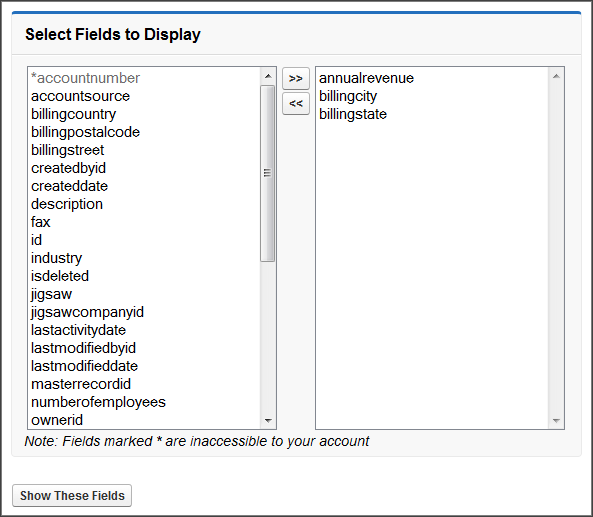 Move
some fields into the list on the right, and click Show These
Fields.
Move
some fields into the list on the right, and click Show These
Fields. - The customized list view is displayed.