


Service Cloud Voice for Partner Telephony Developer Guide
 j
jNewer Version Available
Develop a Telephony System Login Page
If needed, create a telephony system login page that appears in the Omni-Channel utility
in the Lightning service console.
Complete this step if your telephony provider doesn’t support SSO, meaning that agents must log into a telephony system to make and receive calls. The telephony system must maintain the duration and validity of the login session.
-
In your callCenter file, include a scvVendorLoginUrl in the customSettings field {contactCenterName}.callCenter.
1<?xml version="1.0" encoding="UTF-8"?> 2<CallCenter xmlns="http://soap.sforce.com/2006/04/metadata"> 3... 4 <customSettings>{"reqTimeout":"5000","reqCallCenterType":"SCVBYOT",*scvVendorLoginUrl":"https://YOUR_SERVER_LOGIN_URL"*,"reqStandbyUrl":"https://domain:port/softphone","reqSoftphoneHeight":"300","reqUseApi":"true","reqSoftphoneWidth":"500","reqSalesforceCompatibilityMode":"Lightning"}</customSettings> 5... 6</CallCenter> - In the response to init(), set showLogin to true and include an optional number for loginFrameHeight in the InitResult object.
-
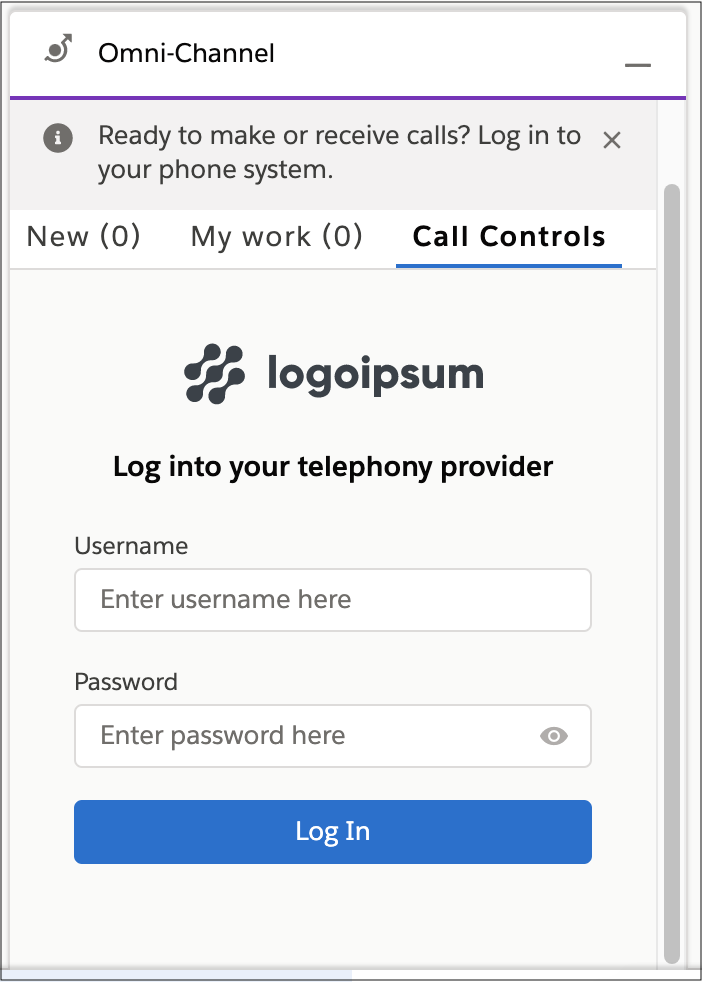
Upon initialization, the Omni-Channel utility shows an iframe that is populated with the
URL specified in the scvVendorLoginUrl field of customSettings in the
callCenter file:
-
Publish a Connector API event
with the login result to show either a login failure or the dialer.
1publishEvent({ 2 eventType: Constants.EVENT_TYPE.LOGIN_RESULT, 3 payload: new GenericResult({ success: true }) 4}); -
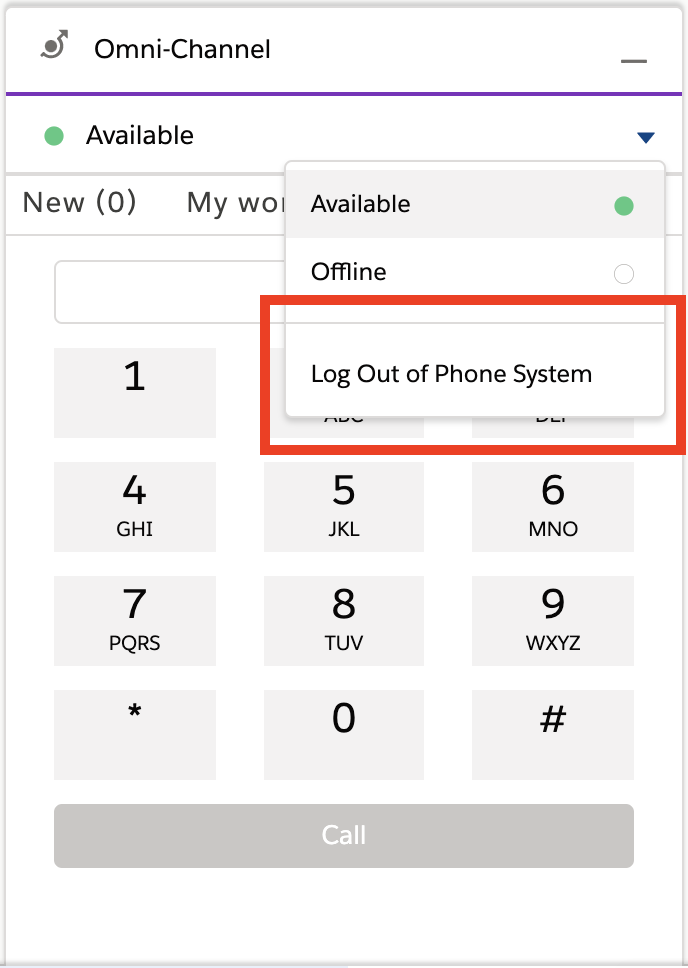
The agent can now log out from Omni-Channel.
-
In the event of a session timeout, the telephony vendor can trigger a logout from the Connector API and use
the Connector API publishEvent
method. The vendor can provide a loginFrameHeight for the login iframe. If no value is
provided, a default value of 350 is used.
1publishEvent({
2  eventType: Constants.EVENT_TYPE.LOGOUT_RESULT,
3  payload: new LogoutResult({ success: true, loginFrameHeight: 350 })
4})