


Experience Cloud Developer Guide
 j
jNewer Version Available
Analyze and Improve Experience Builder Site Performance
| Available in: both Salesforce Classic (not available in all orgs) and Lightning Experience |
| Available in: Enterprise, Performance, Unlimited, and Developer Editions |
| User Permissions Needed | |
|---|---|
| To customize an Experience Cloud site: |
|
| To publish an Experience Cloud site: |
|
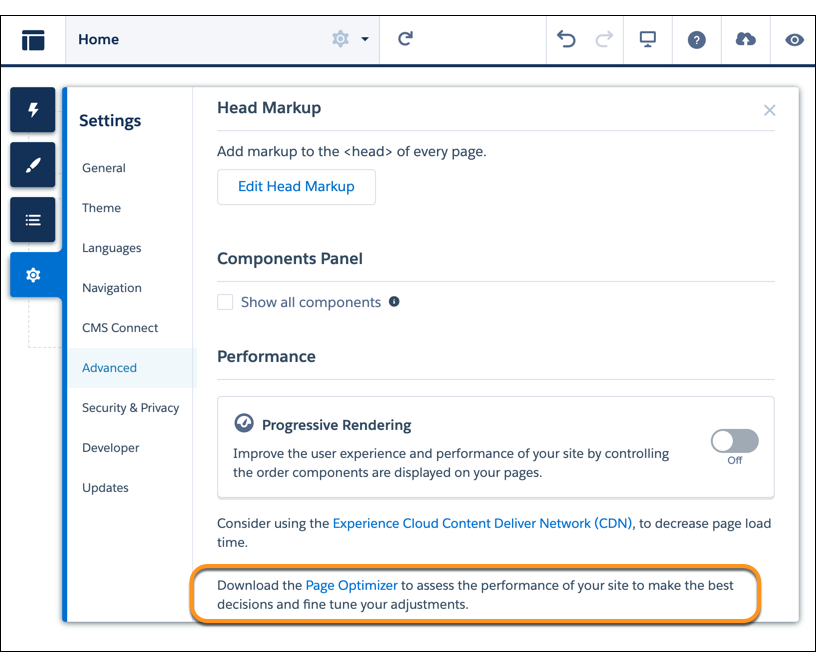
To download the Page Optimizer, in Experience Builder, click  on the left sidebar, and
then click Advanced.
on the left sidebar, and
then click Advanced.
After installation, the Page Optimizer is located with your other Chrome extensions. 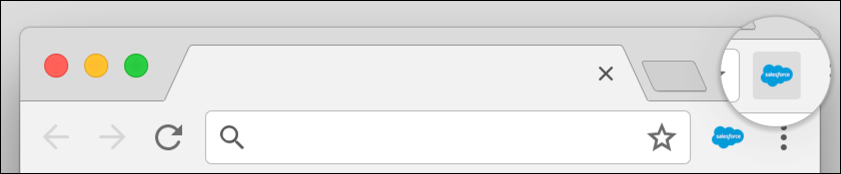
Insights
To analyze your site, navigate to your published site, load the page, and then launch the
Page Optimizer. 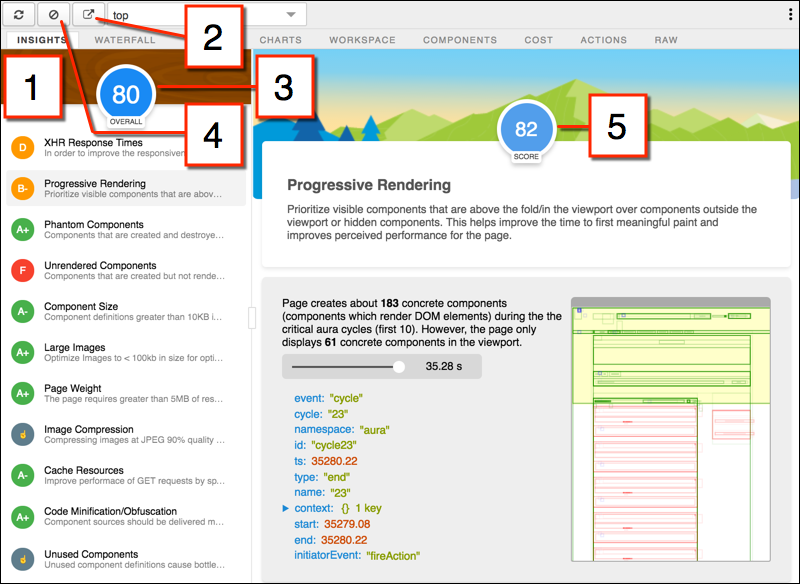
The Insights tab (1) evaluates your page based on best practices for web applications developed using the Lightning framework. This tab displays an overall performance score (3) along with individual scores (5) for various analysis rules. To view details and suggested actions, click each rule. For more room to work, click Popout (2).
The Insights tab is conservative in providing recommendations. For further insights, consider reviewing the raw data presented on the Waterfall, Timeline, Charts, Cost, and Actions tabs.
To remove collected metrics, click Clear (4). Perform some user actions on the page to collect new metrics, and then reopen the Page Optimizer. For example, to gather performance metrics for liking a feed item, clear performance metrics, click Like, and reopen the Page Optimizer.
Waterfall
The Waterfall tab displays all network requests and performance instrumentation data. Click
a row to view contextual information in the sidebar. Click the arrow to the left of each row
to expand the information for each row. 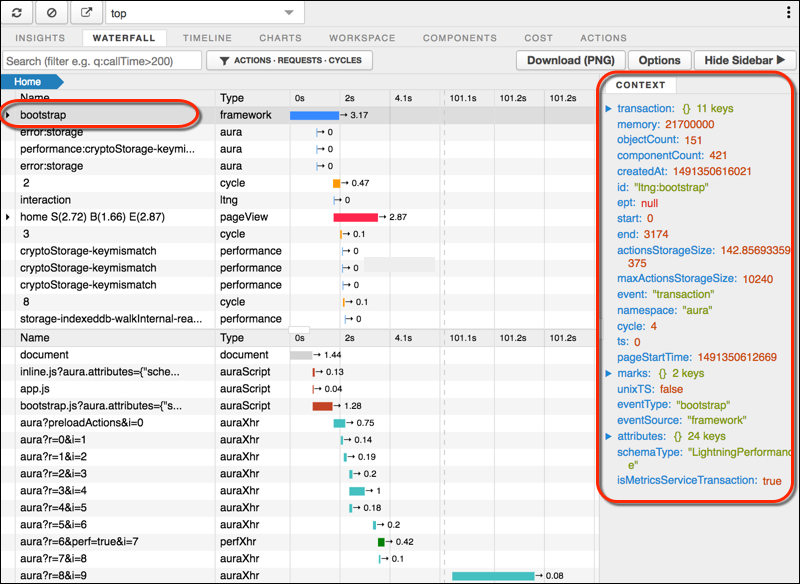
Timeline
The Timeline tab provides a profile of each component’s rendering lifecycle. The timeline
view is optimized for displaying Lightning framework metrics, so it’s easier to interpret
than Chrome DevTools.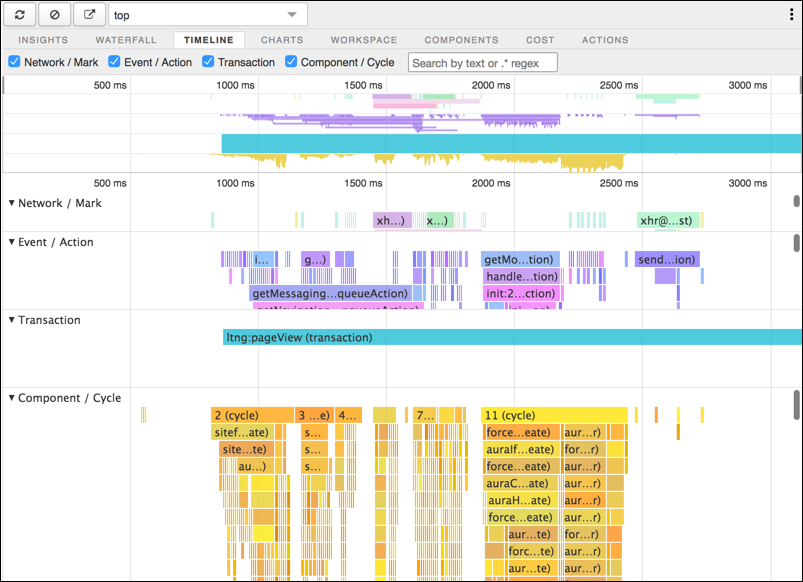
Charts
The Charts tab displays trending information about memory and components as customers use
your page.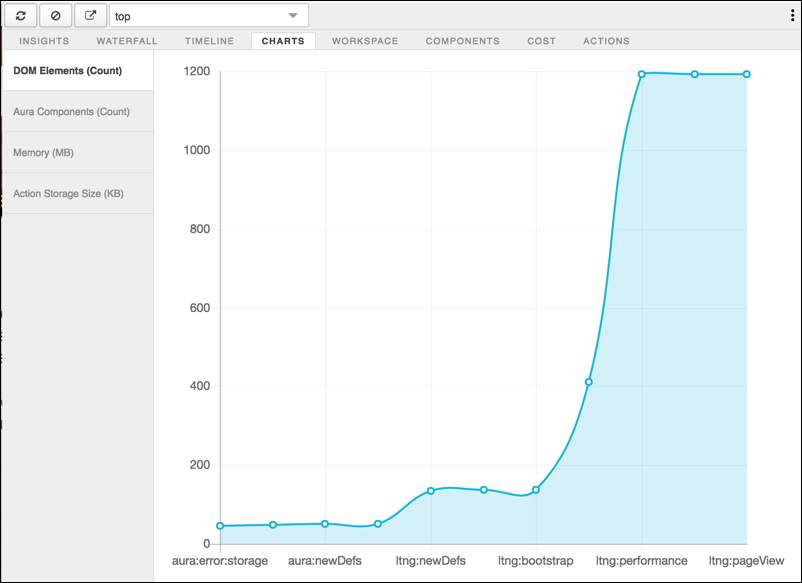
Components
The Components tab displays the lifecycle counts for each component on the page. This view
helps you identify potential component leaks and unexpected rendering behavior. Use the
Component tab along with the Cost tab for an overall view of component performance.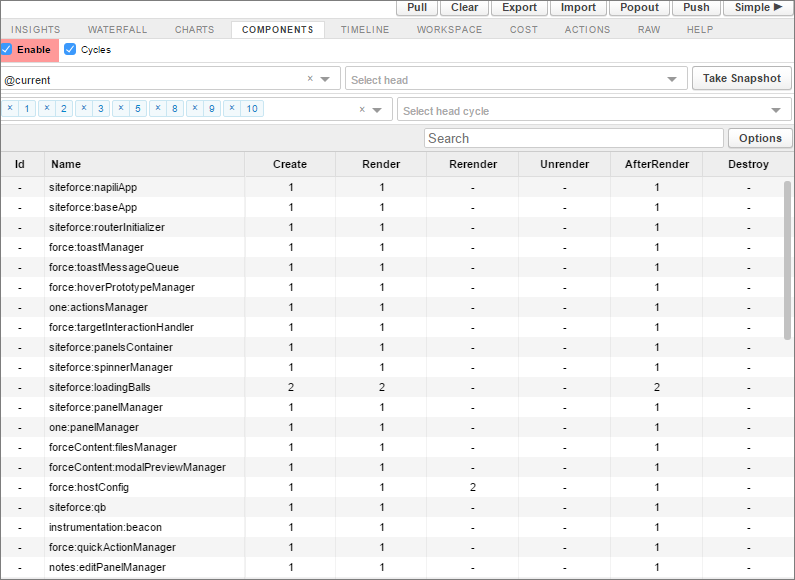
Cost
The Cost tab displays the amount of time each component was busy processing its logic. The
lower the time, the better the performance.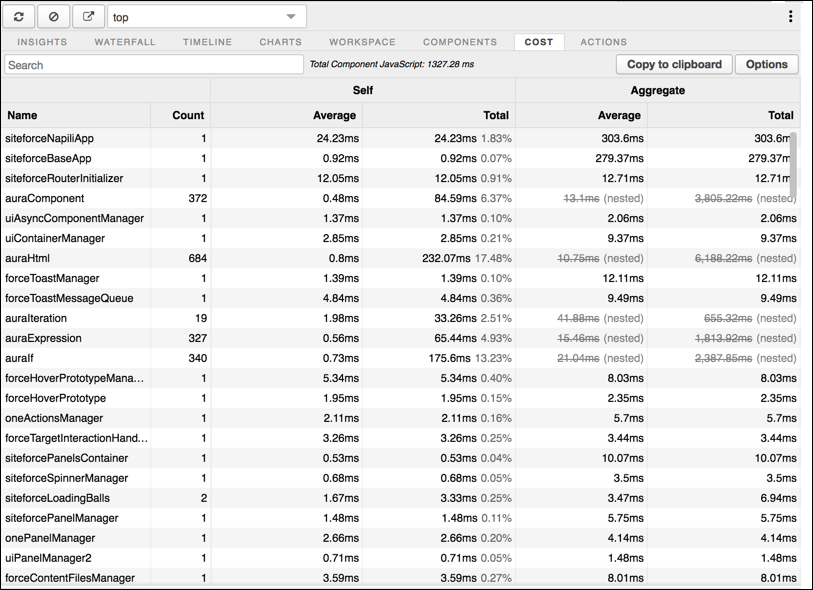
Actions
The Actions tab displays a list of all actions performed on the page along with their timing information.
Export
Export your analysis to a file to share with your development and support teams. 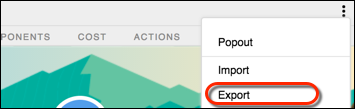
Submit Feedback
We want to hear from you. Share your comments, questions, requests, and any issues that you find. Submit Feedback.