


ISVforce Guide
 j
jNewer Version Available
Select Business Needs for Your AppExchange Solution
Business Need Categories and Subcategories
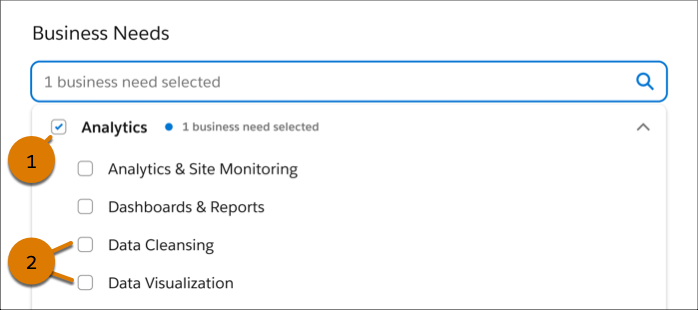
Business needs are divided into categories and subcategories. Categories align with general business processes or tasks. Examples include sales, service, and marketing. Each category contains one or more subcategories. Subcategories align with specific business processes or tasks that relate to the category. For example, in the sales category, there are subcategories for forecasting and contract management.
In the Salesforce Partner Console, you can select up to 3 business needs per AppExchange listing. You can choose categories, subcategories, or some combination of the two. Your category and subcategory selections are independent. Selecting a category doesn’t add the related subcategories to your listing. Similarly, selecting a subcategory doesn’t add the related category to your listing.
Example
AppExchange Listings and Business Needs
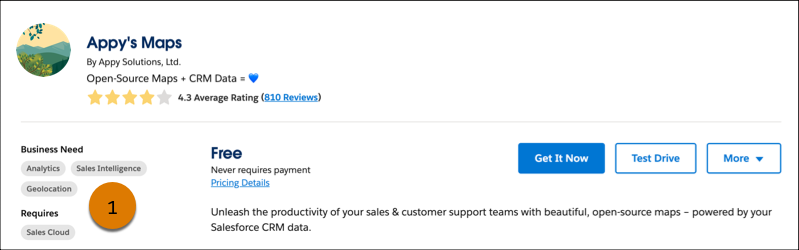
Business needs appear as badges in the summary area of AppExchange listings. These badges help customers understand whether a solution is likely to help them solve their challenge. They’re especially useful to customers who arrive at listings from sources outside AppExchange, such as advertisements or third-party searches.
Example
AppExchange Search and Business Needs
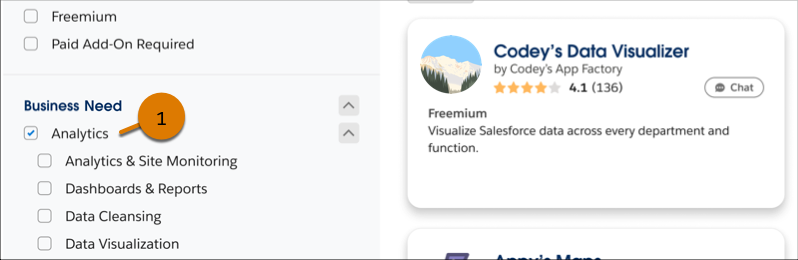
Business needs are also available as filters for AppExchange search results. These filters help customers focus on solutions that are relevant to the challenge they’re solving.
When a customer applies a business need filter, its effect on search results depends on whether the filter is a category or subcategory. If the customer applies a subcategory filter, AppExchange shows only the solutions that are tagged with that subcategory. If the customer applies a category filter, AppExchange shows solutions that include the category and all of the related subcategories.
Example
To widen the focus, he removes the Geolocation filter and applies the Analytics filter (1). Analytics is a category, so AppExchange shows solutions tagged with Analytics along with the related subcategories, including Dashboards & Reports and Data Visualization. From these results, Luis identifies two more solutions to benchmark.
Tips for Selecting Business Needs
As you consider the business needs for your listing, follow these tips.
| Tip | Details |
|---|---|
| Talk to prospects and customers. | To understand the business needs of your target market, talk to your prospects
and customers. When you speak to them, ask about:
|
| Experiment, then monitor the results. | You can update your listing’s business needs at any time. Try experimenting with different combinations of categories and subcategories. Take note of when you applied the changes, and then monitor the impact using AppExchange Marketplace Analytics. |
| If you can’t find a subcategory match, select the most closely related category. | The categories and subcategories in the Partner Console cover many, but not all, common business needs. If your solution addresses a business need that isn’t available in the Partner Console, choose the most closely related category. For example, if your solution assists with a specific process in the sales cycle, choose Sales. |