User Interface API Developer Guide
 j
jNewer Version Available
User Interface API Quick Start
If you don’t already have an org, you can sign up for a Salesforce Developer Edition, also known as a DE org.
This quick start makes a request to the List UI resource, /ui-api/list-ui/${objectApiName}. This resource returns a collection of list views for an object.
Before you connect Postman to Salesforce, fork and configure the collection.
These steps use the Postman desktop app to send a request. Alternatively, you can connect the Postman web app to Salesforce using the Trailhead quick start, which requires a CORS configuration in Salesforce.
- Open the Postman desktop app.
- Expand the collection, and select the .
- Select .
- Click Send.
The query returns a 200 OK status. If you receive an error, check your configuration and try again.
The List View Summary Collection response body includes an array of list views.
1{
2    "count": 7,
3    "currentPageToken": "0",
4    "currentPageUrl": "/services/data/v54.0/ui-api/list-ui/Account?pageSize=20&pageToken=0",
5    "eTag": "3de94589bbabbeb0d794855cf4a0940a",
6    "lists": [
7        {
8            "apiName": "AllAccounts",
9            "id": "00B1a000002eWicEAE",
10            "label": "All Accounts",
11            "listUiUrl": "/services/data/v54.0/ui-api/list-ui/Account/AllAccounts"
12        },
13        {
14            "apiName": "MyAccounts",
15            "id": "00B1a000002eWjvEAE",
16            "label": "My Accounts",
17            "listUiUrl": "/services/data/v54.0/ui-api/list-ui/Account/MyAccounts"
18        },
19        {
20            "apiName": "My_Top_Accounts",
21            "id": "00B1a000002eWjREAU",
22            "label": "My Top Accounts",
23            "listUiUrl": "/services/data/v54.0/ui-api/list-ui/Account/My_Top_Accounts"
24        },
25        {
26            "apiName": "NewLastWeek",
27            "id": "00B1a000002eWjCEAU",
28            "label": "New Last Week",
29            "listUiUrl": "/services/data/v54.0/ui-api/list-ui/Account/NewLastWeek"
30        },
31        {
32            "apiName": "NewThisWeek",
33            "id": "00B1a000002eWj1EAE",
34            "label": "New This Week",
35            "listUiUrl": "/services/data/v54.0/ui-api/list-ui/Account/NewThisWeek"
36        },
37        {
38            "apiName": "PlatinumandGoldSLACustomers",
39            "id": "00B1a000002eWjaEAE",
40            "label": "Platinum and Gold SLA Customers",
41            "listUiUrl": "/services/data/v54.0/ui-api/list-ui/Account/PlatinumandGoldSLACustomers"
42        },
43        {
44            "apiName": "RecentlyViewedAccounts",
45            "id": "00B1a000002eWjoEAE",
46            "label": "Recently Viewed Accounts",
47            "listUiUrl": "/services/data/v54.0/ui-api/list-ui/Account/RecentlyViewedAccounts"
48        }
49    ],
50    "nextPageToken": null,
51    "nextPageUrl": null,
52    "objectApiName": "Account",
53    "pageSize": 20,
54    "previousPageToken": null,
55    "previousPageUrl": null,
56    "queryString": null,
57    "recentListsOnly": false
58}
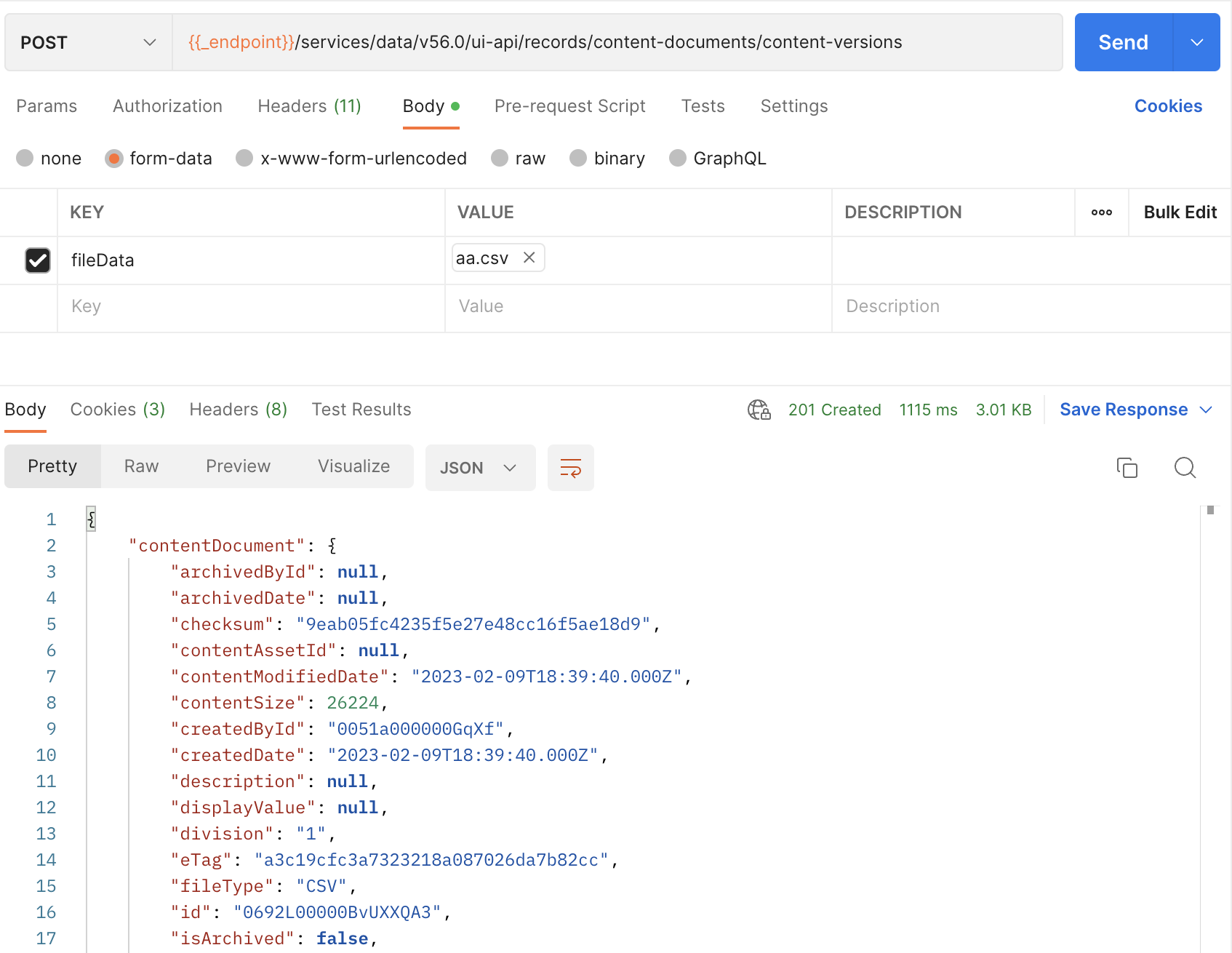
You just sent a UI API request using Postman! You can do more with UI API using Postman, such as sending a cURL command to upload a file to your Salesforce org.
To send a cURL command, import the request using raw text.
- In Postman, click the Import tab on the top left side.
- Select the Raw text tab.
- Paste your cURL command and click Continue.
- Verify your request name and format, then click Import.
- Send your request.
Consider the following guidelines.
- If you’re sending any JSON data as part of your cURL command, the import adds the JSON string as a key on the tab by default. Move the JSON string from the tab to the tab, and delete it from the tab.
- If you’re sending a file using the -F option, upload your file under the tab. For example, you can upload files by adding the fileData key and selecting a local file.