


Mobile and Offline Developer Guide
 j
jNewer Version Available
Test Harness Debug Tab
Draft Control
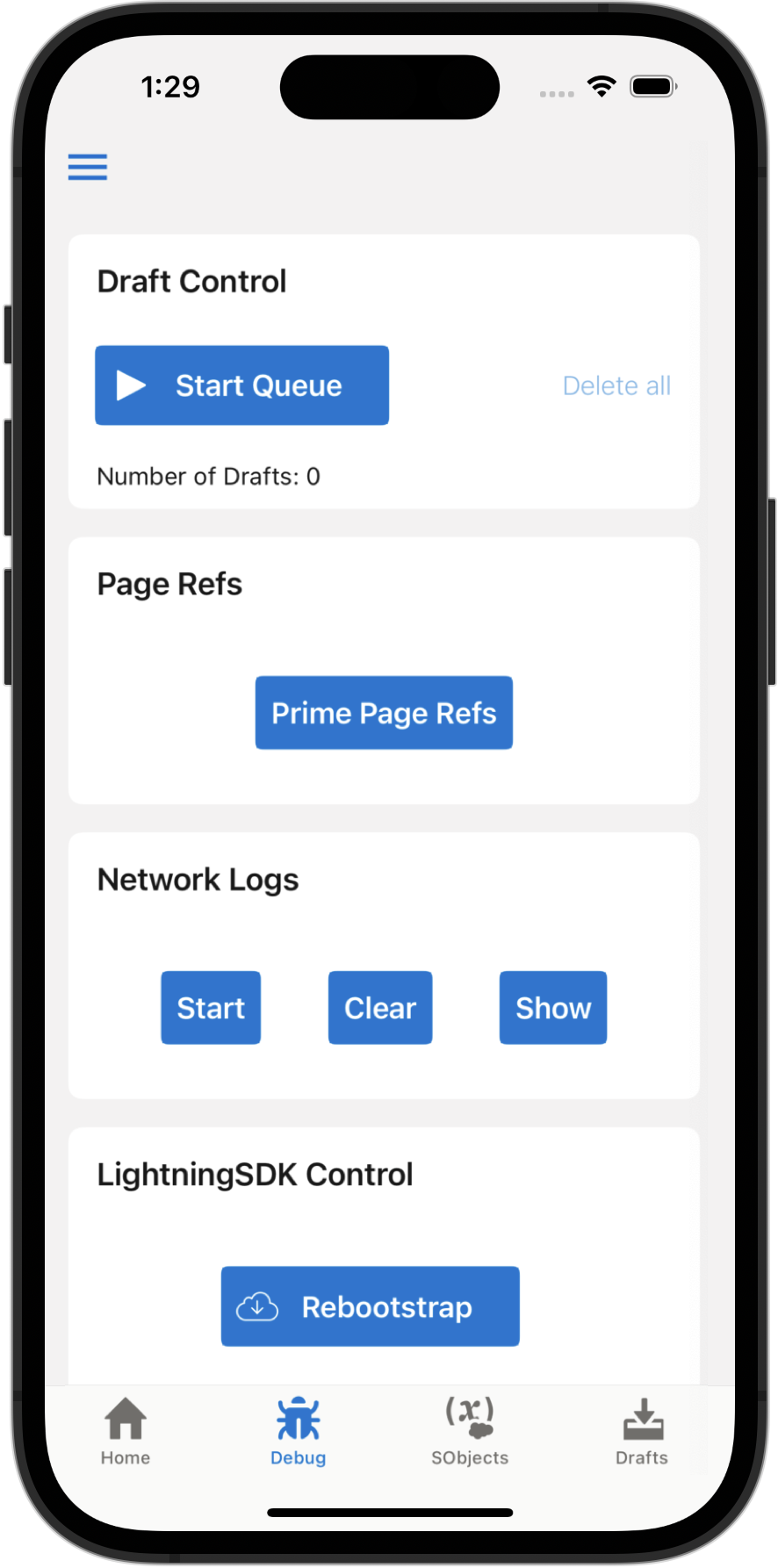
Draft Control. As a result, you can perform actions when online, such as creating or editing a record, and give you a chance to inspect the results before they’re uploaded to the Salesforce service. With the Draft Control card, you can only start and stop the queue and see how many drafts are waiting in the queue. For more insight into the contents of the Offline Queue, see the Drafts tab.
The Test Harness app starts with the Offline Queue in a paused state. Drafts that you create while the queue is paused wait in the Offline Queue until you tap Start Queue. When the queue is running, the button label changes to Stop Queue. If an error occurs while uploading a draft, the queue is paused automatically. Once the queue is empty, it returns to a paused state.
Page Refs
This is an advanced feature. It allows you to provide a list of resources to be primed by the LWC Offline engine. Each resource is specified as a PageReference using JSON.
Network Logs
This card allows you to capture and inspect details regarding the network requests made by your Lightning web components. The tool captures requests after you tap Start, and stops capturing them when you tap Stop. To see a list of captured requests, tap Show. The list shows the type and URL of the request, and the response code and duration. Tap a specific request to see further details, such as the headers and body of the request and response.
LightningSDK Control
This card provides controls for affecting the LWC Offline engine. Currently, the only option is Rebootstrap. Use Rebootstrap to reload a component under development when you’ve made changes to the component’s code. This allows you to quickly reload a custom component, without quitting and restarting the Test Harness app.