Big Objects Implementation Guide
 j
jNewer Version Available
Define and Deploy Custom Big Objects
| Available in: both Salesforce Classic and Lightning Experience |
| Available in: Enterprise, Performance, Unlimited, and Developer Editions for up to 1 million records. |
Define a Custom Big Object
- object files—Create a file for each object to define the custom big object, its fields, and its index.
- permissionset/profile files—Create a permission set or profile file to specify permissions for each field. These files aren’t required, but they’re required to grant access to users. By default, access to a custom big object is restricted.
- package file—Create a file for Metadata API to specify the contents of the metadata you want to migrate.
Naming Conventions for Custom Big Objects
Object names must be unique across all standard objects, custom objects, external objects, and big objects in the org. In the API, the names of custom big objects have a suffix of two underscores immediately followed by a lowercase “b” (__b). For example, a big object named “HistoricalInventoryLevels” is seen as HistoricalInventoryLevels__b in that organization's WSDL. We recommend that you make object labels unique across all objects in the org - standard, custom, external and big objects.
CustomObject Metadata
| Field Name | Field Type | Description |
|---|---|---|
| deploymentStatus | DeploymentStatus (enumeration of type string) | Custom big object’s deployment status (Deployed for all big objects) |
| fields | CustomField[] | Definition of a field in the big object |
| fullName | string | Unique API name of the big object |
| indexes | Index[] | Definition of the index |
| label | string | Big object’s name as displayed in the UI |
| pluralLabel | string | Field plural name as displayed in the UI |
CustomField Metadata
| Field Name | Field Type | Description |
|---|---|---|
| fullName | string | Unique API name of a field. |
| label | string | Field name as displayed in the UI. |
| length | int | Length of a field in characters (Text and LongTextArea fields only). The total number of characters across all text fields in an index can’t exceed 100. To increase this value, contact Salesforce Customer Support. |
| pluralLabel | string | Field plural name as displayed in the UI. |
| precision | int | Number of digits for a number value. For example, the number 256.99 has a precision of 5 (number fields only). |
| referenceTo | string | Related object type for a lookup field (lookup fields only). |
| relationshipName | string | Name of a relationship as displayed in the UI (lookup fields only). |
| required | boolean | Specifies whether the field is required. All fields that are part of the index must be marked as required. |
| scale | int | Number of digits to the right of the decimal point for a number value. For example, the number 256.99 has a scale of 2 (number fields only). |
| type | FieldType | Field type. Supports DateTime, Email, Lookup, Number, Phone, Text, LongTextArea, and URL. |
Index Metadata
| Field Name | Field Type | Description |
|---|---|---|
| fields | IndexField[] | The definition of the fields in the index. |
| label | string | Required. This name is used to refer to the big object in the user interface. Available in API version 41.0 and later. |
IndexField Metadata
Defines which fields make up the index, their order, and sort direction. The order in which the fields are defined determines the order fields are listed in the index.
| Field Name | Field Type | Description |
|---|---|---|
| name | string | Required. The API name for the field that’s part of the index. This value must match the fullName value for the corresponding field in the fields section and be marked as required. |
| sortDirection | string | Required. The sort direction of the field in the index. Valid values are ASC for ascending order and DESC for descending order. |
Create Metadata Files for Deployment
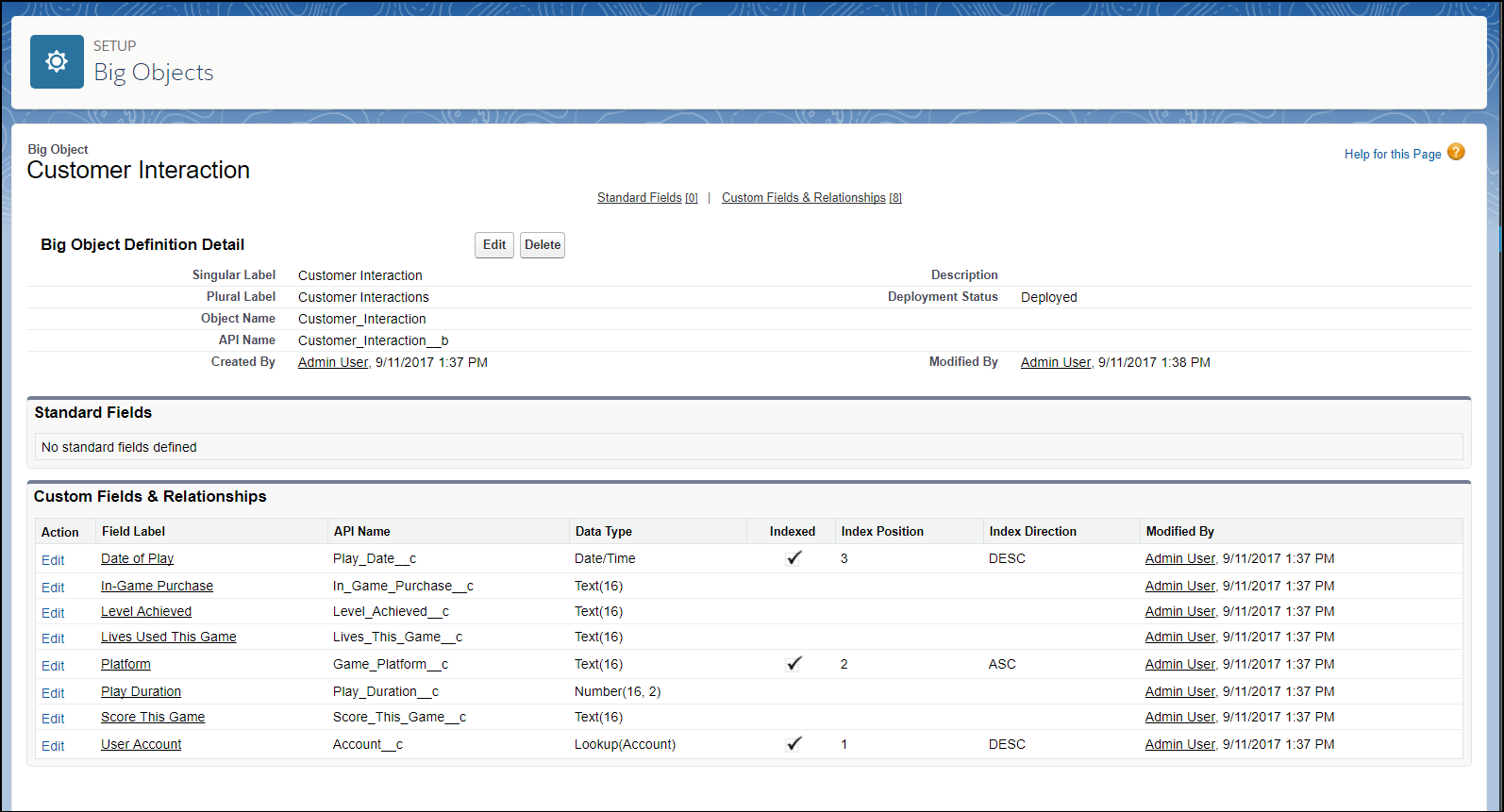
The following XML excerpts create metadata files that you can deploy. Each Customer Interaction object represents customer data from a single session in an online video game. The Account__c, Game_Platform__c, and Play_Date__c fields define the index, and a lookup field relates the Customer Interactions to the Account object.
- Customer_Interaction__b.object
-
1<?xml version="1.0" encoding="UTF-8"?> 2<CustomObject xmlns="http://soap.sforce.com/2006/04/metadata"> 3 <deploymentStatus>Deployed</deploymentStatus> 4 5 <fields> 6 <fullName>In_Game_Purchase__c</fullName> 7 <label>In-Game Purchase</label> 8 <length>16</length> 9 <required>false</required> 10 <type>Text</type> 11 <unique>false</unique> 12 </fields> 13 14 <fields> 15 <fullName>Level_Achieved__c</fullName> 16 <label>Level Achieved</label> 17 <length>16</length> 18 <required>false</required> 19 <type>Text</type> 20 <unique>false</unique> 21 </fields> 22 23 <fields> 24 <fullName>Lives_This_Game__c</fullName> 25 <label>Lives Used This Game</label> 26 <length>16</length> 27 <required>false</required> 28 <type>Text</type> 29 <unique>false</unique> 30 </fields> 31 32 <fields> 33 <fullName>Game_Platform__c</fullName> 34 <label>Platform</label> 35 <length>16</length> 36 <required>true</required> 37 <type>Text</type> 38 <unique>false</unique> 39 </fields> 40 41 <fields> 42 <fullName>Score_This_Game__c</fullName> 43 <label>Score This Game</label> 44 <length>16</length> 45 <required>false</required> 46 <type>Text</type> 47 <unique>false</unique> 48 </fields> 49 50 <fields> 51 <fullName>Account__c</fullName> 52 <label>User Account</label> 53 <referenceTo>Account</referenceTo> 54 <relationshipName>Game_User_Account</relationshipName> 55 <required>true</required> 56 <type>Lookup</type> 57 </fields> 58 59 <fields> 60 <fullName>Play_Date__c</fullName> 61 <label>Date of Play</label> 62 <required>true</required> 63 <type>DateTime</type> 64 </fields> 65 66 <fields> 67 <fullName>Play_Duration__c</fullName> 68 <label>Play Duration</label> 69 <required>false</required> 70 <type>Number</type> 71 <scale>2</scale> 72 <precision>18</precision> 73 </fields> 74 75 <indexes> 76 <fullName>CustomerInteractionsIndex</fullName> 77 <label>Customer Interactions Index</label> 78 <fields> 79 <name>Account__c</name> 80 <sortDirection>DESC</sortDirection> 81 </fields> 82 <fields> 83 <name>Game_Platform__c</name> 84 <sortDirection>ASC</sortDirection> 85 </fields> 86 <fields> 87 <name>Play_Date__c</name> 88 <sortDirection>DESC</sortDirection> 89 </fields> 90 </indexes> 91 92 <label>Customer Interaction</label> 93 <pluralLabel>Customer Interactions</pluralLabel> 94</CustomObject> - package.xml
-
1<?xml version="1.0" encoding="UTF-8"?> 2<Package xmlns="http://soap.sforce.com/2006/04/metadata"> 3 <types> 4 <members>*</members> 5 <name>CustomObject</name> 6 </types> 7 <types> 8 <members>*</members> 9 <name>PermissionSet</name> 10 </types> 11 <version>41.0</version> 12</Package> - Customer_Interaction_BigObject.permissionset
-
1<?xml version="1.0" encoding="UTF-8"?>
2<PermissionSet xmlns="http://soap.sforce.com/2006/04/metadata">
3
4    <label>Customer Interaction Permission Set</label>
5
6    <fieldPermissions>
7        <editable>true</editable>
8        <field>Customer_Interaction__b.In_Game_Purchase__c</field>
9        <readable>true</readable>
10    </fieldPermissions>
11
12    <fieldPermissions>
13        <editable>true</editable>
14        <field>Customer_Interaction__b.Level_Achieved__c</field>
15        <readable>true</readable>
16    </fieldPermissions>
17
18    <fieldPermissions>
19        <editable>true</editable>
20        <field>Customer_Interaction__b.Lives_This_Game__c</field>
21        <readable>true</readable>
22    </fieldPermissions>
23
24
25    <fieldPermissions>
26        <editable>true</editable>
27        <field>Customer_Interaction__b.Play_Duration__c</field>
28        <readable>true</readable>
29    </fieldPermissions>
30
31    <fieldPermissions>
32        <editable>true</editable>
33        <field>Customer_Interaction__b.Score_This_Game__c</field>
34        <readable>true</readable>
35    </fieldPermissions>
36
37
38</PermissionSet>
Deploy Custom Big Objects Using Metadata API
Use Metadata API and the Ant Migration Tool to deploy. When building files to deploy a custom big object, make sure the object file is in a folder called objects and the permissionset file is in a folder called permissionsets. Put the package.xml file in the root directory and not in a subfolder.
View a Custom Big Object in Setup
After you’ve deployed your custom big object, you can view it by logging in to your organization and, from Setup, entering Big Objects in the Quick Find box, then selecting Big Objects.

To see its fields and relationships, click the name of a big object.