Connect REST API Developer Guide
 j
jNewer Version Available
Action Links Use Cases
Download Instructions and Order a Part from the Feed
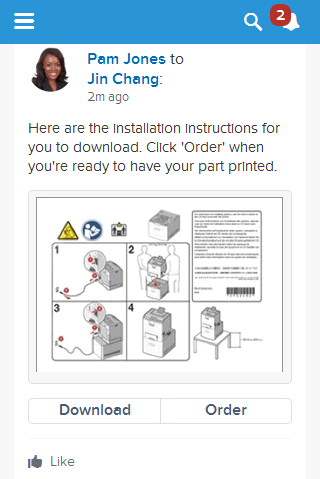
Let’s imagine that a fictional 3D print shop called “BuildIt” creates an AppExchange app that uses action links to integrate with Salesforce. If a BuildIt customer has the app installed, they can go to the BuildIt website, create an account, and send posts containing action links to Salesforce that invite certain users to order parts from BuildIt. In this sample feed element posted from BuildIt customer Pam Jones to her report Jin Chang, clicking the Download action link downloads a file with parts information from the BuildIt website. Clicking the Order action link takes Jin Chang to a page on the BuildIt website to order a part.
Approve or Reject an Itinerary from the Feed
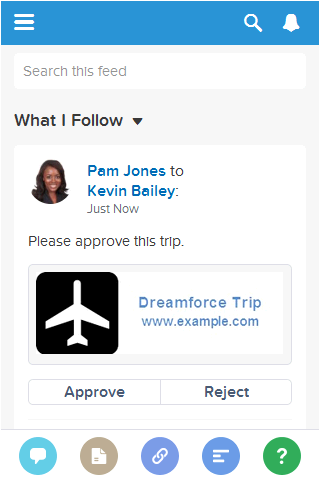
Suppose that you work as a developer for a fictional company called “Travel Example.” You create an app for AppExchange called “Travel Example for Salesforce.” Company A has “Travel Example for Salesforce” installed. Let’s imagine that someone from Company A goes to the Travel Example website and books an itinerary. Your Travel Example server-side code makes a Connect REST API request to post a feed item in Company A’s Salesforce org with the body text Please approve this trip.. The feed item also has action links with the labels Approve and Reject. The action links make HTTP requests to a REST resource on the Travel Example server to approve or reject the trip.
To create the “Travel Example for Salesforce” app, you created action link templates in Setup that define these action links and the action link group they’re associated with. Your server-side code makes a Connect REST API request to instantiate the action link group from the template. It makes another Connect REST API request to associate the action link group with a feed item and post it.
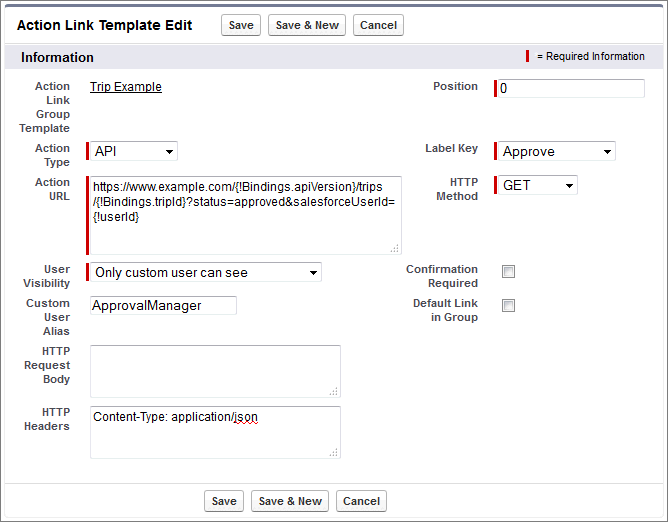
The Action URL, HTTP Headers, and HTTP Request Body template fields can contain context variables and binding variables.
You include a {!userId} context variable in the Action URL so that when a user clicks the action link in the feed, Salesforce sends the user’s ID to your server-side code to tell it who clicked the action link. Action links support a predefined set of context variables. See Use Context Variables in Design Action Link Templates for more information.
You can create any binding variables you need in the action link template to make your code future-proof and dynamic. See Define Binding Variables in Design Action Link Templates for more information. Your server-side code sets the binding variable values when it instantiates the action link group. You decide to use {!Bindings.apiVersion} so that you can release a new API version without having to update your package. You also use {!Bindings.tripId} so that clicking the action link approves or rejects the trip the user created.
You set the User Visibility field so that only one user can see the action links. You enter a value in the Custom User Alias field that is also a binding variable whose value your server-side code sets to the ID of the user’s manager when it instantiates the action link group.
Here’s the action link template for the Approve action link.