Salesforce DX Developer Guide
 j
jNewer Version Available
Salesforce DX Project Structure and Source Format
Source Transformation
It’s not uncommon for metadata formatted source to be very large, making it difficult to find what you want. If you work on a team with other developers who update the same metadata at the same time, you have to deal with merging multiple updates to the file. If you’re thinking that there has to be a better way, you’re right.
Before, all custom objects and object translations were stored in one large metadata file.
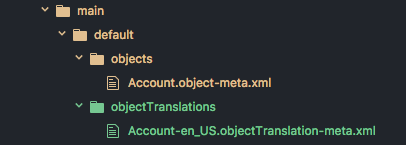
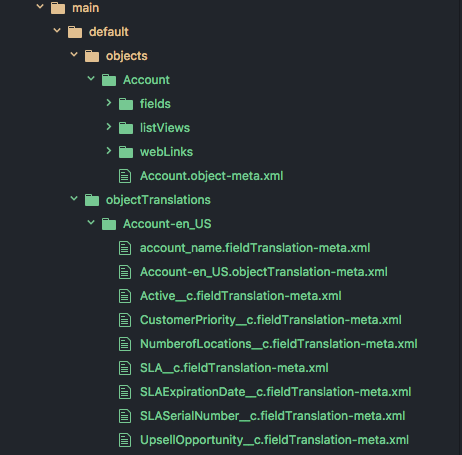
We solve this problem by providing a new source shape that breaks down, or decomposes, these large source files to make them more digestible and easier to manage with a version control system. It���s called source format. Source format makes it much easier to find what you want to change or update. And you're less likely to overwrite a team member's change if it's decomposed.
A Salesforce DX project decomposes custom objects and custom object translations into intuitive subdirectories by default. If you want, you can also specify that other metadata types, such as permission sets and custom labels, are decomposed.
See Decomposed Metadata Types for details on how we decompose custom objects and custom object translations and how to configure more metadata types to be similarly decomposed.
Static Resources
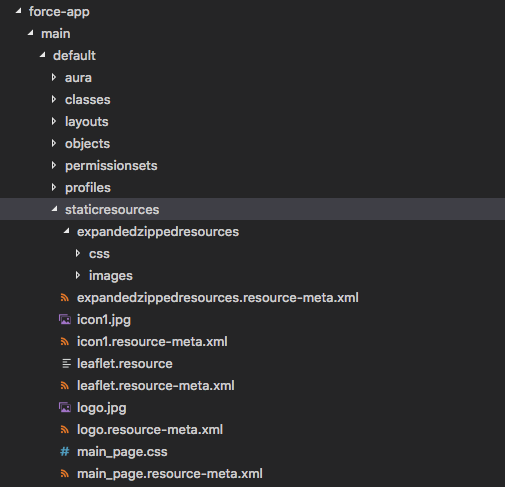
Static resources must reside in the /main/default/staticresources directory. The project deploy and project retrieve commands support auto-expanding or compressing archive MIME types within your project. These behaviors support both the .zip and .jar MIME types. This way, the source files are more easily integrated in your Salesforce DX project and version control system.
For example, if you upload a static resource archive through the scratch org’s Setup UI, the project retrieve start command expands it into its directory structure within the project. To mimic this process from the file system, add the directory structure to compress directly into the static resources directory root, then create the associated .resource-meta.xml file. If an archive exists as a single file in your project, it’s always treated as a single file and not expanded.
This example illustrates how different types of static resources are stored in your local project. You can see an expanded .zip archive called expandedzippedresource and its related .resource-meta.xml file. You also see a couple .jpg files being stored with their MIME type, and a single file being stored with the legacy .resource extension
See Salefsorce Help: Static Resources for more information.
File Extensions
When you convert existing metadata format to source format, we create an XML file for each bit. All files that contain XML markup now have an .xml extension so that your XML editor recognizes them as XML files and you can look at them. To sync your local projects and scratch orgs, Salesforce DX projects use a particular directory structure for custom objects, custom object translations, Lightning web components, Aura components, and documents.
For example, if you had an object called Case, source format provides an XML version called Case.object-meta.xml. If you have an app called DreamHouse, we create a file called DreamHouse.app-meta.xml. You get the idea.
Traditionally, static resources are stored on the file system as binary objects with a .resource extension. Source format handles static resources differently by supporting content MIME types. For example, .gif files are stored as a .gif instead of .resource. By storing files with their MIME extensions, you can manage and edit your files using the associated editor on your system.
You can have a combination of existing static resources with their .resource extension, and newly created static resources with their MIME content extensions. Existing static resources with .resource extensions keep that extension, but any new static resources show up in your project with their MIME type extensions. We allow .resource files to support the transition for existing customers. Although you get this additional flexibility, we recommend storing your files with their MIME extensions.
Aura Components
Aura bundles and components must reside in a directory named aura under the <package directory> directory.

Lightning Web Components
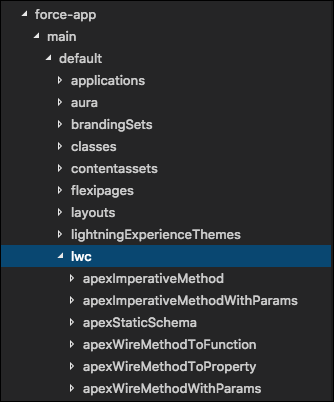
Lightning web components must reside in a directory named lwc under the <package directory> directory.
ExperienceBundle and DigitalExperienceBundle for Experience Cloud Sites
The ExperienceBundle metadata type represents an Aura or an LWR site, and must reside in a directory named experiences under the <package directory> directory. The experiences directory contains a folder for each Aura or LWR site in your org.
The DigitalExperiencBundle metadata type represents an enhanced LWR site, and must reside in a directory named digitalExperiences under the <package directory> directory. The digitalExperiences/site directory contains a folder for each enhanced LWR site in your org.
Documents
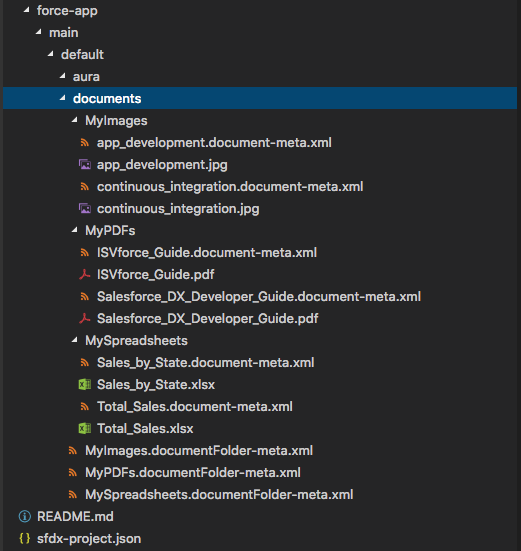
Documents must be inside the directories of their parent document folder. The parent document folder must be in a directory called documents. Each document has a corresponding metadata XML file that you can view with an XML editor.