


Mobile and Offline Developer Guide
 j
jNewer Version Available
Debug in iOS
Follow these steps to attach Safari Web Inspector in your browser to the webview of the
Test Harness app.
- Launch Safari on your Desktop.
- Select .
- Select Advanced.
-
Enable Show Develop menu in menu bar. Then close the Preferences
panel.
You only need to do this step once for your development system.
-
Select , where the Simulator is the one that you’ve opened with the Test Harness app for
testing your new Lightning web component.
A window appears, showing the Safari Web Inspector developer tools connected to your simulator. You can use these tools and standard web development techniques to refine and improve your content.
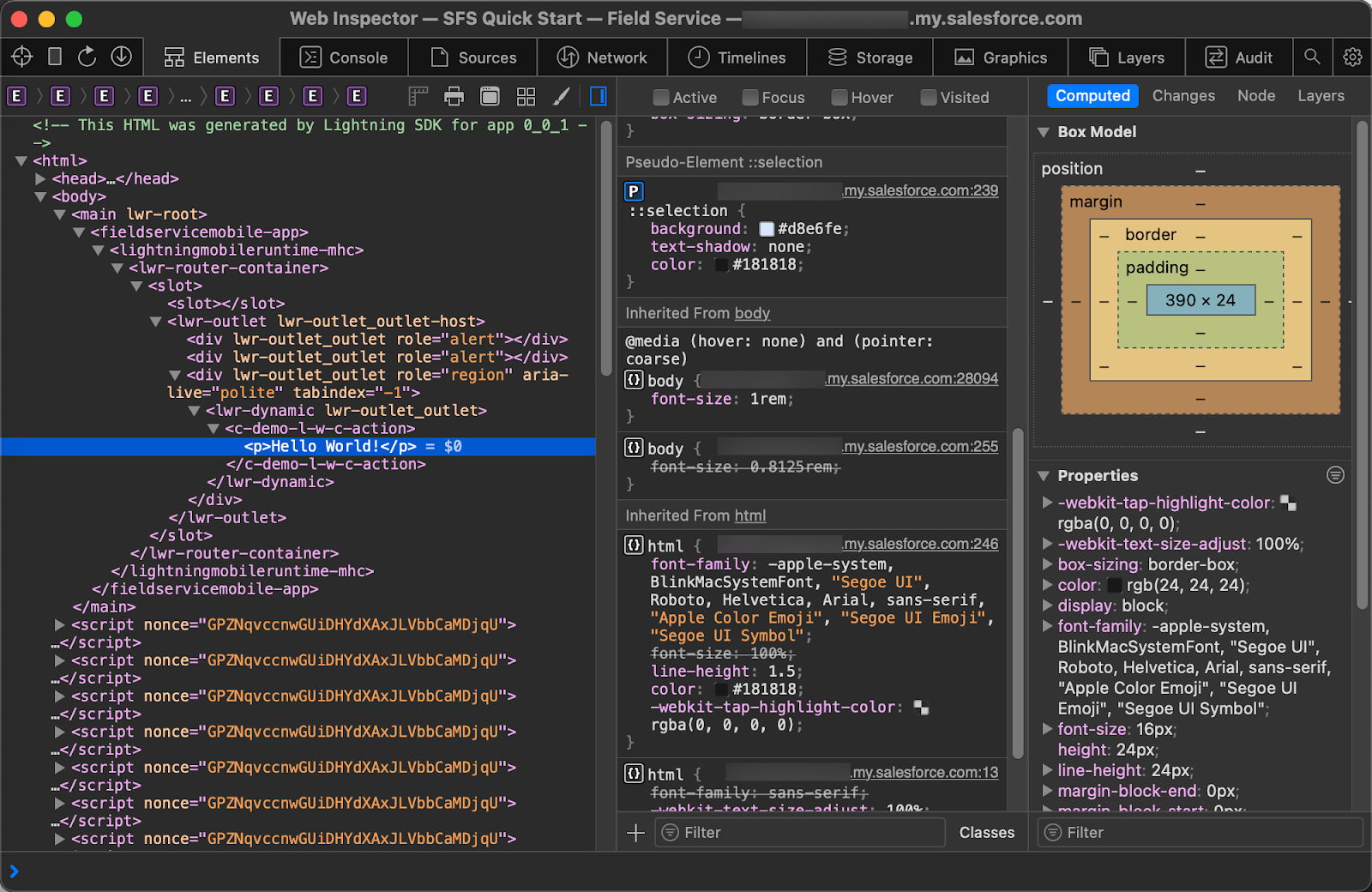
For additional information about the Web Inspector and how to use it, see Apple Web Development Tools (Apple).