


Mobile and Offline Developer Guide
 j
jNote: This release is in preview. Features described here don’t become generally available until the latest general availability date that Salesforce announces for this release. Before then, and where features are noted as beta, pilot, or developer preview, we can’t guarantee general availability within any particular time frame or at all. Make your purchase decisions only on the basis of generally available products and features.
Workspace Setup
Set up your development environment, create a project to develop your LWC in, and
connect your project to Salesforce.
- Launch VS Code.
-
Select and open a project to use with your org.
- In the menu bar, select to open VS Code’s integrated terminal if it’s not already visible.
-
Run the following command to install the Salesforce Extension Plugins for
mobile.
1sf plugins install @salesforce/lwc-dev-mobile - In the menu bar, select to open the VS Code Command Palette.
- Enter SFDX and select SFDX: Authorize an Org.
-
Select the org you want to use and press Enter.
A web page opens for the org login.
-
Verify your org authorization by checking the bottom left in VS Code.
You should see your username in the VS Code status bar.
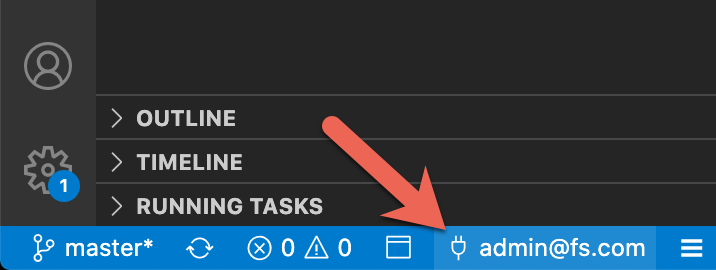
If you have difficulty authorizing SFDX for access to your org, see SFDX Authorization.