


Salesforce Console Developer Guide
 j
jGet to Know Lightning Console
Get started with the Salesforce console in Lightning Experience.
Use workspace API methods from Lightning pages either in the utility bar or in a Lightning console app. Here’s how a Lightning console app works:
Lightning Console App User Interface
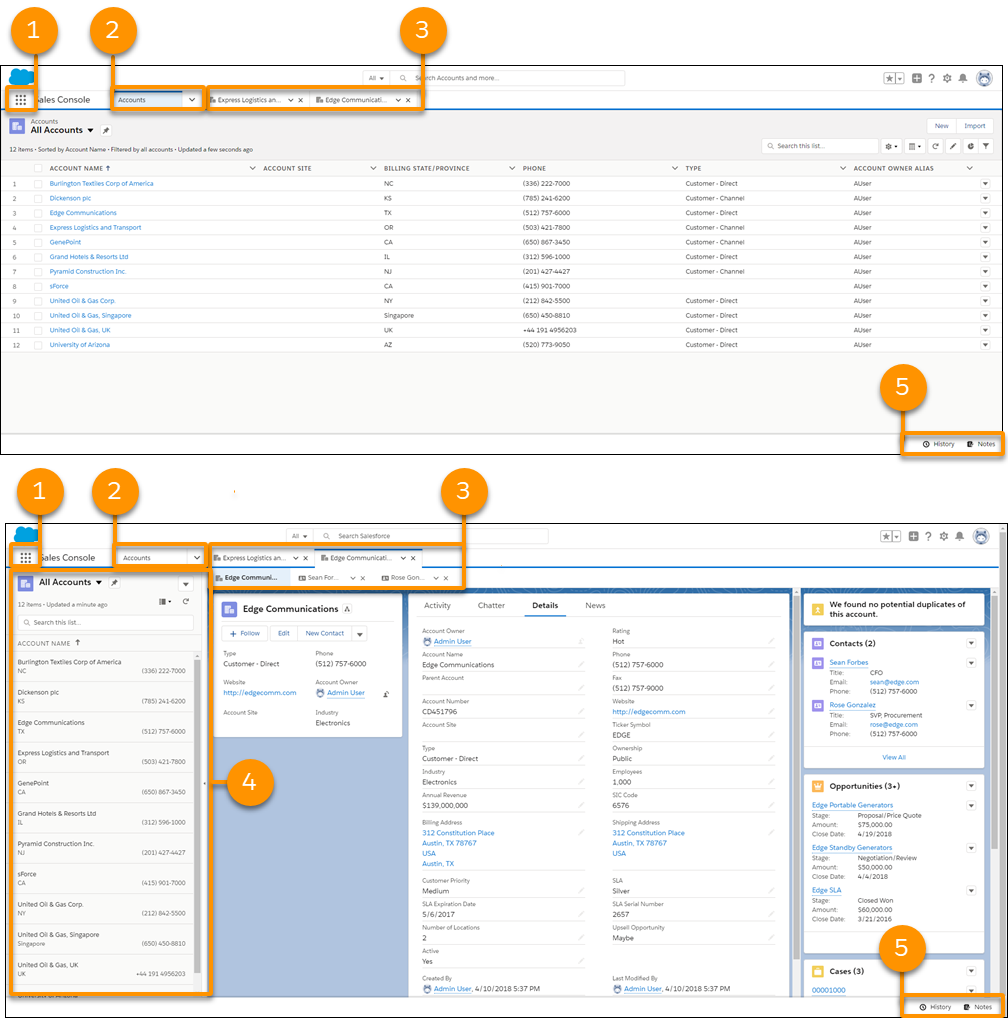
- The App Launcher (1) lets you switch between apps. To switch to another console app or back to a standard app, use the App Launcher. The name of the app you’re currently in is displayed next to the App Launcher.
- The navigation menu (2) displays the navigation item you currently have selected. To open the navigation menu, click . From there, you can view or edit your navigation items. Selecting a navigation item opens the navigation item’s home page. Objects open in table view. Opening a record changes the view to split view. Once in split view, click the navigation item again to switch back to table view, or use the Display as dropdown.
- Records open in workspace tabs, and related records opened from inside a workspace tab open in subtabs (3). You can refresh, pin, customize, and close a tab using the tab menu. You can also open navigation items in a new workspace tab by using Ctrl+click or Cmd+click.
- The split view panel (4) can be hidden with. Records opened from the split view panel open in new workspace tabs.
- The utility bar (5) lets you access common processes and tools like History and Notes.