Tips and Considerations for Configuring Aura Components for Experience Builder
Keep these guidelines in mind when creating Aura components and component bundles for Aura sites.
Components
Give the component a friendly name using the label attribute in the design file element, such as <design:component label="foo">.
Design your components to fill 100% of the width, including margins, of the region that they display in.
Make sure that the component provides an appropriate placeholder behavior in declarative tools if it requires interaction.
Never let a component display a blank box. Think of how other sites work. For example, Facebook displays an outline of the feed before the feed items come back from the server, which improves the user’s perception of UI responsiveness.
If the component depends on a fired event, give it a default state that displays before the event fires.
Style components using standard design tokens to make them consistent with the Salesforce Lightning Design System. (SLDS)
Keep in mind that Lightning Locker is enforced for all Aura components created in Summer ’17 (API version 40.0) and later when Lightning Locker is enabled in the org and the site. At the org level, Lightning Locker is in use if Lightning Web Security hasn’t been enabled. See Develop Secure Sites: CSP, LWS, and Lightning Locker.
For a custom component, when you make a new property available for edit in Experience Builder, keep this consideration in mind for site translations: If the component is in use on a page in Experience Builder, delete the component from the page and replace it with the updated version. Otherwise, when you export the site content for translation, the property that you added is omitted for that component instance in the exported file. If the component contains content that’s already translated, export the site content first to preserve the existing translation. Then replace the component with the updated version.
Attributes
Use the design file to control which attributes are exposed to Experience Builder.
Make your attributes easy to use and understandable to an administrator. Don’t expose SOQL queries, JSON objects, or Apex class names.
Give required attributes default values to avoid a poor user experience. When a component that has required attributes with no default values is added to Experience Builder, it appears invalid.
Use basic supported types (string, integer, boolean) for exposed attributes.
Specify a min and max for integer attributes in the <design:attribute> element to control the range of accepted values.
Be aware that string attributes can provide a data source with a set of predefined values, allowing the attribute to expose its configuration as a picklist.
Give attributes a label with a friendly display name.
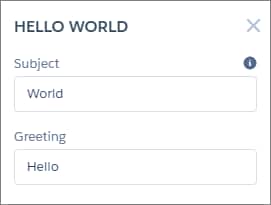
Include a description to explain the expected data and provide guidelines, such as the data format or expected range of values. Description text appears as a tooltip in the property panel.
To delete a design attribute for a component that implements the forceCommunity:availableForAllPageTypes interface, first remove the interface from the component before deleting the design attribute. Then reimplement the interface. If the component is referenced in a site page, you must remove the component from the page before you can change it.


 j
j