Use the CSS Editor for Custom CSS
Use the CSS Editor in Experience Builder to create custom CSS to style elements across your Aura site. This option is suitable if you’re familiar with CSS and want to make only minor modifications to some template components.
Use custom CSS sparingly and avoid targeting DOM elements in components that you don’t own. Doing so is brittle because changes to the component’s internal DOM structure is likely to break hard-coded CSS selectors. Salesforce can change the internal implementation of Salesforce components at any point . Additionally, Salesforce Customer Support can’t help resolve any issues with custom CSS.
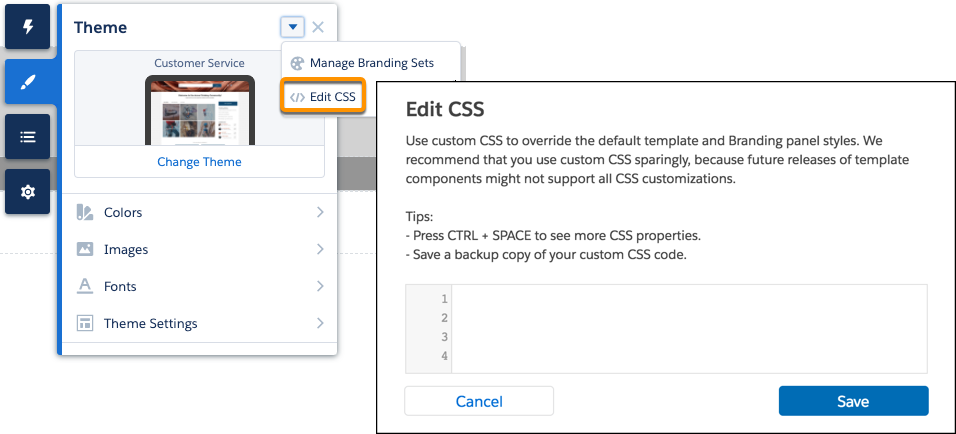
To make minor CSS modifications to a component, use Chrome DevTools to inspect the page and discover the item’s fully qualified name and CSS class.
For substantial template customizations, instead of using custom CSS, use the CSS resource in custom Lightning web components or Aura components and in custom theme layout components. If you use global overrides, always test your site in sandbox when it’s updated each release.
You can link to a CSS style sheet as either a static or external resource in the head markup in Settings | Advanced. However, because global value providers aren’t supported in the head markup or in CSS overrides, you can’t use $resource to reference static resources. Instead, use a relative URL using the syntax /sfsites/c/resource/resource_name.
For example, if you upload an image as a static resource called Headline, reference it in the CSS Editor as follows:
1.forceCommunityHeadline
2{
3    background-image: url('/sfsites/c/resource/headline')
4}
Head markup is also useful for adding favicon icons, SEO meta tags, and other items. However, be aware that using the default strict CSP security level can affect your code.
-
Migrate CSS Overrides
Between Spring ’17 and Winter ’19, the CSS selectors of several Experience Builder components were updated. If you haven’t updated your template since then, and your site uses custom CSS to override the default template and Theme panel styles, you must migrate to the new selectors.
See Also


 j
j