


Salesforce DevOps Center Developer Guide
 j
jHow DevOps Center Keeps Track of User Changes
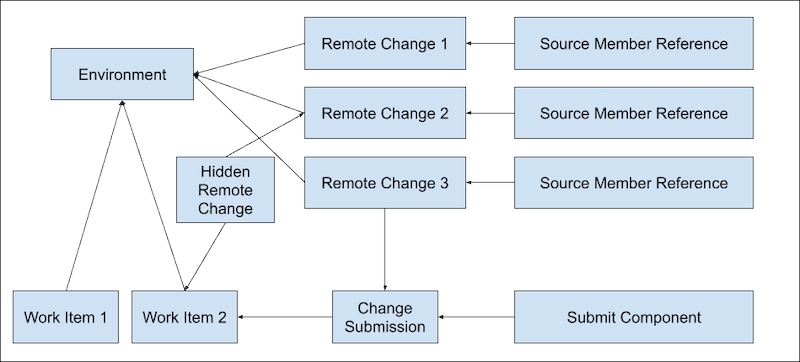
This graphic shows the DevOps Center custom objects involved in tracking user changes. In the graphic, a single development environment has two work items. The org associated with the development environment has three metadata changes that DevOps Center is tracking.
Let’s break this process down a bit more.
Org Source Tracking and Remote Changes
As we know, the only type of DevOps Center environment is a Salesforce org, such as a sandbox or a scratch org. When a user makes a change in their development environment, they’re actually making a change to the metadata in their org. Examples of a change include creating an Apex class or a new custom field on a standard object. To track these changes, DevOps Center uses a Salesforce feature called "source tracking", which in turn depends on the Tooling API object Source Member. While many metadata types support source tracking, not all of them do; check the Metadata Coverage Report for details. For metadata types that support source tracking, Source Member records contain information about each piece of metadata in the org that has changed. Each record includes how the metadata was changed (add, change, remove), who changed it, and when it was changed.
But DevOps Center doesn’t use the Source Member Tooling API object directly. Instead, DevOps Center mirrors this information from Source Member in the custom object Source Member Reference.
When a user makes a metadata change in their development environment, DevOps Center creates a Source Member Reference record, which is then paired with a new Remote Change record. The Remote Change object represents an accumulation of operations on a particular piece of metadata that will be committed to the remote source control repository at some point. What does this mean? Here are a few examples.
- Let’s say a source member reference includes a new piece of metadata (add), and then multiple changes to the same metadata. The associated remote change is still an add operation, regardless of the number of subsequent changes, because when the user commits the changes, the source control repository performs an add operation.
- If a source member reference first includes a change to a piece of metadata and then removes it, the remote change is simply a remove operation.
In the graphic, remote changes are linked to environments and not work items. The reason is that multiple work items can be associated with the same environment. As a result, all work items associated with the same environment always show the same set of files that can be committed to the source control repository. So how does DevOps Center determine the list of available changes in a work item? Read on!
Determine the List of Available Changes in a Work Item
After a DevOps Center user makes and tests changes in their development environment, they pull them into their work item. This action allows the user to see the changes before committing them to the source control repository. In the graphic, Remote Change 1, 2, and 3 represent these changes.
When determining the list of changes to display in the work item, DevOps Center starts with the list of files from all the Remote Changes, but then modifies the list based on these circumstances:
-
The .forceignore file on the work item’s
associated feature branch changes. This change can mean that some of the
remote changes aren’t visible in the associated work item anymore.
But a change to the .forceignore file in one feature branch doesn’t affect the list of available changes in a work item associated with a different feature branch. DevOps Center manages this scenario with the Hidden Remote Change object.
In the graphic, Work Item 1 can see Remote Change 2, but Work Item 2 can’t see it because it’s hidden. This scenario implies that the feature branch associated with Work Item 2 has a .forceignore file that excludes the metadata represented by Remote Change 2.
-
A user commits one or more files to the feature branch associated with a work
item. When a user performs this action, DevOps Center retrieves the metadata
from the org and commits it to the source control repository. DevOps Center then creates a
Change Submission record to model the commit and associates all the remote changes that
were part of the commit to it. Because the metadata change is now in the source control
repository, no other work item associated with the environment can commit this particular
change. So DevOps Center excludes all the remote changes associated with a change
submission from the list of available changes.
In the graphic, Remote Change 3 isn’t listed in either Work Item 1 or 2 because it’s been committed to the source control repository.
Determine the Components to Submit
DevOps Center uses the Submit Component custom object to track all the changes that have been committed to a feature branch associated with a work item. These changes can come from two places:
- When a user commits using the DevOps Center UI, DevOps Center abstracts all of the relevant metadata from these remote commits into records of the Submit Component object.
- DevOps Center gets notified every time a user commits to a feature branch outside of the UI, such as using VS Code. In this case DevOps Center creates Submit Component records to track these commits.
In sum, regardless of how metadata changes are committed to a feature branch, the Submit Component object represents them. DevOps Center uses these objects when the work item is eventually promoted.
What Happens When a Work Item Status Is Changed to Never
If the user changes the status of a work item to Never, DevOps Center deletes its associated Change Submission and Submit Component records. These deletions can have ripple effects in what’s displayed in the UI.
For example, let’s look at this graphic again. If a user sets the status of Work Item 2 to Never, then DevOps Center deletes its associated Change Submission record. DevOps Center then returns the changes listed in Remote Change 3 to the available changes list and resets the source tracking for the changes. Work Item 1 now displays these changes and the user can recommit them from this work item.