Identity Implementation Guide
 j
jCreate an Identity Users Report
Salesforce maintains Identity event logs that you can use to create reports and
dashboards to provide information about single sign-on and connected app usage.
| Available in: Salesforce Classic and Lightning Experience |
| Available in: Enterprise, Performance, Unlimited, and Developer Editions |
Follow these steps to set up a report about Identity users. After that, you can create the same steps to set up more than one variation of the same report type, or create a dashboard for the report. For more information, see “Get Started with Dashboards” in Salesforce Help.

Establish a new report type
- From Setup, enter Report Types in the Quick Find box, then select Report Types.
- Click New Custom Report Type.
-
Enter the following values.
- Primary Object: Users
- Report Type Label: A unique label, such as Identity Users
- Report Type Name: This field automatically uses the label; change it if you want a different name.
- Description: Give it a useful description.
- Store in Category: Pick a category for this report, such as Administrative Reports.
- Deployment Status: Keep as In Development until you’re ready to deploy this report for other users to see.
- Click Next.
- Select Click to relate to another object.
-
Select Identity Event Logs (Users).
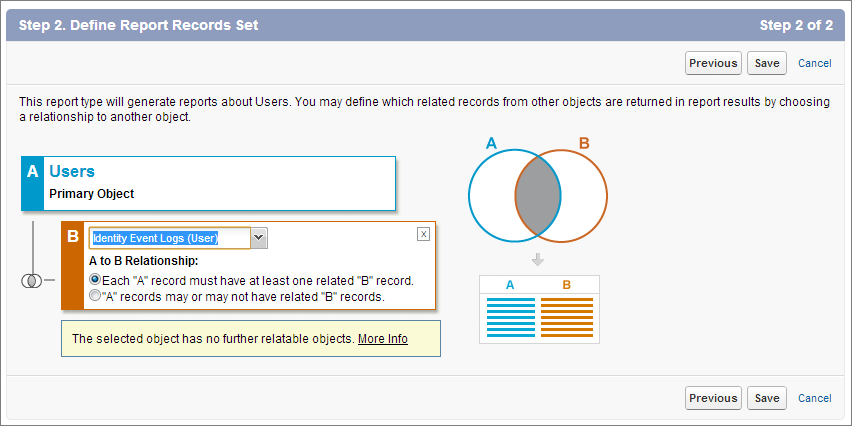
- Click Save.
-
Create a report based on the Identity Users report type.
- From App Launcher, search for Reports.
- Click New Report.
-
For Report Types, select Identity Users.
- Under Columns, select fields to get Identity information, such as Username, User ID, Identity Used, App: Connected App Name, Timestamp, and User Type.
- Click Save and name the report.
- Click Save, or click Save and Run Report to see the results immediately.
- Create a dashboard based on your report.
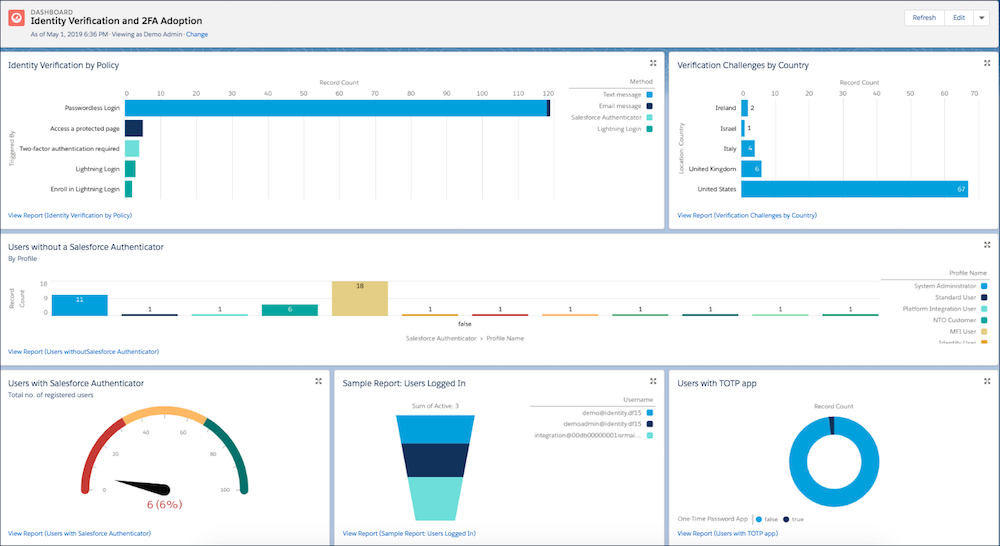
Example
Here’s a dashboard based on a few identity-related reports.