


Lightning Aura Components Developer Guide
 j
jLightning Action Examples
Let’s say you want to create a Lightning action that enables users to create contacts on an account record. You can do this easily using lightning:recordViewForm and lightning:recordEditForm. If you require granular customization, use force:recordData.
The following examples can each be added as a Lightning action on the account object. Clicking the action’s button on the account layout opens a panel to create a contact.
Create a Lightning Action Using lightning:recordViewForm and lightning:recordEditForm
The Quick Contact action panel includes a header with the account name and a form that creates a contact for that account record. Display the account name using lightning:recordViewForm and display the contact form using lightning:recordEditForm.
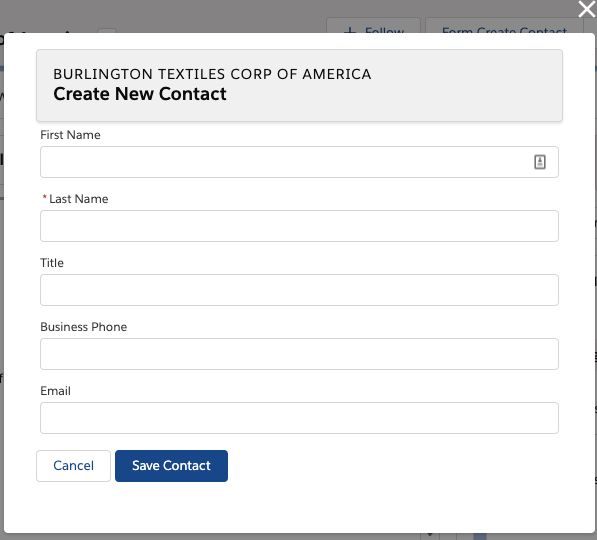
Using lightning:recordEditForm, you can nest thelightning:inputField components in <div> containers and add custom styling. You also need to provide your own cancel and submit buttons.
Consider the simpler lightning:recordForm component, which provides default Cancel and Save buttons. You can achieve the same result by replacing the lightning:recordEditForm component with the following.
Create a Lightning Action Using force:recordData
The Quick Contact action panel includes a header with the account name and a form that creates a contact for that account record. Display the account name and display the contact form using two separate instances of force:recordData.

This force:recordData example is similar to the example provided in Configure Components for Record-Specific Actions. Compare the two examples to better understand the differences between using @AuraEnabled Apex controllers and using Lightning Data Service.
Usage Differences
Consider the following differences between the previous examples.
- Field labels and values
- lightning:recordViewForm and lightning:recordEditForm obtain labels and the requiredness properties from the object schema. In the first example, the Last Name field is a required field on the contact object. The component provides field-level validation.
- With force:recordData, you must provide your own labels and requiredness property for each field. You can also provide your own field-level validation, as shown by the lightning:input component with the pattern and messageWhenPatternMismatch attributes.
- Saving the record
- lightning:recordEditForm saves the record automatically when you provide a lightning:button component with the submit type.
- With force:recordData, you must call the saveRecord function.
- Lightning Data Service errors
- lightning:recordViewForm and lightning:recordEditForm display Lightning Data Service errors automatically using lightning:messages, and provide custom error handling via the onerror event handler.
- With force:recordData, you must handle and display the errors on your own.