


Programmatic Marketing Content
 j
jAMPscript 101
This scenario includes information on these aspects of using AMPscript:
- Creating variables in AMPscript
- Using variables to set values in a data extension
- Print the values of variables to the screen
The AMPscript
This AMPscript provides the content for the entire email message:
%%[
/* 101 */ Var @memid, @fname, @lname, @prefname, @address, @zip, @mempref, @plat
Set @memid = MemberID
Set @fname = FirstName
Set @lname = LastName
Set @prefname = PrefName
Set @address = Address
Set @zip = Zip
Set @mempref = MemPref
Set @plat = Plat
/* 101 */
]%%%%= v(@fname) =%%, below are your account details
First Name:%%= v(@fname) =%%Last Name:%%= v(@lname) =%%
Preferred Name:%%= v(@prefname) =%% Address Address:%%= v(@address) =%%
Zip:%%= v(@zip) =%% Member Preferences Shopping Preference:%%= v(@mempref) =%%
Platinum Member:%%= v(@plat) =%%
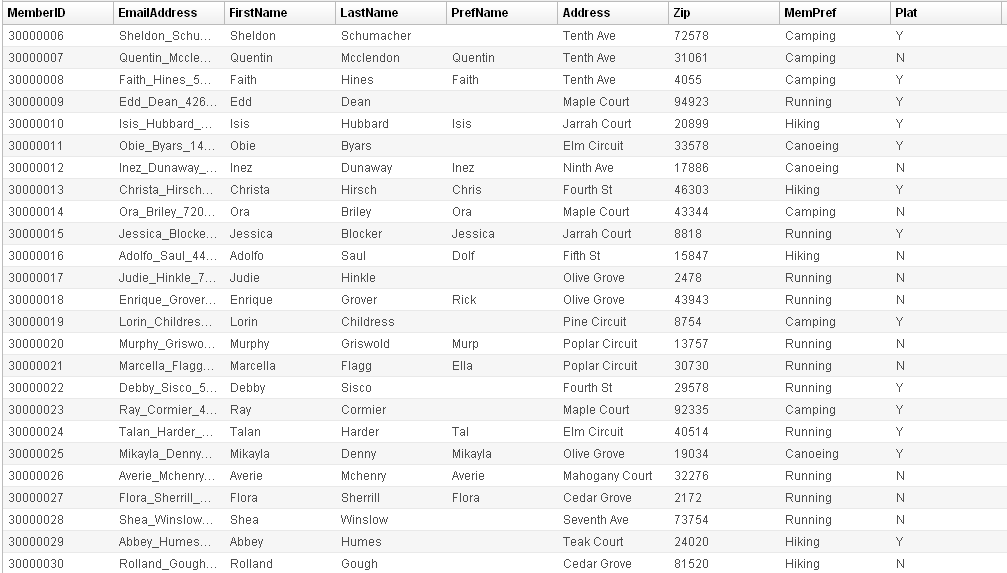
A code block declaration sets off the first part of the AMPscript - %%[ and ]%% - because that AMPscript spans over several lines located between the "/ 101 /" comments. The subscriber does not see the results of these variables yet. The Var command creates the variables named in that line of code, each separated by a comma. The Set commands give the variables the value of the information taken from a column in the data extension associated with the send.
%%[
/* 101 */ Var @memid, @fname, @lname, @prefname, @address, @zip, @mempref, @plat
Set @memid = MemberID
Set @fname = FirstName
Set @lname = LastName
Set @prefname = PrefName
Set @address = Address
Set @zip = Zip
Set @mempref = MemPref
Set @plat = Plat
/* 101 */
]%%
Inline code declarations set off the AMPscript within the email text - %%= and =%% - because the AMPscript refers to a variable that belongs to a single line of text within the email. In the email, information from the data extension associated with the email send replaces the AMPscript declarations.
%%= v(@fname) =%%, below are your account details
First Name:%%= v(@fname) =%%Last Name:%%= v(@lname) =%%
Preferred Name:%%= v(@prefname) =%% Address Address:%%= v(@address) =%%
Zip:%%= v(@zip) =%% Member Preferences Shopping Preference:%%= v(@mempref) =%%
Platinum Member:%%= v(@plat) =%%
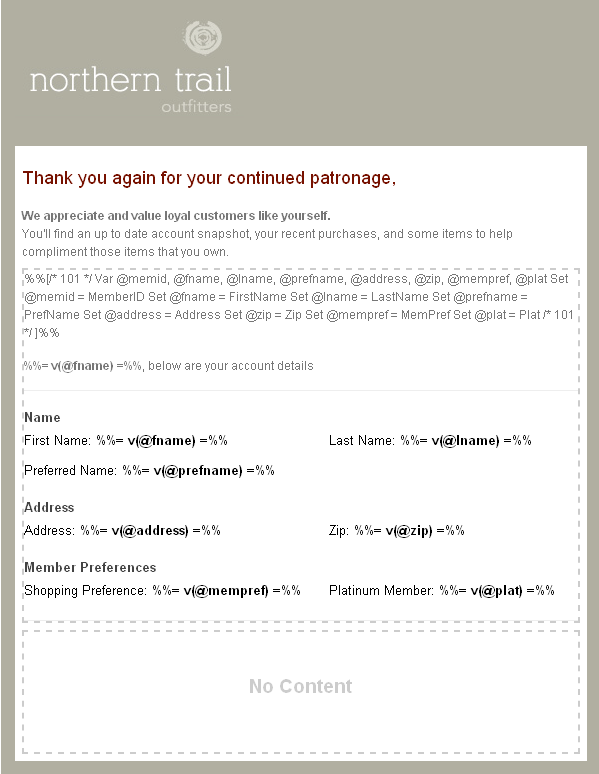
The email itself begins with this template: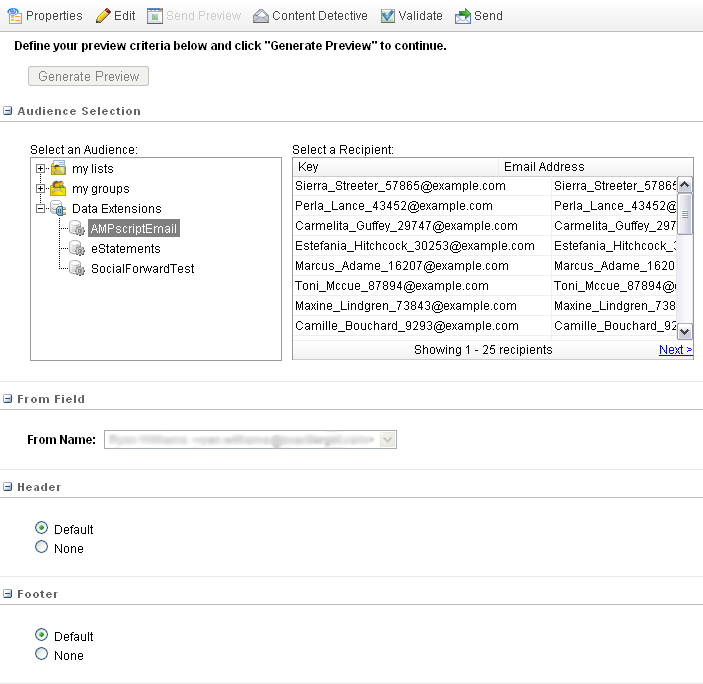
From here, paste the AMPscript into a content area:
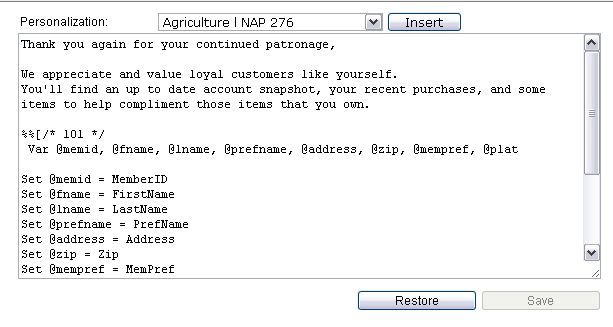
This image displays the text version of the same email:
To test your email with the data extension you use for the actual send, click Send Preview and select the data extension from your available send options.
Choose a test recipient to start your preview with and click Generate Preview. You will see the information the AMPscript pulled from the data extension placed into the email:
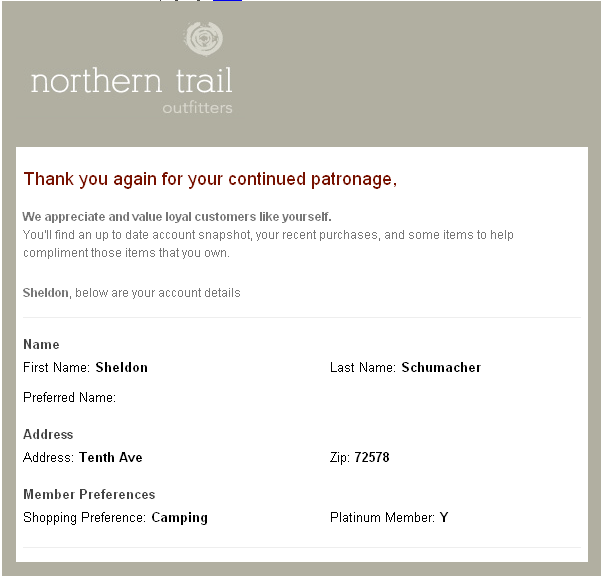
Click the arrow keys to cycle through the other rows in the data extension. You see the fields change depending on the row selected. Send the email job after you complete the process. Each email you send includes information from the row associated with that subscriber.