Design Visualforce pages that look good and work well within the Salesforce mobile app by using a page layout appropriate for the context that the page is used in. Pages added as main navigation tabs or as custom actions in the action bar can use nearly the full screen of the device, and can scroll vertically, while Visusalforce added to an object’s page layout has to fit within a specific, limited space.
In general, Visualforce added to page layouts works best if it’s read-only, at-a-glance information. Put features that require user interaction, like multi-field forms, on full screen pages by adding them as tabs in the main navigation, or as custom actions from the action bar.
Visualforce on a Page Layout
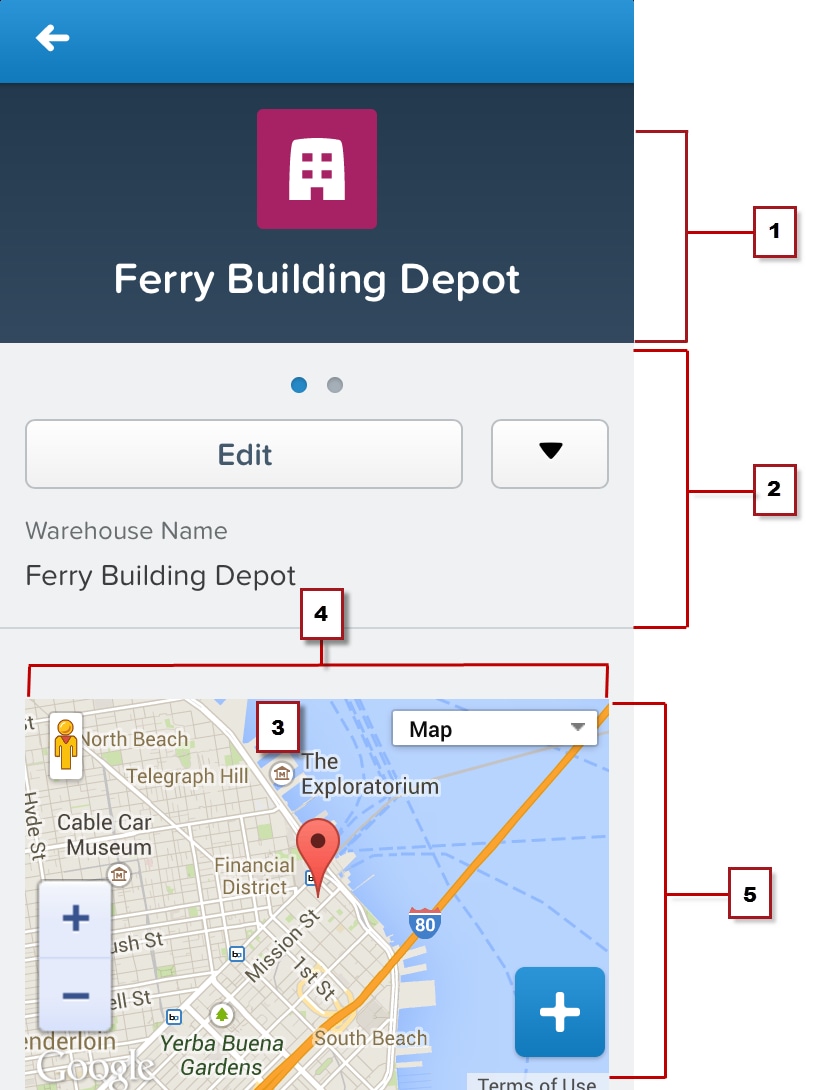
Visualforce pages added to an object’s page layout display on the record details page. You can control the Visualforce element’s placement on the mobile record details screen, putting fields and other record details above and below it, by changing its placement on the object’s page layout. Visualforce pages added this way follow the same rules for ordering that fields and other elements do.
The images on this page are from the previous Salesforce mobile app, not the new Salesforce mobile app.
Note
The record header displays when a record is loaded, but can be scrolled up and off the screen by the user. When on screen, it’s 158 pixels high on all devices, and takes the full width of the screen. You can’t control the display of the record header.
Record controls and details, automatically generated by the Salesforce mobile app.
A Visualforce page added to the object’s page layout.
Set the width to 100%; the element sizes automatically, minus some padding on either side.
Control the height of the Visualforce page’s area by setting the height of the item in pixels in the page layout editor. The Visualforce element uses exactly that height, even if the content is shorter. In that case, the extra area is blank. If the page’s content is taller, the content is clipped. As a best practice, don’t set inline Visualforce pages to be taller than the smallest device screen you intend to support.
Although you can add multiple inline Visualforce pages to a page layout, it quickly becomes a user experience challenge to scroll past them to see the rest of the page. It’s a best practice to never add more than two Visualforce page elements in a row; separate Visualforce elements with a regular page element, such as a field. If you need a full screen to display your page, consider moving it to a custom action on the object instead.
Visualforce pages added to page layouts automatically have the normal Salesforce header and sidebar removed. You may find it useful to explicitly turn them and the full Salesforce site stylesheets off while you’re developing the page. Additionally, if your page uses the Google Maps API, Google recommends using an HTML5 doctype. Here’s an <apex:page> tag that does all of these things:
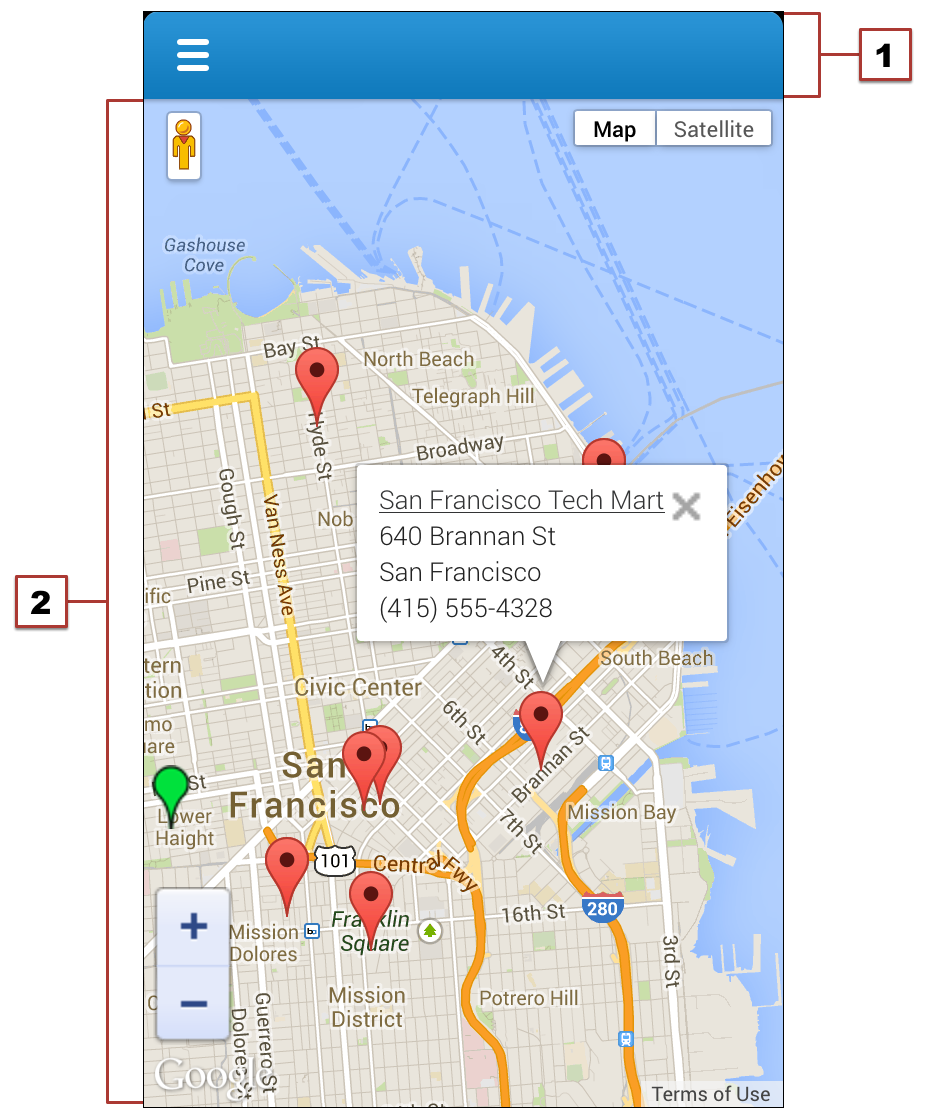
Visualforce pages added to the Salesforce mobile app navigation menu, or as custom actions to the action bar, can use almost the entire screen, allowing more information, and more complex user interfaces.
The images on this page are from the previous Salesforce mobile app, not the new Salesforce mobile app.
Note
The Salesforce header, which provides access to the main navigation menu, is 42 pixels high. The contents of the header can’t be changed.
The rest of the device screen is dedicated to your Visualforce page.
When displayed in the Salesforce mobile app, the standard Salesforce header and sidebar are automatically removed. However, Visualforce pages used as custom actions in the action bar are shared with the full Salesforce site, and pages added to the navigation may or may not be shared. Pages shared with the full Salesforce site shouldn’t have the standard Salesforce header and sidebar explicitly removed unless removing the header and sidebar is the standard practice for all Visualforce on your site.


 j
j