Visualforce 開発者ガイド
 j
j関連リストの使用例
動的 Visualforce コンポーネントの使用は、参照するオブジェクトの種別がわからない場合に最適です。一方、動的 Visualforce バインドの使用は、アクセスする項目がわからない場合に最適です。
動的 Visualforce を使用するための次のシナリオでは、アクセスする必要がある既知の項目セットを使用して単純で再利用可能なページを構築します。ページとそのカスタムオブジェクトは、未管理パッケージに配置され、同じ組織全体に配布されます。
最初に、Classroom という名前のカスタムオブジェクトを作成します。次の図のように、2 つのオブジェクトを作成し、それぞれに Science 101 および Math 201 という名前を付けます。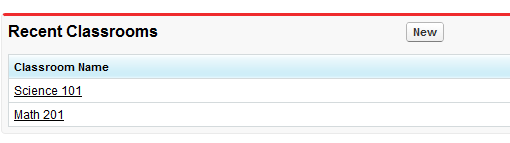
次に、さらに 2 つのカスタムオブジェクトを作成して、それぞれに Student および Teacher という名前を付けます。各オブジェクトの作成が完了したら、次の手順を実行します。
- [カスタム項目 & リレーション] の下にある [新規] をクリックします。
- [主従関係] を選択し、[次へ] をクリックします。
- ドロップダウンリストで [教室] を選択し、[次へ] をクリックします。
- 続いて [次へ] をクリックし、すべてのデフォルト値を変更せずに残します。
- Johnny Walker とい���名前の新規 Student と Mister Pibb という名前の新規 Teacher の両方を Science 101 に割り当てます。
- 別の Boont Amber という名前の新規 Student と Doctor Pepper という名前の Teacher の両方を Math 201 に割り当てます。
次に、DynamicClassroomList という名前で新規 Apex ページを作成し、次のコードを貼り付けます。
1public class DynamicClassroomList {
2
3    private ApexPages.StandardSetController controller;
4    private PageReference savePage;
5    private Set<String> unSelectedNames;
6    private Set<String> selectedNames;
7
8    public List<String> selected { get; set; }
9    public List<String> unselected { get; set; }
10    public String objId { get; set; }
11    public List<String> displayObjs {
12        get; private set;
13    }
14
15    boolean idIsSet = false;
16
17    public DynamicClassroomList() {
18        init();
19    }
20
21    public DynamicClassroomList(ApexPages.StandardSetController con) {
22        this.controller = con;
23        init();
24    }
25
26    private void init() {
27        savePage = null;
28        unSelectedNames = new Set<String>();
29        selectedNames = new Set<String>();
30
31        if (idIsSet) {
32            ApexPages.CurrentPage().getParameters().put('id', objId);
33            idIsSet = false;
34        }
35    }
36
37    public PageReference show() {
38        savePage = Page.dynVFClassroom;
39        savePage.getParameters().put('id', objId);
40        return savePage;
41    }
42
43    public List<SelectOption> displayObjsList {
44        get {
45            List<SelectOption> options = new List<SelectOption>();
46            List<Classroom__c> classrooms = [SELECT id, name FROM Classroom__c];
47
48            for (Classroom__c c: classrooms) {
49                options.add(new SelectOption(c.id, c.name));
50            }
51
52            return options;
53       }
54    }
55
56    public PageReference customize() {
57        savePage = ApexPages.CurrentPage();
58        savePage.getParameters().put('id', objId);
59
60        return Page.dynamicclassroomlist;
61    }
62
63    // The methods below are for constructing the select list
64
65    public List<SelectOption> selectedOptions {
66        get {
67            List<String> sorted = new List<String>(selectedNames);
68            sorted.sort();
69            List<SelectOption> options = new List<SelectOption>();
70            for (String s: sorted) {
71                options.add(new SelectOption(s, s));
72            }
73            return options;
74        }
75    }
76
77    public List<SelectOption> unSelectedOptions {
78        get {
79            Schema.DescribeSObjectResult R = Classroom__c.SObjectType.getDescribe();
80            List<Schema.ChildRelationship> C = R.getChildRelationships();
81            List<SelectOption> options = new List<SelectOption>();
82
83            for (Schema.ChildRelationship cr: C) {
84                String relName = cr.getRelationshipName();
85                // We're only interested in custom relationships
86                if (relName != null && relName.contains('__r')) {
87                    options.add(new SelectOption(relName, relName));
88                }
89            }
90            return options;
91        }
92    }
93
94
95    public void doSelect() {
96        for (String s: selected) {
97            selectedNames.add(s);
98            unselectedNames.remove(s);
99        }
100    }
101
102    public void doUnSelect() {
103        for (String s: unselected) {
104            unSelectedNames.add(s);
105            selectedNames.remove(s);
106        }
107    }
108
109    public Component.Apex.OutputPanel getClassroomRelatedLists() {
110        Component.Apex.OutputPanel dynOutPanel= new Component.Apex.OutputPanel();
111
112        for(String id: selectedNames) {
113           Component.Apex.RelatedList dynRelList = new Component.Apex.RelatedList();
114           dynRelList.list = id;
115           dynOutPanel.childComponents.add(dynRelList);
116        }
117
118        return dynOutPanel;
119    }
120}次に、dynVFClassroom という名前で Visualforce ページを作成し、次のコードを貼り付けます。
1<apex:page standardController="Classroom__c" recordSetVar="classlist"
2    extensions="DynamicClassroomList">
3
4    <apex:dynamicComponent componentValue="{!ClassroomRelatedLists}"/>
5
6    <apex:form>
7
8        <apex:pageBlock title="Classrooms Available" mode="edit">
9            <apex:pageMessages/>
10            <apex:selectRadio value="{!objId}">
11                <apex:selectOptions value="{!displayObjsList}"/>
12            </apex:selectRadio>
13        </apex:pageBlock>
14
15        <apex:commandButton value="Select Related Items" action="{!Customize}"/>
16    </apex:form>
17
18</apex:page>最後に、DynamicClassroomList という名前のページを作成します。このチュートリアルを最初から実行している場合は、コントローラ拡張を構築したときにこのページをすでに作成しているはずです。次のコードを貼り付けます。
1<apex:page standardController="Classroom__c" recordsetvar="listPageMarker"
2    extensions="DynamicClassroomList">
3    <apex:messages/><br/>
4    <apex:form>
5        <apex:pageBlock title="Select Relationships to Display" id="selectionBlock">
6            <apex:panelGrid columns="3">
7                <apex:selectList id="unselected_list" required="false"
8                    value="{!selected}" multiselect="true" size="20"
9                    style="width:250px">
10                    <apex:selectOptions value="{!unSelectedOptions}"/>
11                </apex:selectList>
12                <apex:panelGroup>
13                    <apex:commandButton value=">>" action="{!DoSelect}"
14                        reRender="selectionBlock"/>
15                    <br/>
16                    <apex:commandButton value="<<" action="{!DoUnselect}"
17                        reRender="selectionBlock"/>
18                </apex:panelGroup>
19                <apex:selectList id="selected_list" required="false"
20                    value="{!unselected}" multiselect="true" size="20"
21                    style="width:250px">
22                    <apex:selectOptions value="{!selectedOptions}"/>
23                </apex:selectList>
24            </apex:panelGrid>
25        </apex:pageBlock>
26        <br/>
27        <apex:commandButton value="Show Related Lists" action="{!show}"/>
28    </apex:form>
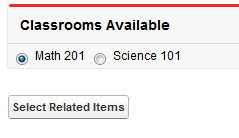
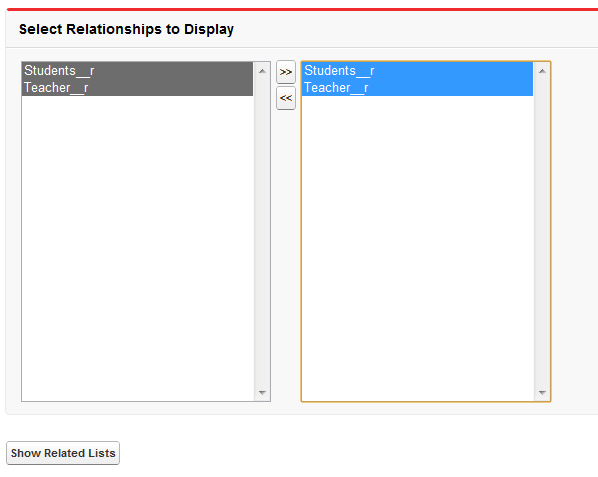
29</apex:page>コントローラ拡張とこれらのページを作成したら、組織の /apex/dynVFClassroom に移動します。次のようなシーケンスが表示されます。