Visualforce 開発者ガイド
 j
jVisualforce ページへのフロー変数値の取得
フロー変数値は、Visualforce ページに表示できます。フローを Visualforce ページに埋め込むと、Visualforce マークアップを使用して、変数または sObject 変数の値を取得できます。コレクション変数または sObject コレクション変数の値を表示するには、Visualforce マークアップを使用して、コレクションに含まれる個々の値を取得します。
Apex クラスを使用してフローから sObject 変数値を取得し、Visualforce ページに表示する例を次に示します。
1public class FlowController {
2    public Flow.Interview.flowname myflow { get; set; }
3    public Case apexCaseVar;
4    public Case getApexCaseVar() {
5        return myflow.caseVar;
6    }
7}1<apex:page controller="FlowController" tabStyle="Case">
2 <flow:interview name="flowname" interview="{!myflow}"/>
3 <apex:outputText value="Default Case Priority: {!apexCaseVar.Priority}"/>
4</apex:page>次の例では、Apex クラスを使用して、フローの文字列コレクション変数 (emailsCollVar) に保存されている値を取得します。次に、Visualforce ページを使用してフローインタビューを実行します。Visualforce ページは、フローのコレクション変数を反復処理し、コレクションの各項目の値を表示します。
1public class FlowController {
2    public Flow.Interview.flowname myflow { get; set; }
3
4    public List<String> getVarValue() {
5        if (myflow == null) {
6            return null;
7        }
8        else {
9            return (List<String>)myflow.emailsCollVar;
10        }
11    }
12}1<apex:page controller="FlowController">
2 <flow:interview name="flowname" interview="{!myflow}" />
3 <apex:repeat value="{!varValue}" var="item">
4 <apex:outputText value="{!item}"/><br/>
5 </apex:repeat>
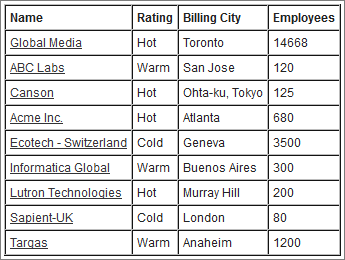
6</apex:page>Apex クラスを使用してフローを {!myflow} に設定し、Visualforce ページを使用してフローインタビューを実行する例を次に示します。Visualforce ページは、データテーブルを使用して、フローの sObject コレクション変数を反復処理し、コレクションの各項目の値を表示します。
1public class MyCustomController {
2   public Flow.Interview.flowname myflow { get; set; }
3}1<apex:page controller="MyCustomController" tabStyle="Account">
2 <flow:interview name="flowname" interview="{!myflow}" reRender="nameSection" />
3 <!-- The data table iterates over the variable set in the "value" attribute and
4 sets that variable to the value for the "var" attribute, so that instead of
5 referencing {!myflow.collectionVariable} in each column, you can simply refer
6 to "account".-->
7 <apex:dataTable value="{!myflow.collectionVariable}" var="account"
8 rowClasses="odd,even" border="1" cellpadding="4">
9 <!-- Add a column for each value that you want to display.-->
10 <apex:column >
11 <apex:facet name="header">Name</apex:facet>
12 <apex:outputlink value="/{!account['Id']}">
13 {!account['Name']}
14 </apex:outputlink>
15 </apex:column>
16 <apex:column >
17 <apex:facet name="header">Rating</apex:facet>
18 <apex:outputText value="{!account['Rating']}"/>
19 </apex:column>
20 <apex:column >
21 <apex:facet name="header">Billing City</apex:facet>
22 <apex:outputText value="{!account['BillingCity']}"/>
23 </apex:column>
24 <apex:column >
25 <apex:facet name="header">Employees</apex:facet>
26 <apex:outputText value="{!account['NumberOfEmployees']}"/>
27 </apex:column>
28 </apex:dataTable>
29</apex:page>フローの sObject コレクション変数のコンテンツに応じて、データテーブルは次のようになります。