Complete these steps regardless of your storefront architecture. They configure SLAS, Business Manager, and the platform features that Hybrid Auth depends on.
Step 1: Set Up a SLAS Client
Hybrid Auth supports both SLAS public and private clients. Create a SLAS client if you don’t already have one. For details, see Authorization for Shopper APIs.
Starting with B2C Commerce version 26.6, Hybrid Auth supports the x-slas-client-auth header for private clients using Strict Client Auth. Use this header with /login and /authorize endpoints to pass client credentials directly.
Step 2: Enable Session Bridging
Update the scope of the SLAS client used for Hybrid Auth to include sfcc.session_bridge.
Use the same client ID in Hybrid Auth and in your storefront application (Storefront Next, PWA Kit, or SFRA/SiteGenesis).
Step 3: (Optional) Configure Third-Party IDP and Social Login
Starting with B2C Commerce version 25.8, Hybrid Auth supports Third-Party IDP and Social Login. Perform all third-party IDP interactions with SLAS, not Business Manager.
Create an OAuth client in the IDP’s administration portal.
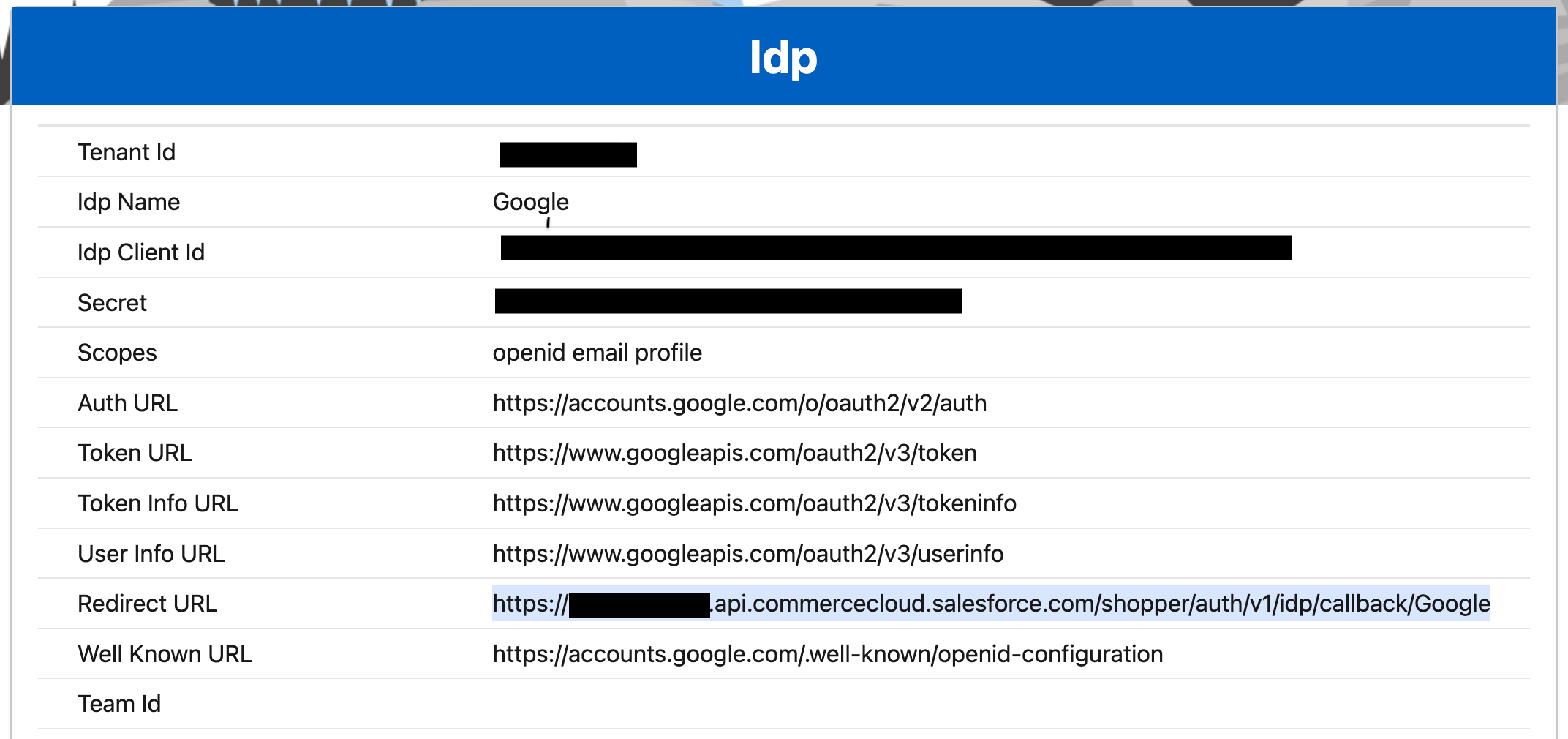
Use the SLAS Admin API or SLAS Admin UI to configure the IDP for a SLAS tenant. In the SLAS Admin UI, go to the Idps tab, select Add Idp, and add the SLAS callback URL as the Redirect URL, for example: https://$SHORT_CODE.api.commercecloud.salesforce.com/shopper/auth/v1/idp/callback/$IDP_NAME.
The IDP name in the SLAS Admin configuration is case sensitive and must match the OAuth Provider ID in SFRA/SiteGenesis.
Note
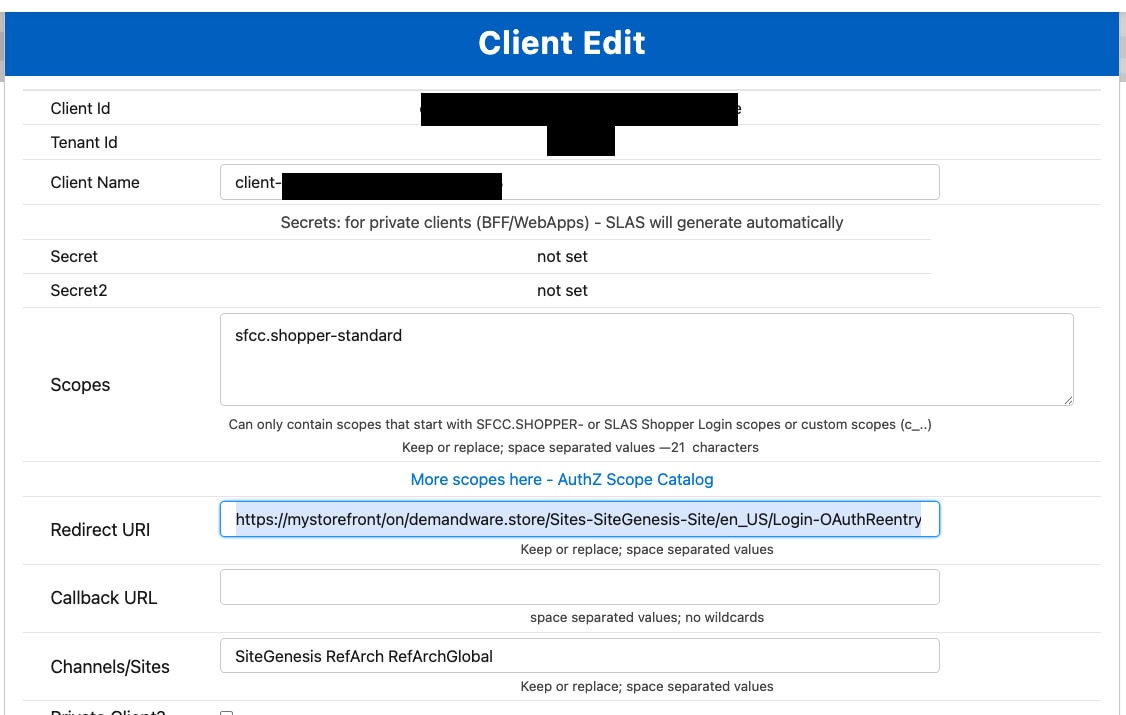
Add the SFRA/SiteGenesis Login-OAuthReentry redirect URIs to the SLAS client ID in the SLAS Admin UI. For B2C Commerce v26.4 and later, separate multiple URIs with a pipe delimiter, for example: https://<Site Host Name 1>/on/demandware.store/Sites-<Site Id>-Site/<locale1>/Login-OAuthReentry|https://<Site Host Name 2>/on/demandware.store/Sites-<Site Id>-Site/<locale2>/Login-OAuthReentry.
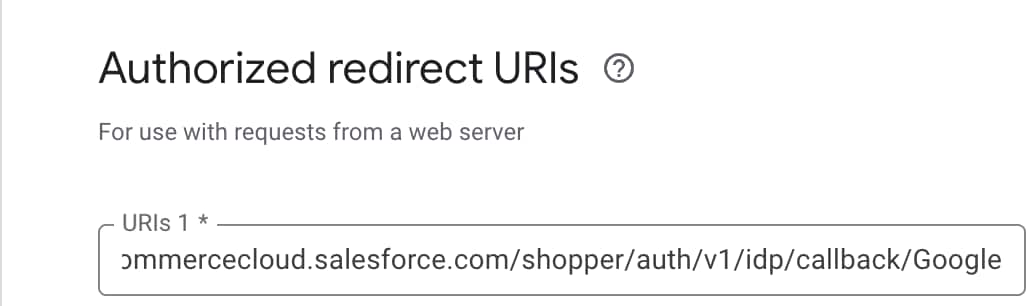
Add the SLAS callback URI in the IDP’s administration portal, for example: https://$SHORT_CODE.api.commercecloud.salesforce.com/shopper/auth/v1/idp/callback/$IDP_NAME.
Step 4: Configure Business Manager
In Business Manager, go to Merchant Tools.
Select a site that matches your setup, for example: RefArch, RefArchGlobal, or SiteGenesisGlobal.
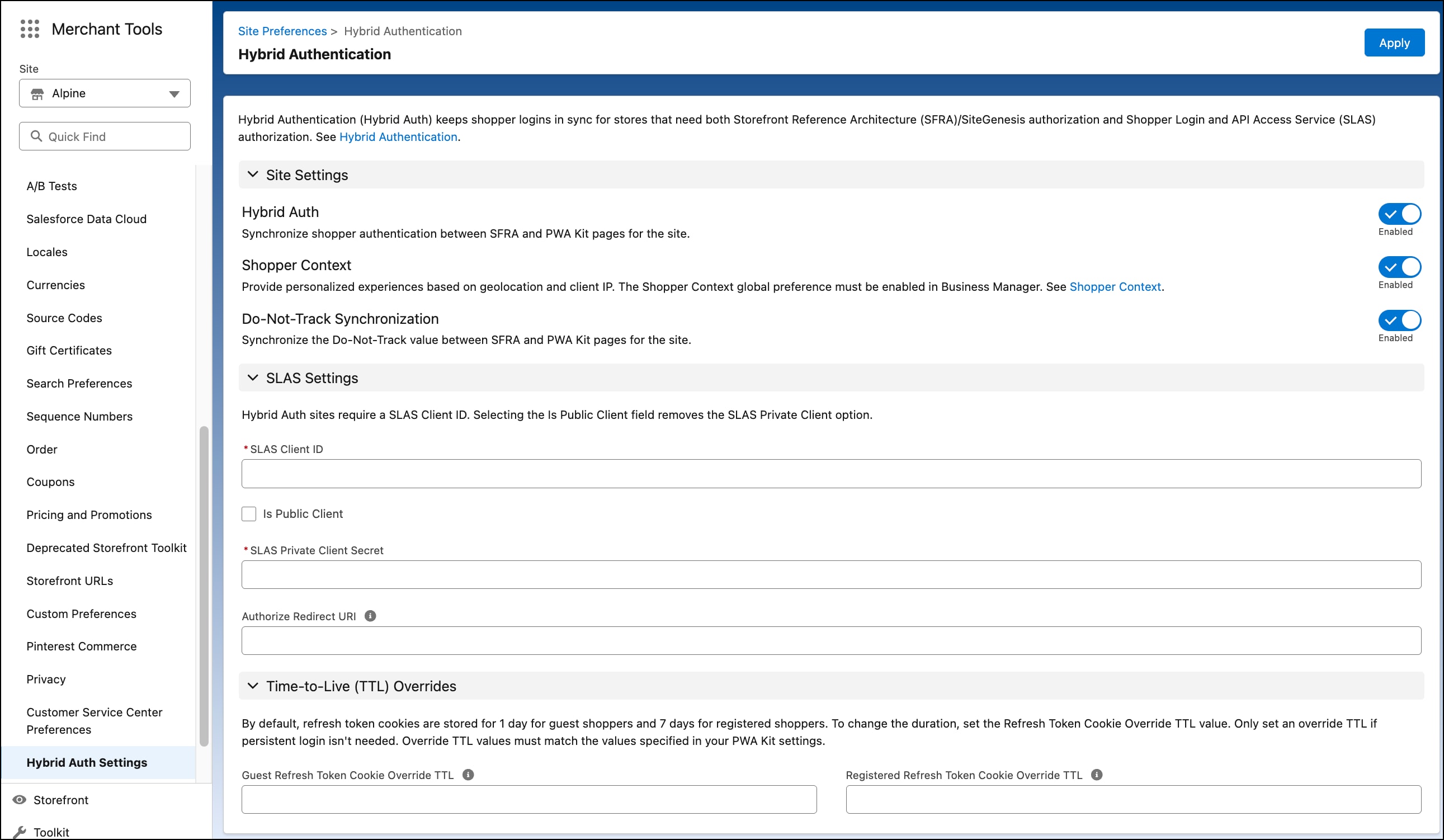
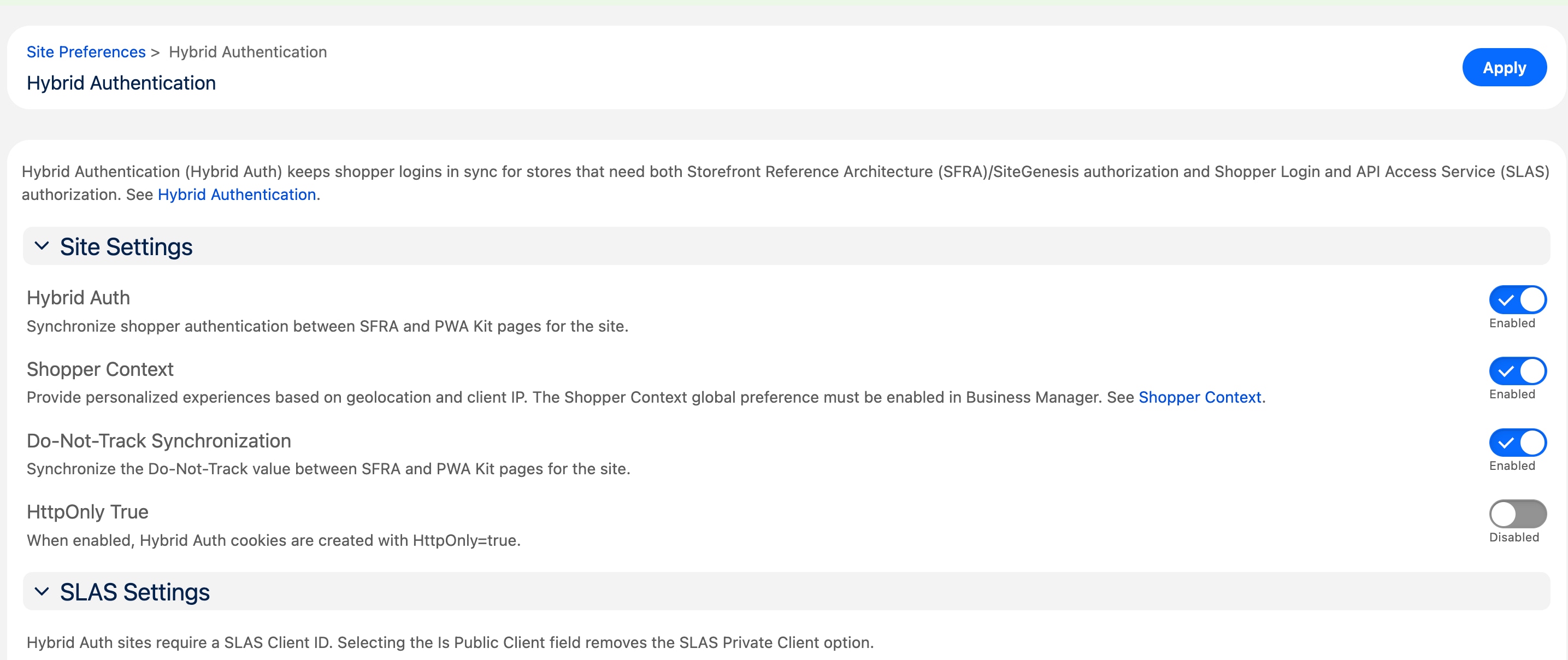
In the quick-find box, search for “hybrid auth” and select Hybrid Auth Settings. For B2C Commerce version 25.10, the Business Manager interface was updated. If you’re using a version earlier than 25.10, the options differ slightly.
Enable the Hybrid Auth toggle.
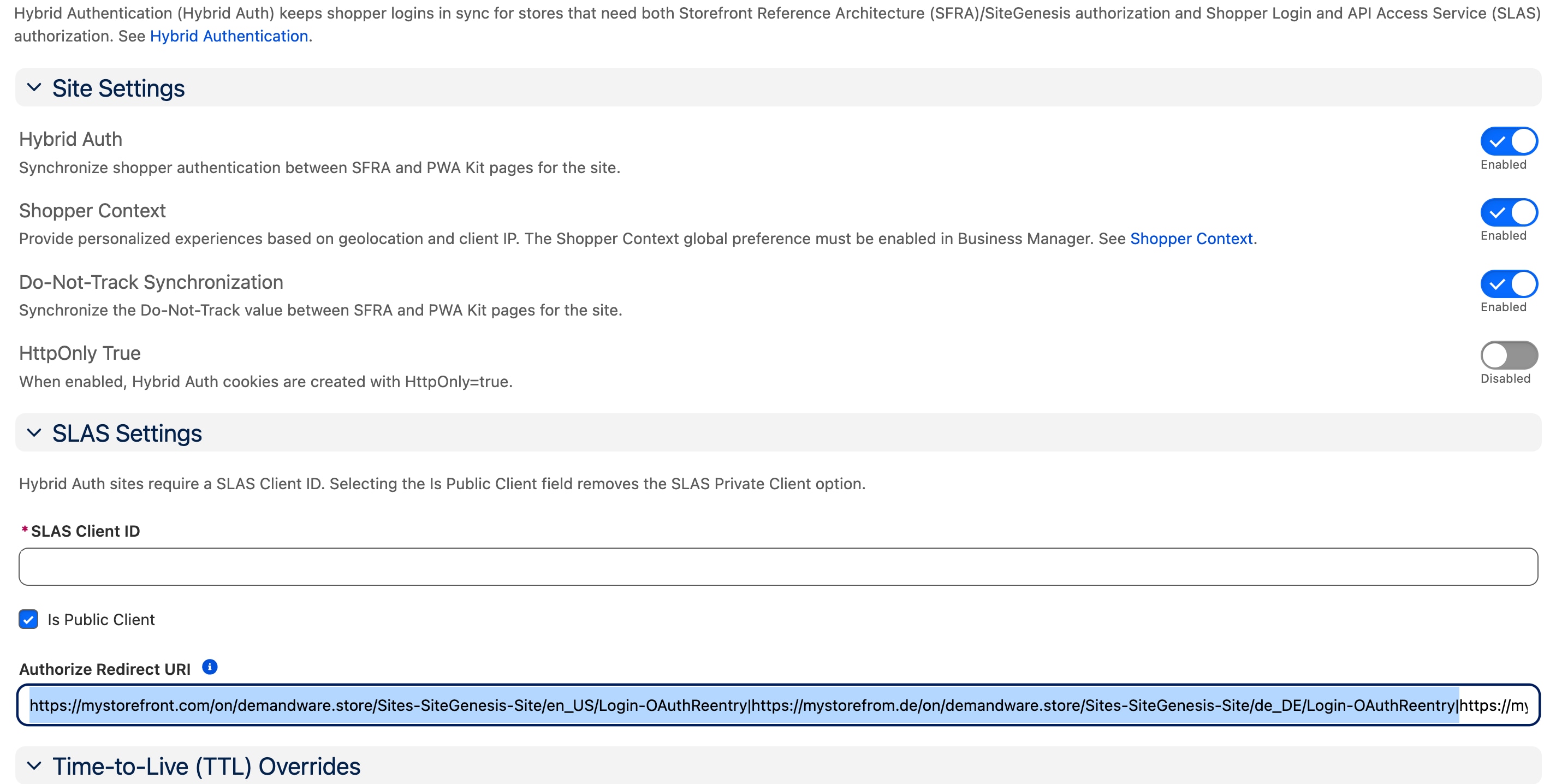
Enter your SLAS client ID (public or private).
For a public client, select the Is Public Client checkbox.
For a private client, enter your SLAS private client secret.
Enable the Shopper Context toggle to use Shopper Context features with Hybrid Auth.
Enable the Do-Not-Track Synchronization toggle to use DNT sync with Hybrid Auth.
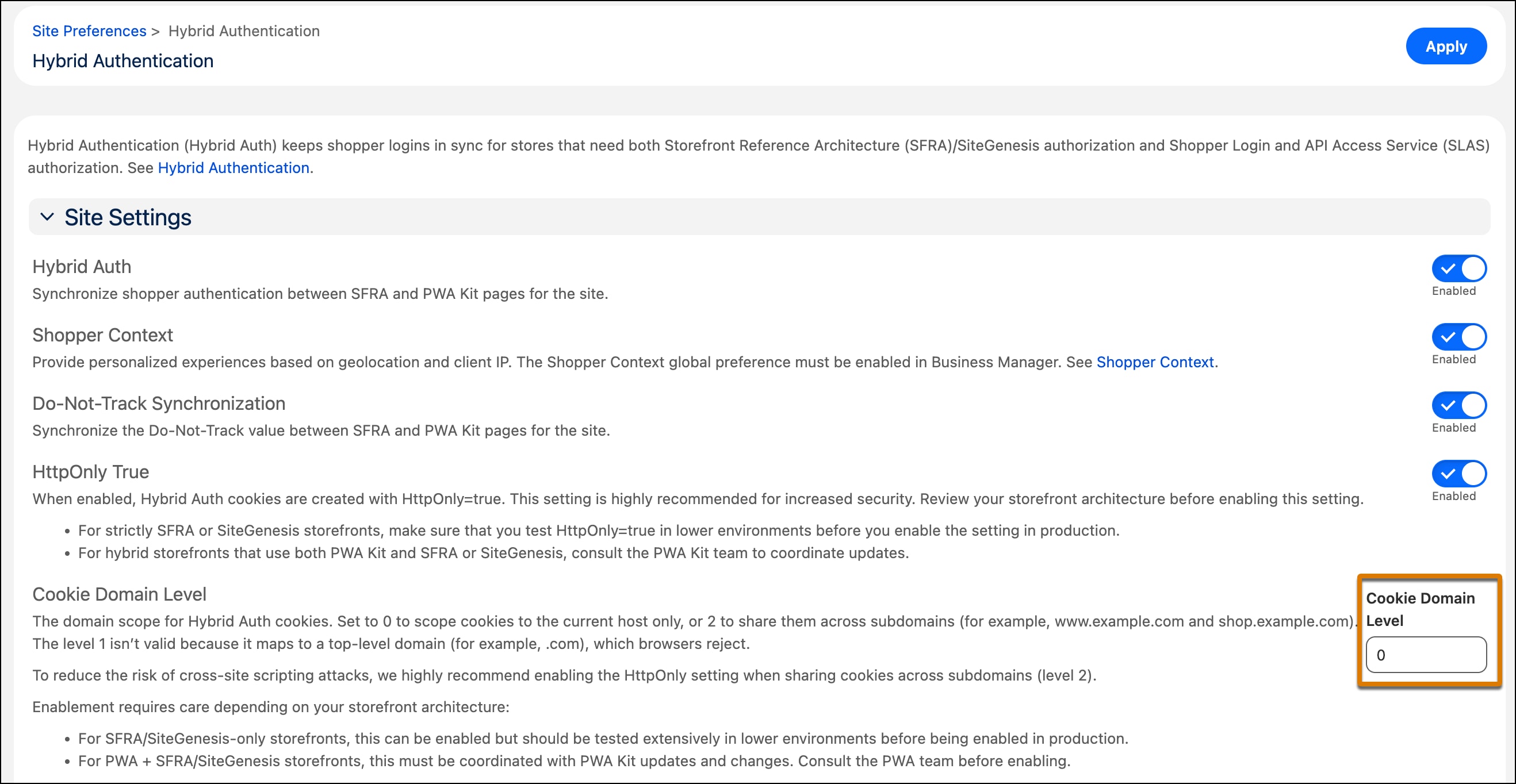
(Recommended) Starting with B2C Commerce version 26.7, turn on HTTPOnly True to enhance cookie security. When enabled, Hybrid Auth cookies are set with the HttpOnly flag, which prevents client-side JavaScript from accessing them. Turn this on if you set the cookie domain level (step 11). This toggle doesn’t affect Storefront Next, which always sets its cookies with HttpOnly=true regardless of this setting. For PWA Kit and other headless storefronts, HTTPOnly True is optional but recommended for security.
For hybrid storefronts using PWA Kit or another headless solution, coordinate this setting with your headless application. Make sure your PWA Kit or headless app is configured to work with HttpOnly cookies before you enable this toggle. For details, see HttpOnly Mode: SLAS Property Storage Mapping in the PWA Kit docs on GitHub.
For SFRA, SiteGenesis, and Storefront Next storefronts, no additional setup is required.
(Optional) If you enable a third-party IDP or Social Login in SFRA pages, set the Redirect URI. For B2C Commerce v26.4 and later, specify multiple Login-OAuthReentry endpoints separated by a pipe delimiter.
(Optional) Starting with B2C Commerce version 25.8.1, to lower the guest refresh token TTL from the default 30 days, enter a value between 360 and 43200 (6 hours to 30 days, in minutes) in Guest Refresh Token Cookie Override TTL. Configure your storefront’s guest refresh token cookie TTL to the same value.
(Optional) Starting with B2C Commerce version 25.8.1, to lower the registered refresh token TTL from the default 90 days, enter a value between 360 and 129600 (6 hours to 90 days, in minutes) in Registered Refresh Token Cookie Override TTL. Configure your storefront’s registered refresh token cookie TTL to the same value.
(Optional) Starting with B2C Commerce version 26.7, set the domain scope for Hybrid Auth cookies. To scope cookies to the current host only, enter 0 for the cookie domain level. To share cookies across subdomains (for example, to share the cookie with www.example.com and shop.example.com), set the level to 2. If you set the cookie domain level, make sure you’ve also turned on HTTPOnly True (step 7).
If your storefront uses PWA Kit or Storefront Next, coordinate this setting with the corresponding cookie domain configuration in your headless application. For details, see Hybrid Cookie Domain Configuration in the PWA Kit docs on GitHub.
Click Apply.
In Business Manager, click App Launcher and select Administration.
In the quick-find box, search for Security.
Select the Access Restriction tab.
Enable the Enforce HTTPS checkbox.
Click Apply.
Step 5: Remove Plugin SLAS (If Migrating)
With the migration to Hybrid Auth, Plugin SLAS is no longer required.
Complete these steps only if you previously used Plugin SLAS. If you have a new hybrid storefront and never used Plugin SLAS, skip this step.
Shopper authentication customizations that aren’t specific to Plugin SLAS should continue to work as is.
Review Plugin SLAS-specific customizations, because they might not be required or might need to be re-implemented in a different cartridge.
Implement customizations in a separate cartridge instead of modifying out-of-the-box SFRA cartridge code.
Make sure none of your custom cartridge code calls session bridging endpoints. Hybrid Auth handles session bridging for you.
Step 6: Remove OCAPI Permissions (If Migrating from Plugin SLAS)
Hybrid Auth is fully SCAPI-based and doesn’t require OCAPI. If you’re migrating from Plugin SLAS, remove OCAPI permissions for the client ID you use for Hybrid Auth to improve security and prevent configuration conflicts.
In Business Manager, go to Administration > Site Development > Open Commerce API Settings.
Remove your Hybrid Auth client ID from the OCAPI configuration.
If you need OCAPI access for other applications, use a different client ID. Never share a client ID between Hybrid Auth and OCAPI.
Note
Step 7: (Optional) Set Shopper Context
For Hybrid Auth, we recommend using Shopper Context to drive geolocation-based personalization for promotions, customer groups, and region-specific content.
To maintain consistency across a hybrid storefront, use the same geolocation for both SCAPI and controller calls:
Call Shopper Context with the clientIp.
Set the evaluateContextWithClientIp query parameter to true. You must set &evaluateContextWithClientIp=true for the IP-related context features to work correctly.
Step 8: (Optional) Enable or Disable Do-Not-Track Synchronization
To enable or disable DNT synchronization in Business Manager, go to Merchant Tools > Select Site > Site Preferences > Hybrid Auth Settings.
SFRA-only sites: the DNT value is automatically synchronized to the extended session, ensuring a seamless experience across sessions.
SFRA and PWA Kit hybrid implementations (new and existing): when you enable both Hybrid Auth and DNT synchronization, the tracking consent provided by a shopper on one site is automatically synchronized with the other site. For example, in a hybrid site where the home page runs on PWA Kit and the cart page runs on SFRA:
On the home page (PWA Kit), the shopper is presented with a consent form and provides their tracking preference.
When the shopper navigates to the cart page (SFRA), the DNT value from PWA Kit is synchronized with SFRA.
As a result, the SFRA cart page does not prompt the shopper for tracking consent again.
SFRA and non-PWA Kit headless hybrid implementations (new and existing): leverage the DNT synchronization implemented in the platform provided that:
If you customize the default DNT implementation, the default synchronization might not be required nor work as expected. In such cases, disable DNT synchronization using a site preference. You can still enable Hybrid Auth even if DNT synchronization is turned off.
DNT Cookie Expiration
There is a key difference in DNT cookie expiration between SFRA and PWA Kit:
SFRA sets the DNT cookie to expire at the end of the session.
PWA Kit sets the expiration to match the refresh token’s lifespan (for example, 30 days for guest users).
When a shopper moves from a PWA Kit page to an SFRA page, the DNT cookie’s expiration changes from the refresh token’s expiry to a session-based expiry. If the shopper closes the browser, the cookie is deleted. As a result, when the shopper returns, the tracking consent popup/banner is displayed again as expected.
Next Steps
After you complete the shared setup, finish configuring Hybrid Auth for the storefront architecture you chose:


 and select Administration.
 j
j