Build a Custom Navigation Model for Your Flow Screens
This Page
All Documentation
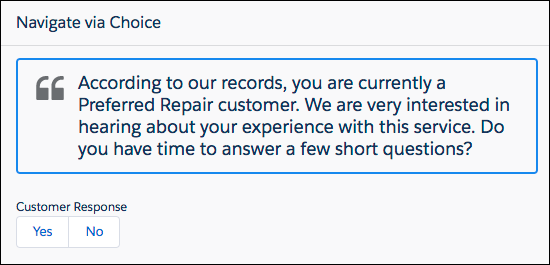
Since Aura components have access to a flow screen’s navigation actions, you can fully customize how the user moves between screens. For example, hide the default navigation buttons and have the flow move to the next screen when the user selects a choice. The c:choiceNavigation component displays a script and a choice in the form of buttons.
c:choiceNavigation Component
1<aura:component implements="lightning:availableForFlowScreens" access="global" >2 <!-- Get the script text from the flow -->3 <aura:attribute name="scriptText" type="String" required="true" />4 <!-- Pass the value of the selected option back to the flow -->5 <aura:attribute name="value" type="String" />67 <!-- Display the script to guide the agent's call -->8 <div class="script-container">9 <div class="slds-card__header slds-grid slds-p-bottom_small slds-m-bottom_none">10 <div class="slds-media slds-media_center slds-has-flexi-truncate" >11 <div class="slds-media__figure slds-align-top">12 <h2><lightning:icon iconName="utility:quotation_marks"13 title="Suggested script" /></h2>14 </div>15 <div class="slds-media__body">16 <ui:outputRichText class="script" value="{!v.scriptText}"/>17 </div>18 </div>19 </div>20 </div>21 <!-- Buttons for the agent to click, according to the customer’s response -->22 <div class="slds-p-top_large slds-p-bottom_large">23 <p><lightning:formattedText value="Customer Response"24 class="slds-text-body_small" /></p>25 <lightning:buttongroup >26 <lightning:button label="Yes" aura:id="Participate_Yes"27 variant="neutral" onclick="{!c.handleChange}"/>28 <lightning:button label="No" aura:id="Participate_No"29 variant="neutral" onclick="{!c.handleChange}"/>30 </lightning:buttongroup>31 </div>32</aura:component>
c:choiceNavigation Design
The design resource includes the scriptText attribute, so you can set the script from the flow.
1<design:component>2 <design:attribute name="scriptText" label="Script Text"3 description="What the agent should say to the customer" />4</design:component>
When the user clicks either of the buttons, the JavaScript controller calls navigateFlow(“NEXT”), which is the equivalent of the user clicking Next.
1({2 handleChange: function(component, event, helper){3 // When an option is selected, navigate to the next screen4 var response = event.getSource().getLocalId();5 component.set("v.value", response);6 var navigate = component.get("v.navigateFlow");7 navigate("NEXT");8},9});
defaultTokens.tokens
The script in c:choiceNavigation uses tokens to stay in sync with the Salesforce Lightning Design System styles.


 j
j